Agenda: what to do next on your project
How Miraqo's Agenda works — the tasks your project suggests by itself (keywords, audit, Search Console, indexing, competitors, backlinks) with priority, effort and done/ignored status.
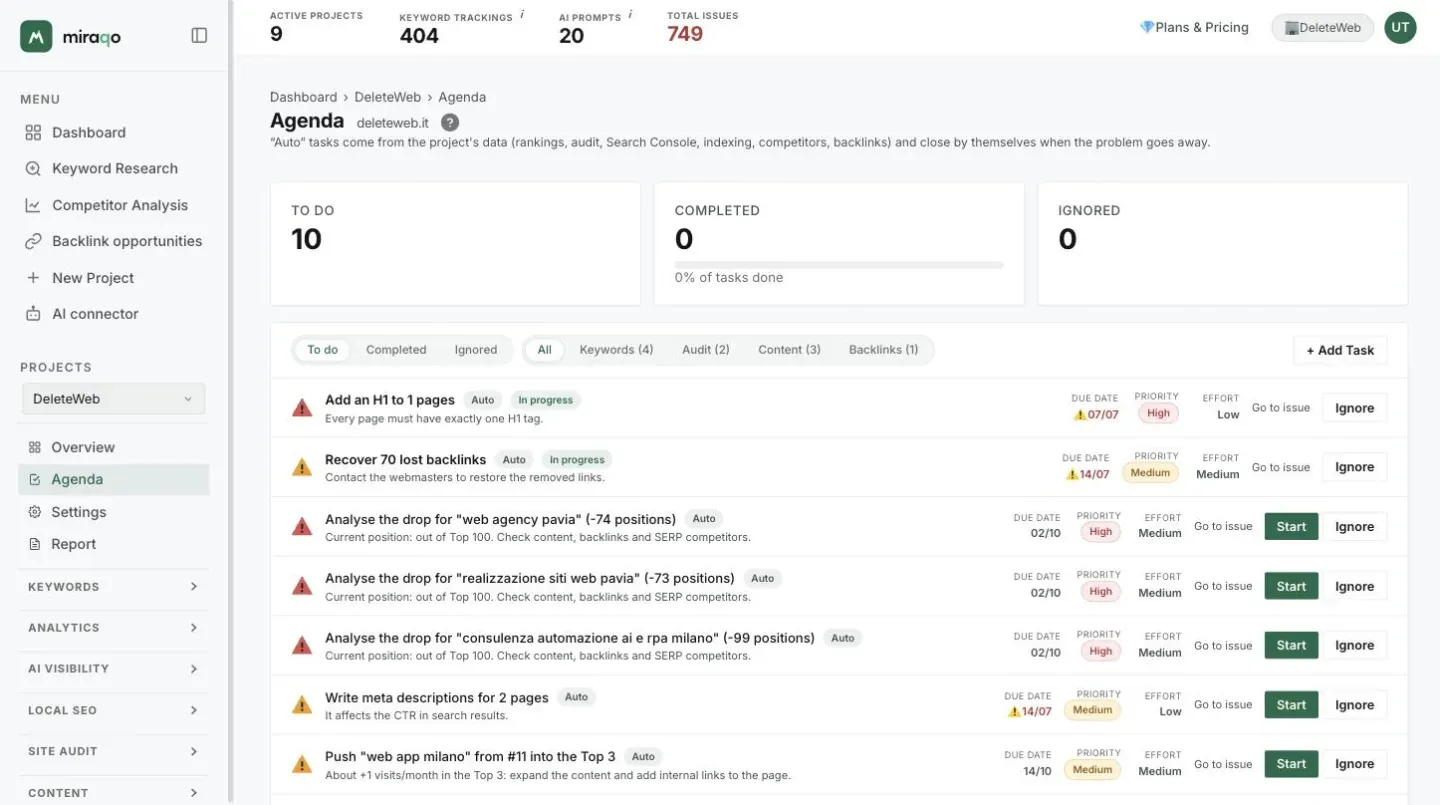
The Agenda is the to-do list for a project. Miraqo fills it in by itself from the data it already collects (rankings, audit, Search Console, competitors, backlinks), and you can add your own tasks. It uses no quota: it only reads data that is already there.
You find it in two places:
- in the project Overview, the Agenda card with the first 8 open tasks;
- on the Agenda page in the project menu, with every task, filters and progress.
Where the automatic tasks come from
Tasks marked Auto are refreshed every time you open the Overview or the Agenda:
| Type | When it appears |
|---|---|
| Keywords | a keyword loses 5 or more positions between the last two checks; a keyword enters the Top 3 |
| Keywords | one for each keyword in the To push list (position 4-20, stable, with traffic to gain) |
| Keywords | one for each untracked query from Search Console: Google already shows you, but you don’t track it |
| Content | one for each page in Declining content (−25% clicks versus the previous 28 days) |
| Content | the 3 competitor keywords with the most volume where you don’t rank: Create content |
| Indexing | pages that dropped out of Google’s index in the last 30 days |
| Audit | from the latest audit: 404 and 5xx errors, broken internal links, HTTP pages, missing or duplicate titles, missing H1 and descriptions, images without alt; audit older than 30 days or never run |
| Backlinks | lost backlinks |
The Search Console and indexing sources need Search Console connected; competitor keywords need at least one competitor in the project.
Every task has a Go to issue link that opens the page where you fix it.
Priority and effort
- Priority (High, Medium, Low) tells you how urgent it is: a 404 error or a page that left the index comes before an alt text.
- Effort tells you how much work it takes. It is a fixed rule per task type, the same for every project, not a calculated score:
- Low: text and metadata (title, description, alt, queries to add to tracking);
- Medium: technical fixes, pages to update, keywords to push, backlinks to recover;
- High: new content to write.
The best-value tasks are the ones with high priority and low effort.
Done, ignored, reopened
For each task you can:
- click the icon on the left to mark it Completed;
- click Start to mark it In progress;
- click Ignore if it doesn’t matter to you.
A completed or ignored automatic task does not come back while the problem stays the same. When the problem disappears from the data, the task closes; if it shows up again later, a new task is created.
There is one exception: if you mark an audit task as completed and a newer audit still finds the problem, the task goes back to To do. That way an error you thought you had fixed doesn’t stay hidden.
Completed and ignored tasks stay under the Completed and Ignored filters on the Agenda page, where you can Reopen them.
Filters and progress
At the top of the Agenda page you see how many tasks are to do, completed and ignored, with a progress bar (completed out of completed plus open).
The filters pick the status (To do, Completed, Ignored) and the type (Keywords, Audit, Content, Backlinks, Indexing, Manual).
Manual tasks
With + Add Task you add your own task with a description, priority and due date. Manual tasks have no effort and can be deleted with the ✕.
To add, complete or ignore tasks you need permission to edit the project: see user permissions.
Last updated: 29 September 2026