Your account: profile, password and 2FA
Manage your Miraqo account: profile, password, 2FA, theme and language, organisations, email notifications globally and per project, and account deletion.
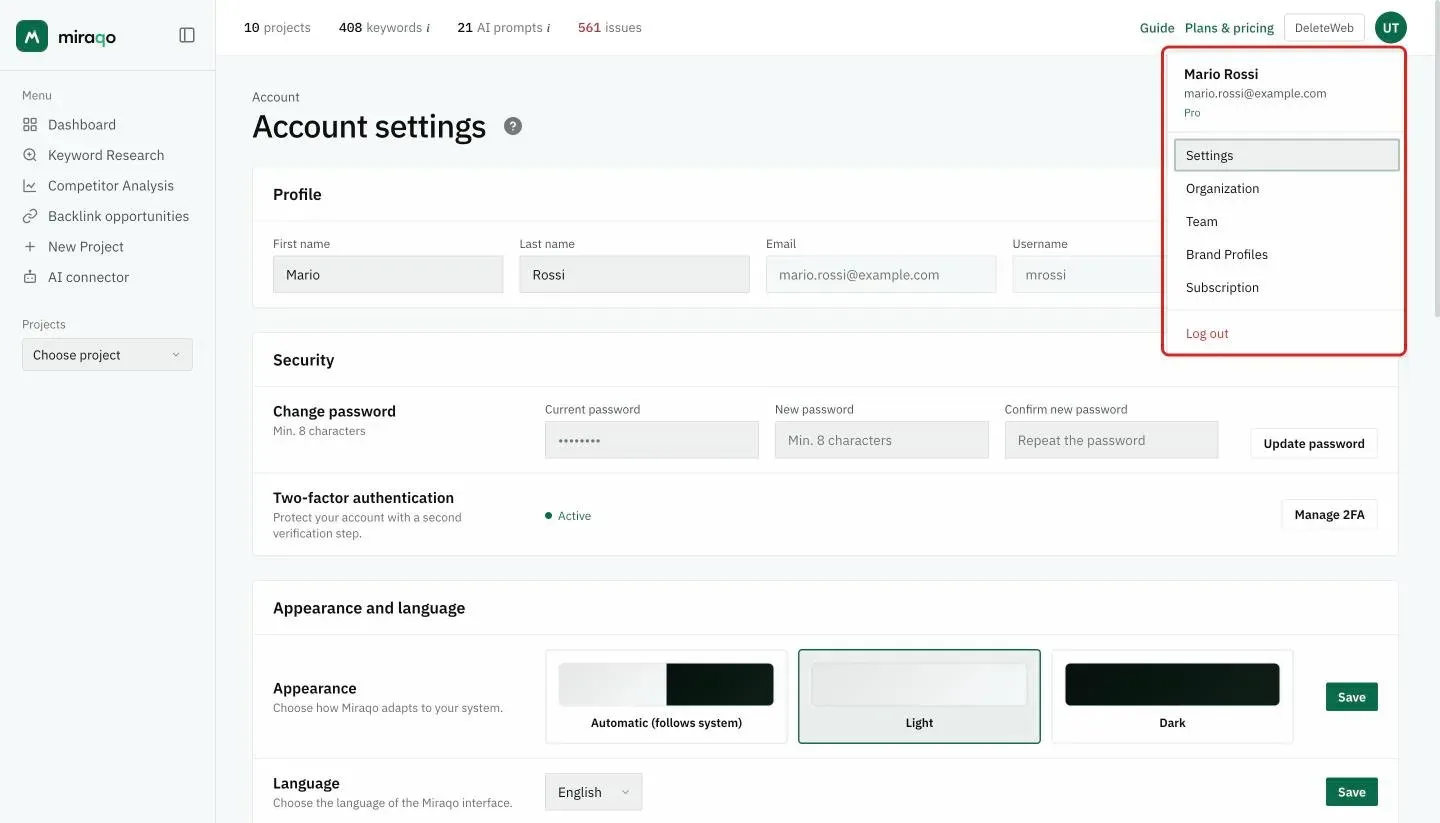
The Account settings page collects everything related to your personal profile, login security and notifications. Reach it from the top-right menu (click your initials) → Settings.
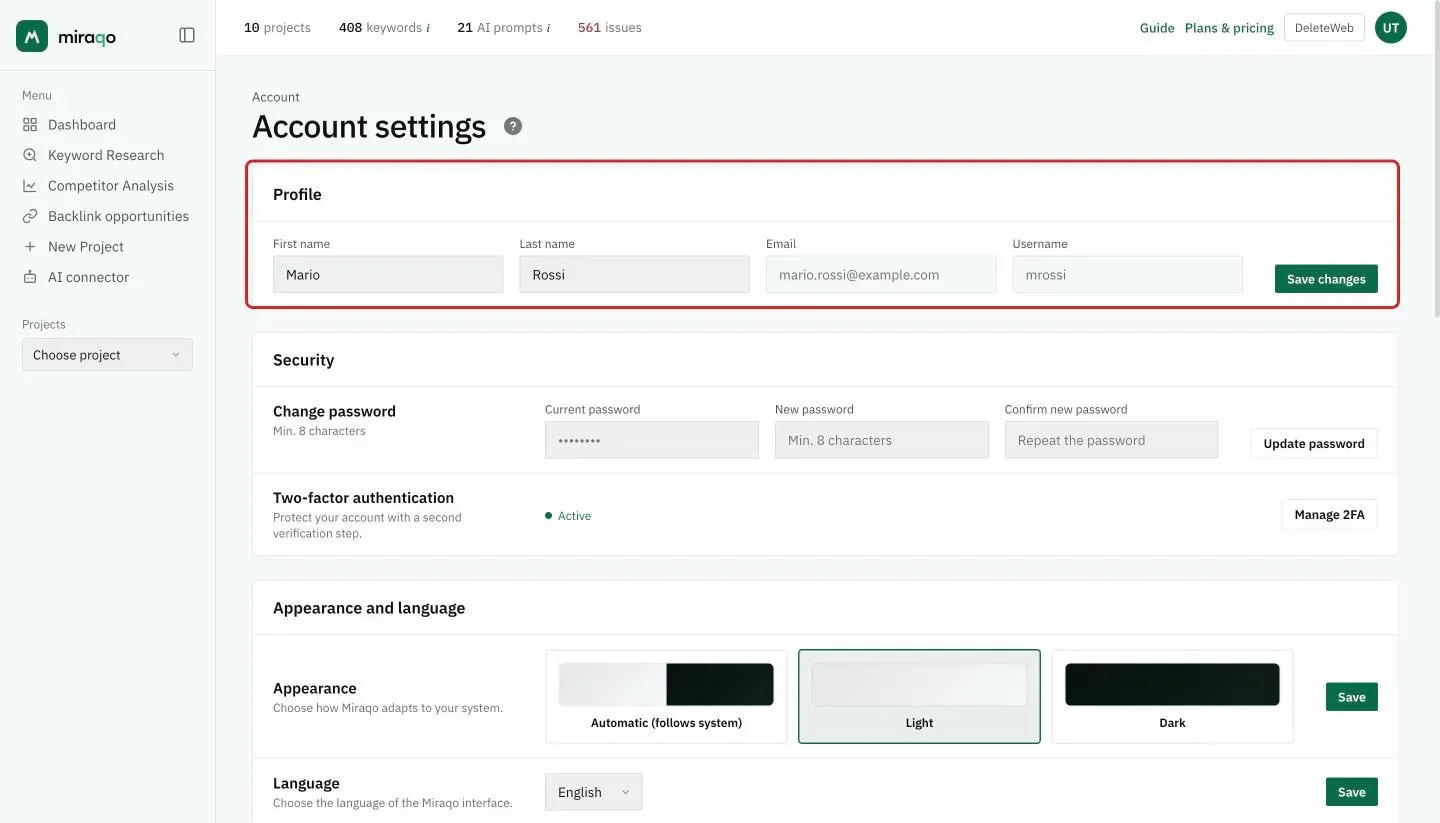
Profile
Update your First name and Last name. Email and username are shown but not editable: to change them contact support.
Change password
Set a new password by entering your current one and confirming the new one (minimum 8 characters). If you sign in with Google, you don’t have a Miraqo password: manage credentials directly from your Google account. After every change you get a confirmation email: if it wasn’t you, reset your password right away from the login page.
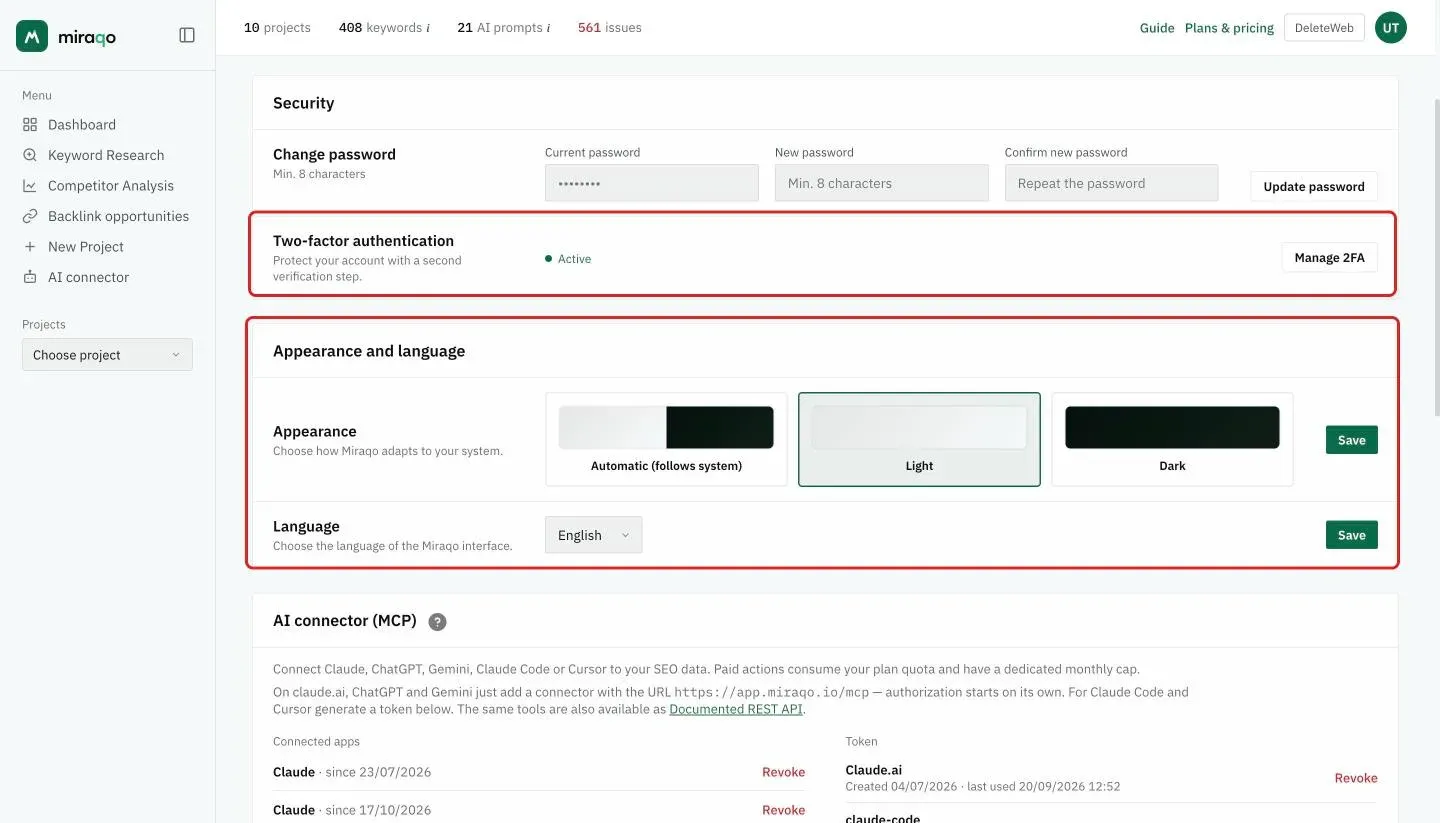
Two-factor authentication (2FA)
2FA adds a second layer of security: in addition to your password you need a temporary 6-digit code generated by an authenticator app.
How to enable it
- From the Two-Factor Authentication section click Enable 2FA.
- Step 1 — Scan the QR code with an app like Google Authenticator, Authy or 1Password.
- Step 2 — Verify the code: enter the 6-digit code shown by the app to confirm.
From that moment, every login will ask for the code in addition to the password.
How to disable it
From Manage 2FA enter a valid code from the authenticator app to disable the protection.
Important: Miraqo doesn’t generate backup codes. If you lose access to the authenticator app, you’ll need to contact support to recover the account. Keep the app installed on a trusted device (or use apps like Authy/1Password that sync across multiple devices).
Appearance
Choose the interface theme from three options:
- Automatic (default) — follows system settings (light during the day, dark at night if the OS has it enabled).
- Light
- Dark
The preference is personal and follows your account across all devices.
Language
Choose the interface language (Italian, English, German, French or Spanish) and click Save. It applies to the app and to the emails you receive.
My Organisations
See the workspaces you belong to, with the active plan and number of keywords. The current organisation is marked Active; to switch to another use Switch.
The card sits at the bottom of the page (you can see it in the per-project notifications image further down). To manage members and branding of an organisation see Organisation & team.
Email notifications
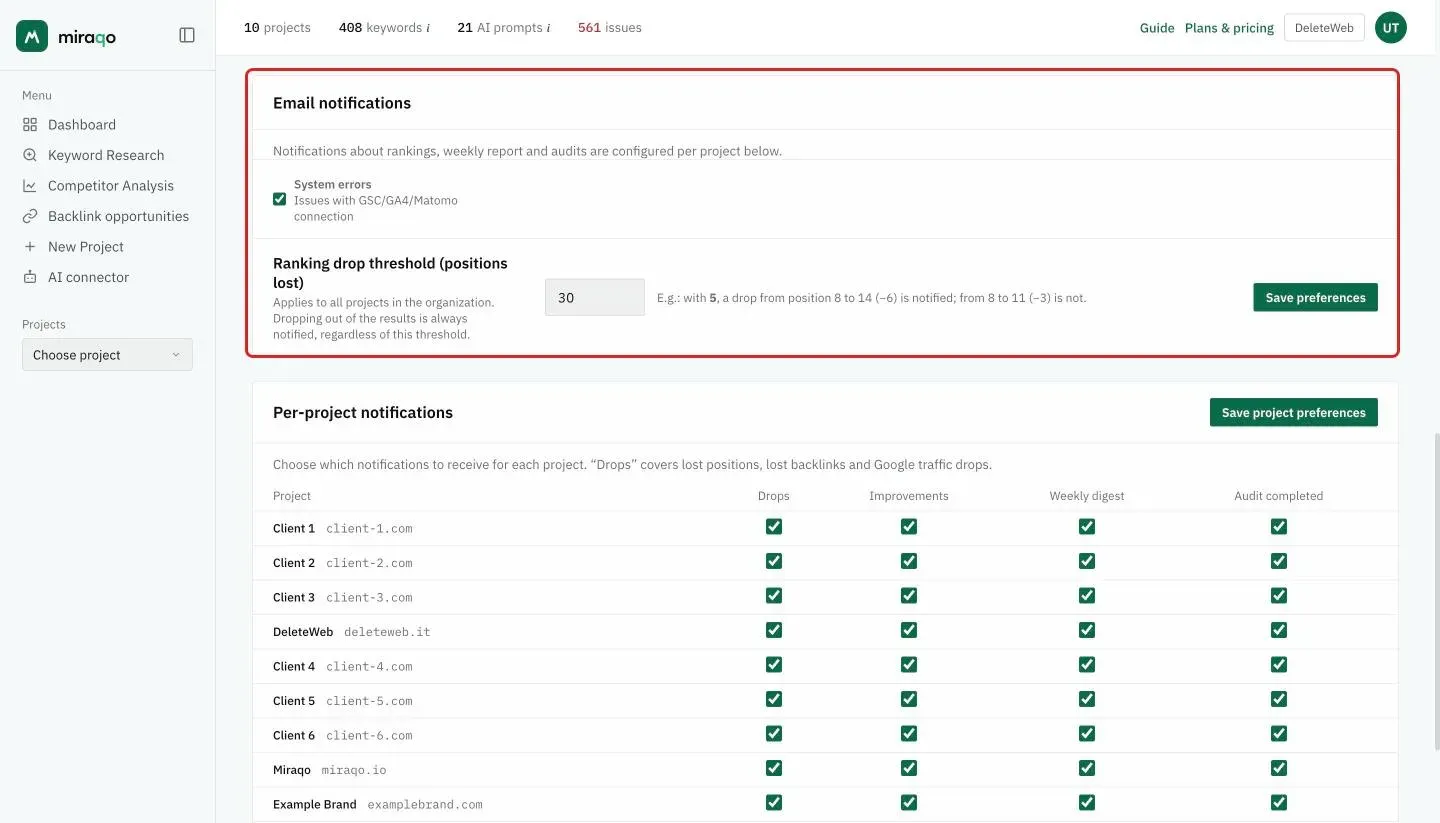
This section is only visible to the organisation owner (other people manage their own preferences only from the “Notifications per project” table below).
Contains two global controls:
- System errors — notifies problems with Search Console, GA4 or Matomo connections. Emails only go to the organisation owner.
- Ranking drop threshold — the minimum number of positions lost beyond which a drop notification is triggered. Applies to all projects in the org. Default: 5. Example: with threshold 5, a drop from position 8 to 14 (−6) is notified, from 8 to 11 (−3) is not. Dropping out of results is always notified, regardless of the threshold.
Notifications per project
Table with one row for each project you have access to and four independently activatable columns:
- Drops — keywords that fall beyond the configured threshold. Also covers AI Visibility: you get an alert when a check finds that your brand is no longer mentioned in an AI answer, or that the site link has disappeared from the cited sources (per prompt and source; a single email per project at the end of the round). And Local SEO: an alert when your business disappears from one or more points of the grid on Google Maps. Since September 2026 the same box also covers lost backlinks (one email per project after each check, listing the vanished links with the highest domain authority) and Google traffic drops (clicks in the last 7 days down at least 30% versus the previous 7, with at least 50 clicks in the comparison week; at most one email a week).
- Improvements — keywords that rise significantly. Also applies to AI Visibility: an alert when your brand starts being mentioned where it wasn’t before, or when the site link appears among the sources. And to Local SEO: an alert when you show up in grid points where you weren’t before.
- Weekly digest — weekly email summary of the project. It includes an AI Visibility block (prompts mentioning your brand, new appearances and mentions lost during the week); the digest now also reaches projects that use only AI Visibility.
- Audit completed — notification when an on-page audit finishes running.
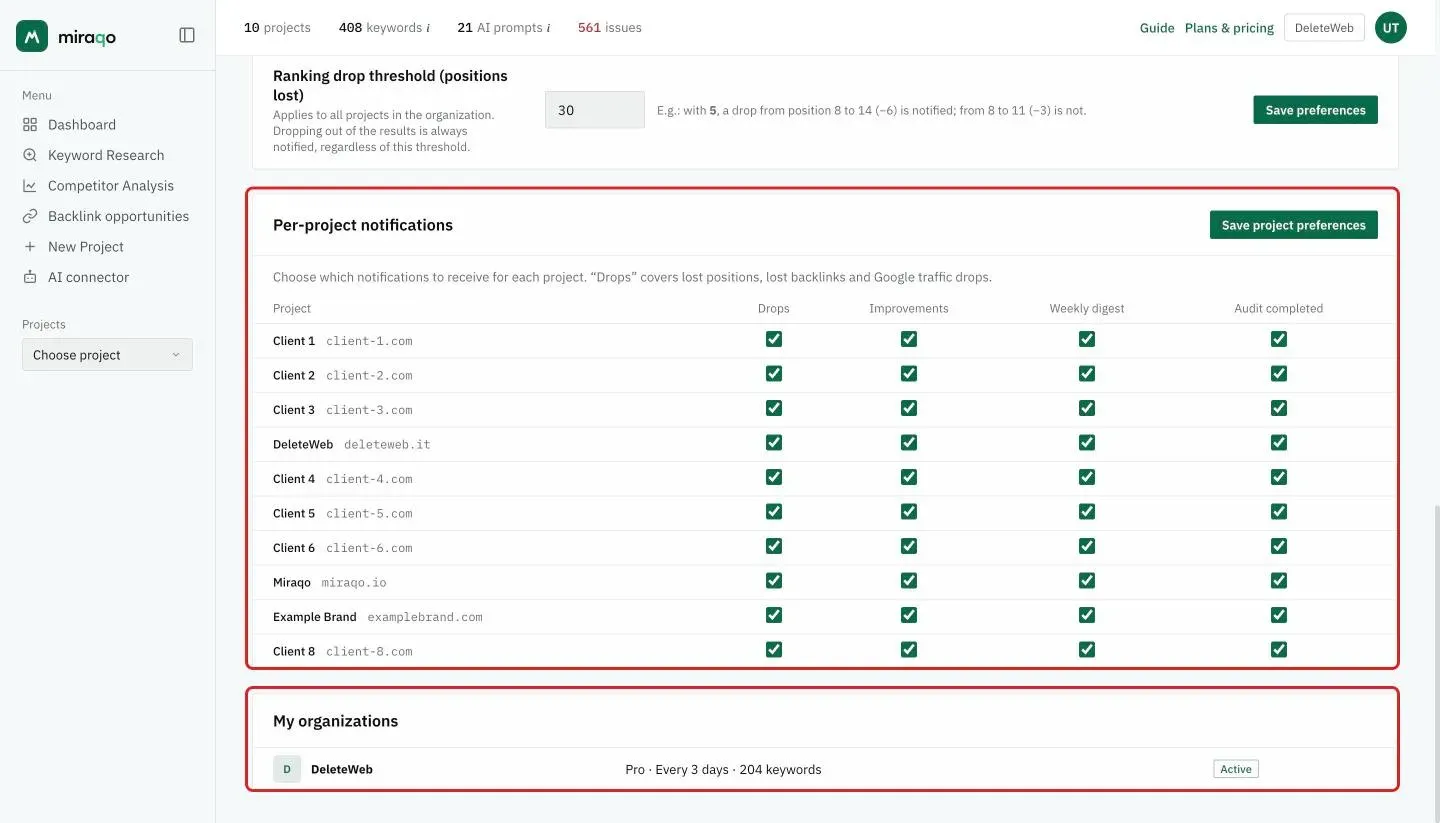
Preferences are personal: each team member configures their own project emails independently. AI Visibility notifications follow the project’s AI check cadence, which differs from the keyword cadence.
Local SEO has its own rhythm too: grids are re-checked every 7 days, and the email only goes out when coverage really moves — at least 2 points gained or lost (10% of the points on large grids). You get one email per project, listing the locations and keywords that moved. See Local ranking map.
Deleting your account
Your account is deleted together with the organisation: there is no separate button on this page. The owner does it from the top-right menu → Organization → the red Delete organization zone at the bottom of the page: type the exact name of the organisation and confirm from the link you receive by email (valid for 24 hours). This permanently deletes the organisation with all its data, the team accounts that don’t belong to other organisations, and your account; any active subscription is cancelled, with no further charges. Once it’s done you receive the Account deleted email. All the steps are in Organisation.
If you’re not the owner you can’t delete your account yourself: ask the owner or an admin to remove you from the team. If you don’t belong to other organisations, your account is deleted permanently.
Other service emails
Some emails have no checkbox: they confirm something you did.
- Password changed — confirmation after every password change.
- Account deleted — final confirmation after the organisation is deleted.
- Request received — receipt with the number of the request opened from in-app support; the reply goes to the same address.
- Terms of Service update — notice with the version and the date it applies from.
- Subscription emails (activation, plan changes, renewal, quotas, invoices) are described in Subscription & billing.
Last updated: 18 October 2026