Plan trackings and limits
How trackings work (keyword × device), why Desktop and Mobile count separately, the weekly check for keywords outside the top 100, and what happens if you exceed the cap.
A tracking is the unit of measurement of your plan’s consumption: 1 tracking = 1 keyword × 1 device. That’s all. A keyword tracked on both Desktop and Mobile therefore counts as 2 trackings — and that’s exactly why you can choose, keyword by keyword, which devices to track and keep consumption in check. If you also turn on YouTube for a keyword, it counts as one more tracking, like a third device (YouTube positions).
How many trackings are included
| Plan | Trackings included |
|---|---|
| Solo | 50 |
| Starter | 150 |
| Pro | 600 |
| Agency | 2,000 |
The cap is shared across all projects in the organisation, regardless of how many keywords each project has.
Consumption examples
With the Agency plan (2,000 trackings) there are several possible combinations:
- 1,000 keywords tracked Desktop + Mobile → 2,000 trackings
- 2,000 keywords tracked Mobile only → 2,000 trackings
- 1,500 Mobile keywords + 500 Desktop+Mobile keywords → 1,500 + 1,000 = 2,500 (over cap: you’d need to reduce)
- 1,500 Desktop+Mobile keywords + 500 Mobile-only keywords → 3,000 + 500 = 3,500 (over cap)
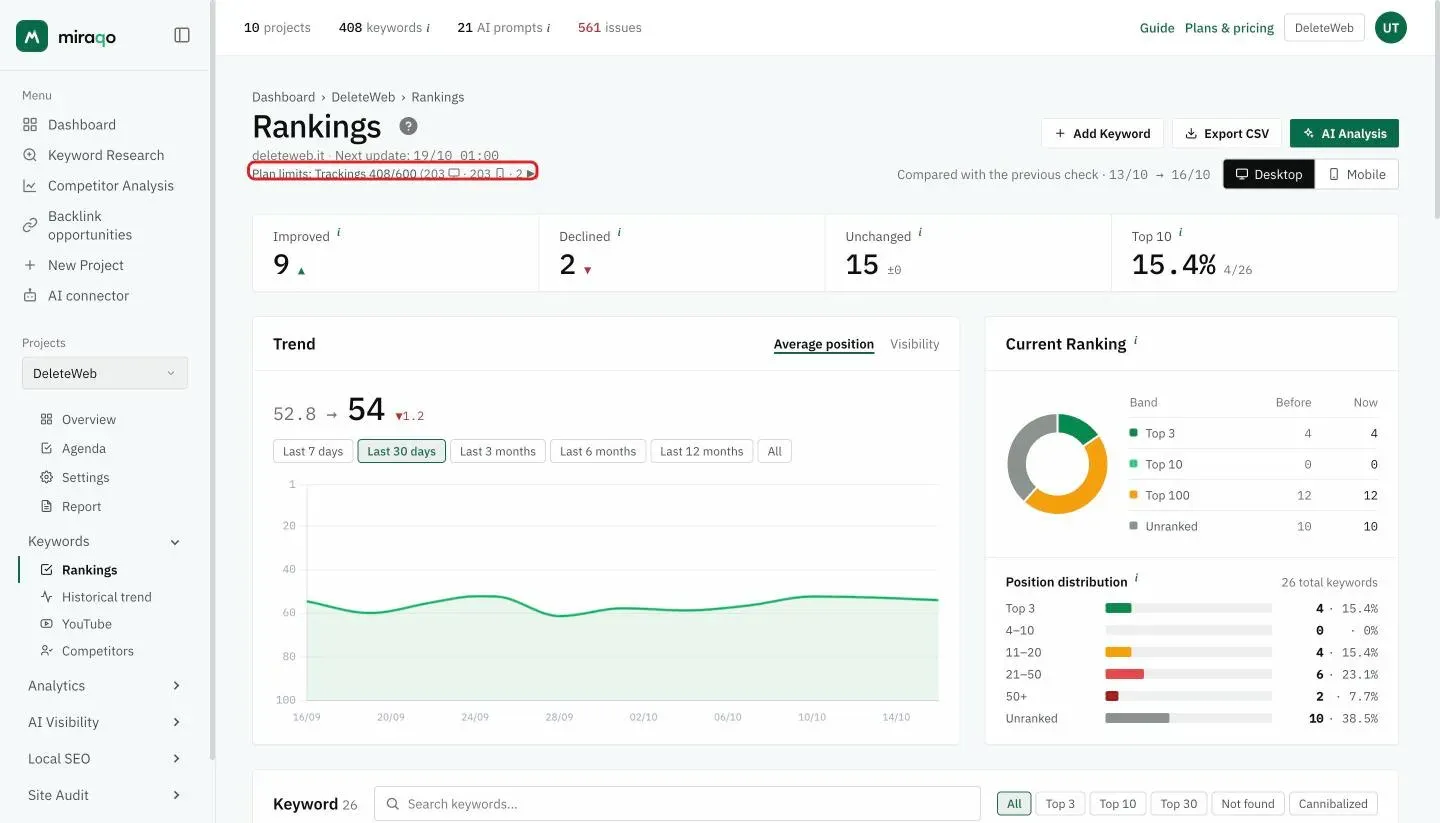
The real-time counter is always visible below the project page title, in the format:
Plan limits: Trackings 400/600 (199 desktop · 199 mobile · 2 YouTube)with the consumption breakdown by device in parentheses (monitor icon = desktop, phone icon = mobile, ▶ = YouTube).
Choosing which devices to track
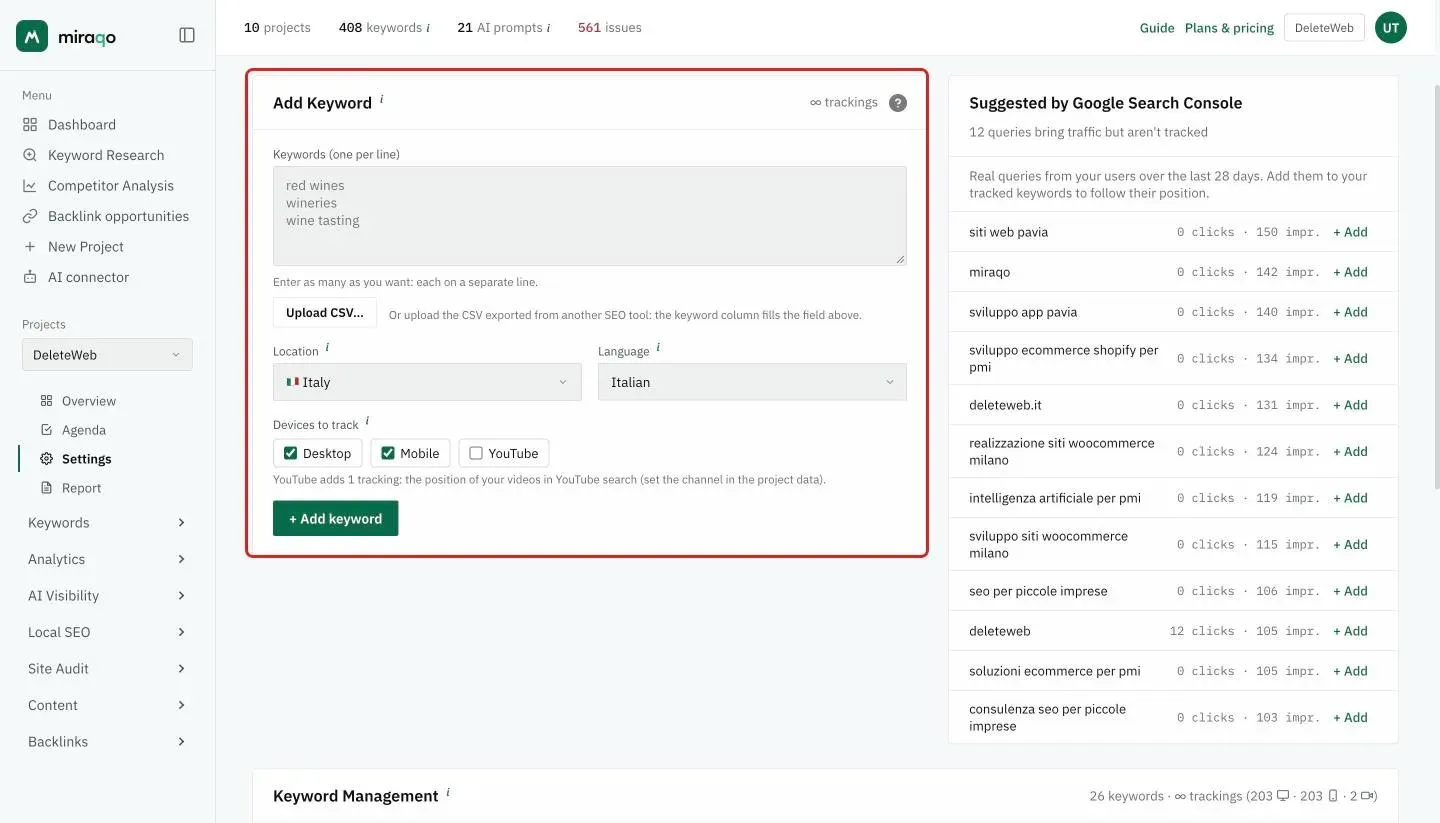
When you add a keyword, both devices are tracked by default (Desktop + Mobile). Why? On many queries the results diverge: someone searching “restaurant nearby” on mobile sees a different SERP than someone searching from desktop, and ignoring one of the two hides half the picture.
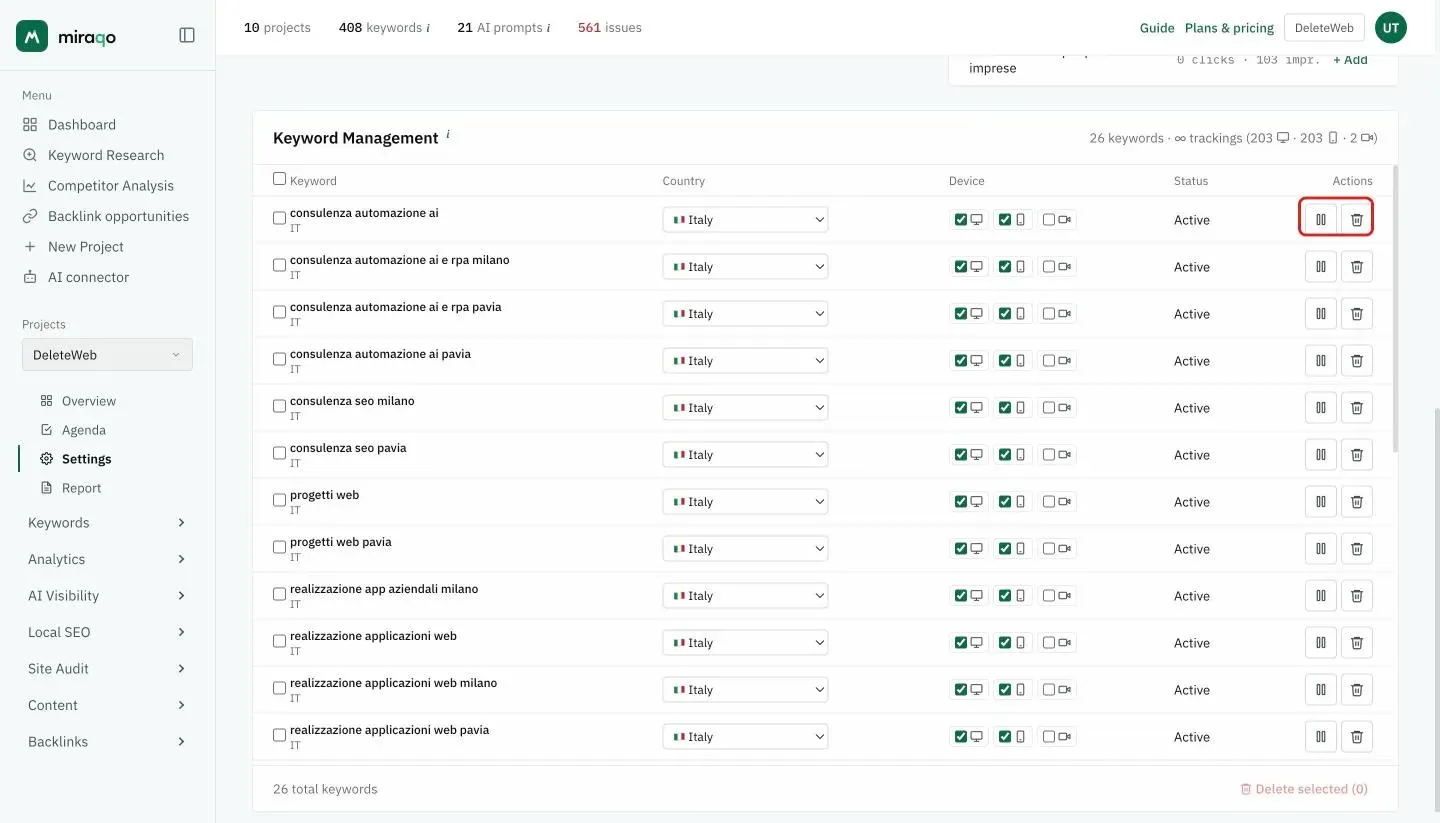
To reduce consumption you can deselect one of the devices in two ways:
- At the time of adding — in the ➕ Add Keyword form you’ll find two “Desktop” and “Mobile” checkboxes pre-selected: deselect the one you’re not interested in before confirming.
- On existing keywords — go to Settings → Keywords, in the Device column of the table you’ll find the checkboxes of each row (desktop, mobile and YouTube, each with its icon): click to activate/deactivate. The change is immediate and frees (or consumes) one tracking.
When does one device make sense? If the site is purely B2B with a desk-based audience, “Desktop only” may be enough. If you’re in a consumer/local sector (restaurants, services, e-commerce), Mobile is almost always the primary device: when in doubt, keep both.
Keywords outside the top 100: the weekly check
A keyword that stays outside Google’s top 100 results for 7 days in a row may switch to the weekly check. When that happens, the 💤 weekly check label appears next to its name.
- As long as you see the 💤, that keyword is rechecked once a week, whatever the cadence of your plan.
- As soon as a check finds it back in the top 100, the 💤 disappears and the keyword returns to its normal cadence (daily or every 3 days).
- If there is no 💤, the keyword follows your plan’s cadence even when it is outside the top 100. It depends on the measurement method in use at that time and needs no action on your side.
A keyword with the 💤 that re-enters the top 100 may show up on the page a few days late, a week at most.
The weekly check doesn’t free any trackings: the keyword stays in the cap. To free one you need to deactivate the keyword or reduce its devices.
Need more trackings without changing plan?
There’s the Extra keyword tracking add-on: +100 trackings per unit for €10/month (€100/year, 2 months free), stackable up to 10 units, and you can turn it off any time from the Subscription page. Extra trackings add to your plan cap and are updated at the same frequency (every 3 days or daily), at the same price either way. 100 trackings track 100 keywords on one device, or 50 on Desktop + Mobile.
The add-on is a subscription of its own: it stays active even if you change plan. Beyond 10 units, moving up a plan is the better deal.
What happens if you exceed the cap
Exceeding the cap can happen in two scenarios:
Scenario 1 — You try to add or reactivate keywords
If you try to add keywords (or activate a device on an existing keyword) and the operation would exceed the plan cap, you’ll see a message like:
“You’ve reached the 2,000 tracking limit on the plan (1,998/2,000 in use, 3 more needed). Deactivate some keywords or reduce devices on existing ones to free up space.”
The action stays blocked until you free up space. Three options:
- Deactivate no-longer-useful keywords (the history is retained, just reactivate them later to resume)
- Reduce devices on existing keywords (e.g. switching from Desktop+Mobile to one only halves consumption for that keyword)
- Suspend a project you’re not following: while it’s paused it doesn’t count towards your plan limits and frees up its project slot, its trackings, its AI Visibility credits and its Local SEO points (see Project settings)
If you actually need all those keywords, raise the cap with the Extra keyword tracking add-on (+100 per unit, see above).
Scenario 2 — You’re already over the cap (downgrade or cap updated)
If you move to a plan with a lower cap (downgrade) or the plan’s tracking count is updated, you might find yourself above the new cap:
- Existing keywords continue to be updated normally at your plan’s frequency (no data loss).
- All tracking counters on project pages turn red with the indication
cap exceeded by N. - In Settings → Keywords a warning banner appears with the situation.
- You can’t add new trackings until you get back within the limit by reducing keywords or devices.
Anti-abuse: remember that deleting a keyword doesn’t immediately free the tracking — the slot remains occupied for 30 days after removal, to prevent consuming quota by cycling additions and deletions. To free immediately, use deactivation: the keyword stops consuming the tracking as soon as it’s deactivated.
Operational tips
- Start with Desktop+Mobile on all core keywords, then remove a device only where you see positions diverge very little: for 70–80% of B2C keywords the desktop/mobile difference is significant.
- For discovery or very specific long-tail keywords, “Mobile only” is often sufficient: people searching long queries from a desktop are a minority in almost all sectors.
- Watch the counter in the project page header: if you’re consistently around 90% of the cap, it’s time to clean up stale keywords (filter for “Not found” for at least 30 days in Keyword Detail) before asking for an upgrade.
- The 💤 next to a keyword is not an error and needs no action: it only means that the keyword, outside the top 100, has switched to the weekly check.
Next steps:
- Adding keywords to a project →
- Keyword detail & management →
- Subscription & billing → to see all available plans
Last updated: 18 October 2026