How to do keyword research
How to use Miraqo's Keyword Research page — the 4 modes (Related, List Analysis, By Domain, Keyword Gap), the metrics returned and how to add results to a project.
The Keyword Research page is the global tool (not tied to a single project) for discovering new keywords and, optionally, adding them to a project’s tracking. Reach it from the sidebar, Keyword Research item.
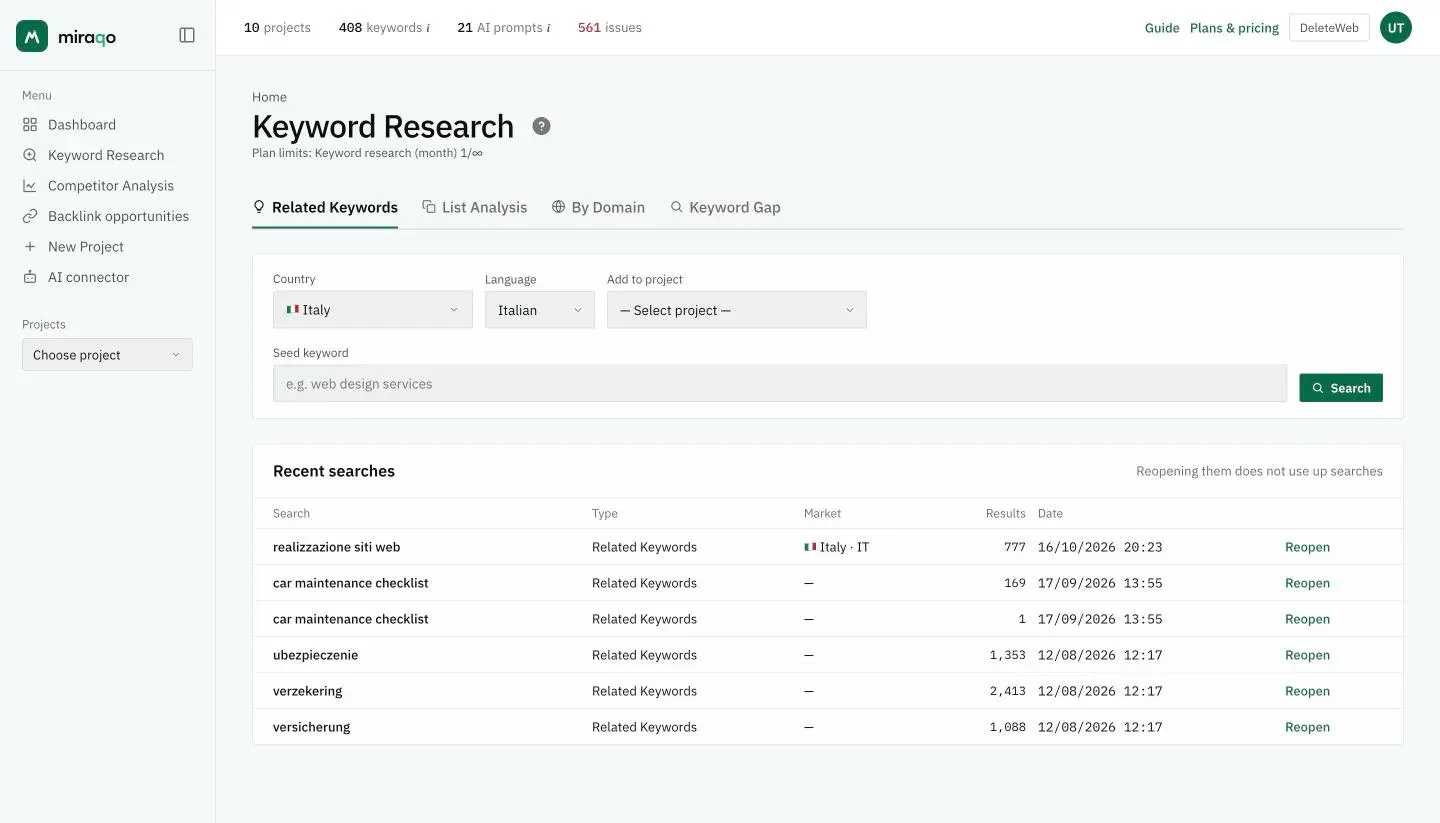
Common settings
Below the tabs are the fields that apply to all modes:
- Country — the geographic SERP on which to calculate volumes and CPC (default: United Kingdom)
- Language — IT / EN / DE / FR / ES
- Add to project — optional: if you choose a project, an + Add button appears next to each result to put it straight into tracking. Without a project selected you’ll only see the data, with no actions.
The 4 modes
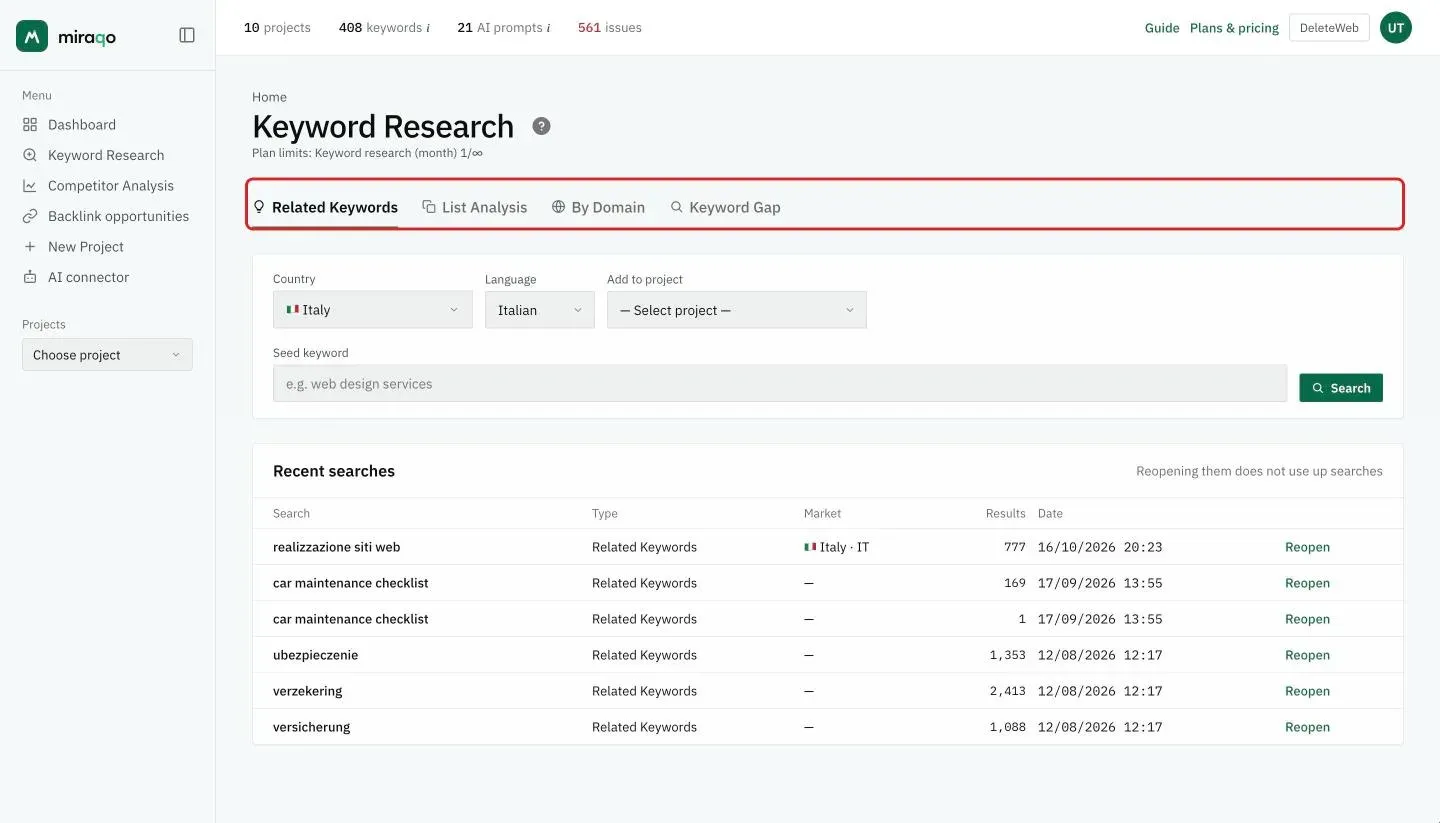
Related Keywords
Start from one seed keyword (e.g. resin flooring) and Miraqo returns up to 100 related keywords sorted by volume. Use this when you have a topic in mind but want to find variations, synonyms and long-tail.
List Analysis
Paste a list (one keyword per line or comma-separated, maximum 100) and get volume, CPC, intent and competition for each one. Useful when you already have a list — from the client, a GSC export, a brainstorming session — and want to understand which keywords are worth keeping.
By Domain
Enter a domain (yours or a competitor’s) and Miraqo returns the keywords that site ranks for (top 100 by volume). Used to understand the “keyword map” of a site.
Enter the “clean” domain: without
https://orwww.. E.g.example.com.
Keyword Gap
Compare your domain with a competitor: Miraqo lists the keywords the competitor ranks for but your site doesn’t. The fastest way to find gaps in your coverage.
The results table metrics
All modes show the same table:
| Column | What it means |
|---|---|
| Keyword | The query. If it’s already monitored in the selected project, the monitored badge appears. |
| Volume | Average monthly searches (Google Ads). — when data isn’t available. |
| Ads competition | Coloured bar + 0–100 index of the competition among Google Ads advertisers. Green ≤29, light orange 30–49, dark orange 50–69, red ≥70. It is not SEO difficulty: that comes when you add the keyword to a project (Rankings page). |
| CPC € | Average cost per click in Google Ads — proxy for the keyword’s commercial value. |
| Intent | Informational / Navigational / Commercial / Transactional, estimated by AI for every keyword in the search. If the estimate fails the cell shows “—”. |
| Competition | Google Ads auction: Low / Medium / High. Measures paid competition, not SEO. |
Results are always sorted by volume descending.
Adding keywords to tracking
- In the Add to project field (at the top) select the target project.
- Launch the search in the tab you need.
- On the row of each interesting keyword click + Add.
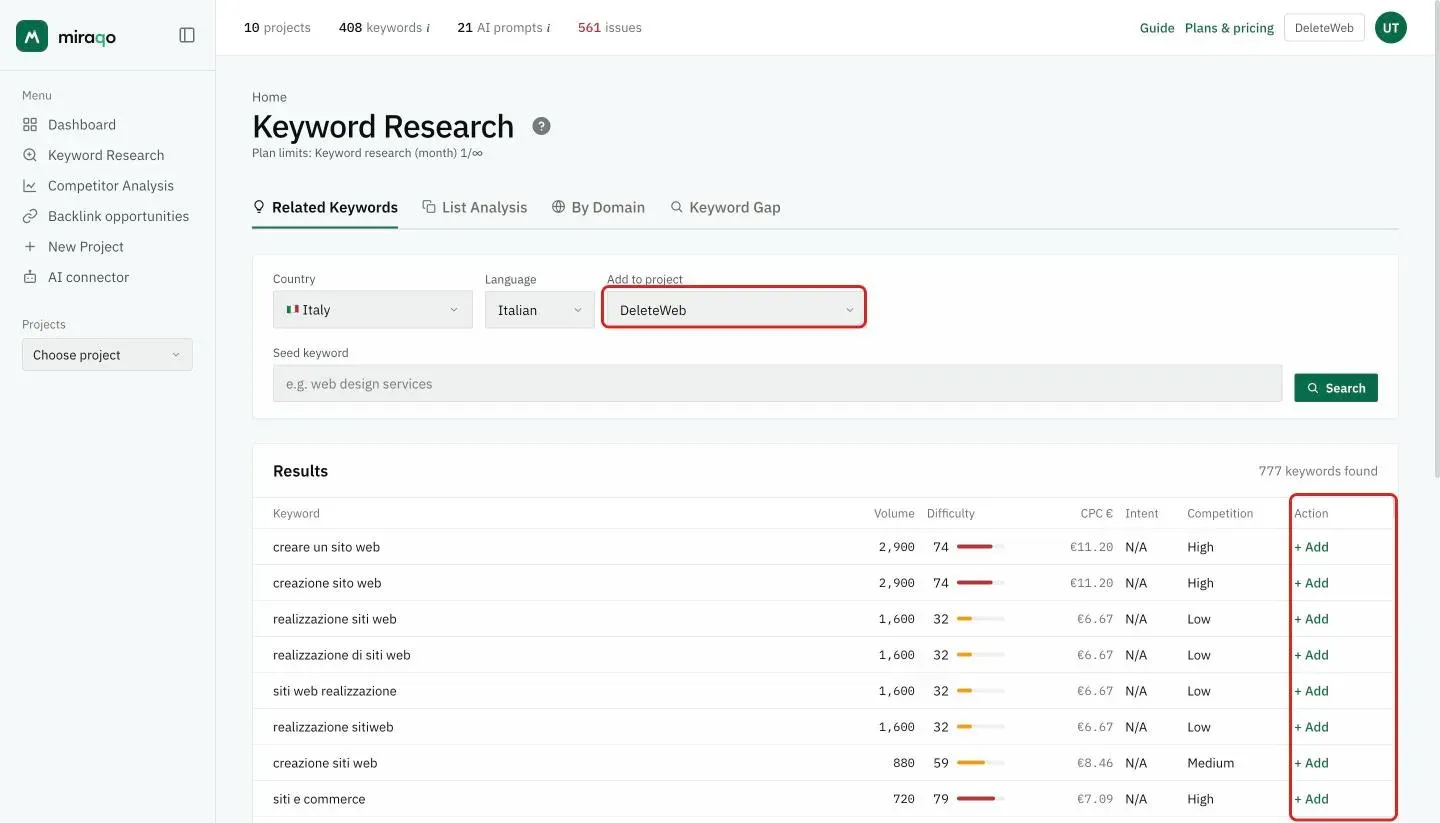
The keyword enters the project’s tracking (Country and Language used are those chosen at the top). It updates at the next scheduled check — see Add keywords for details on frequency and plan limits.
Without a project selected the last column Action isn’t shown: the page only serves as “data exploration”.
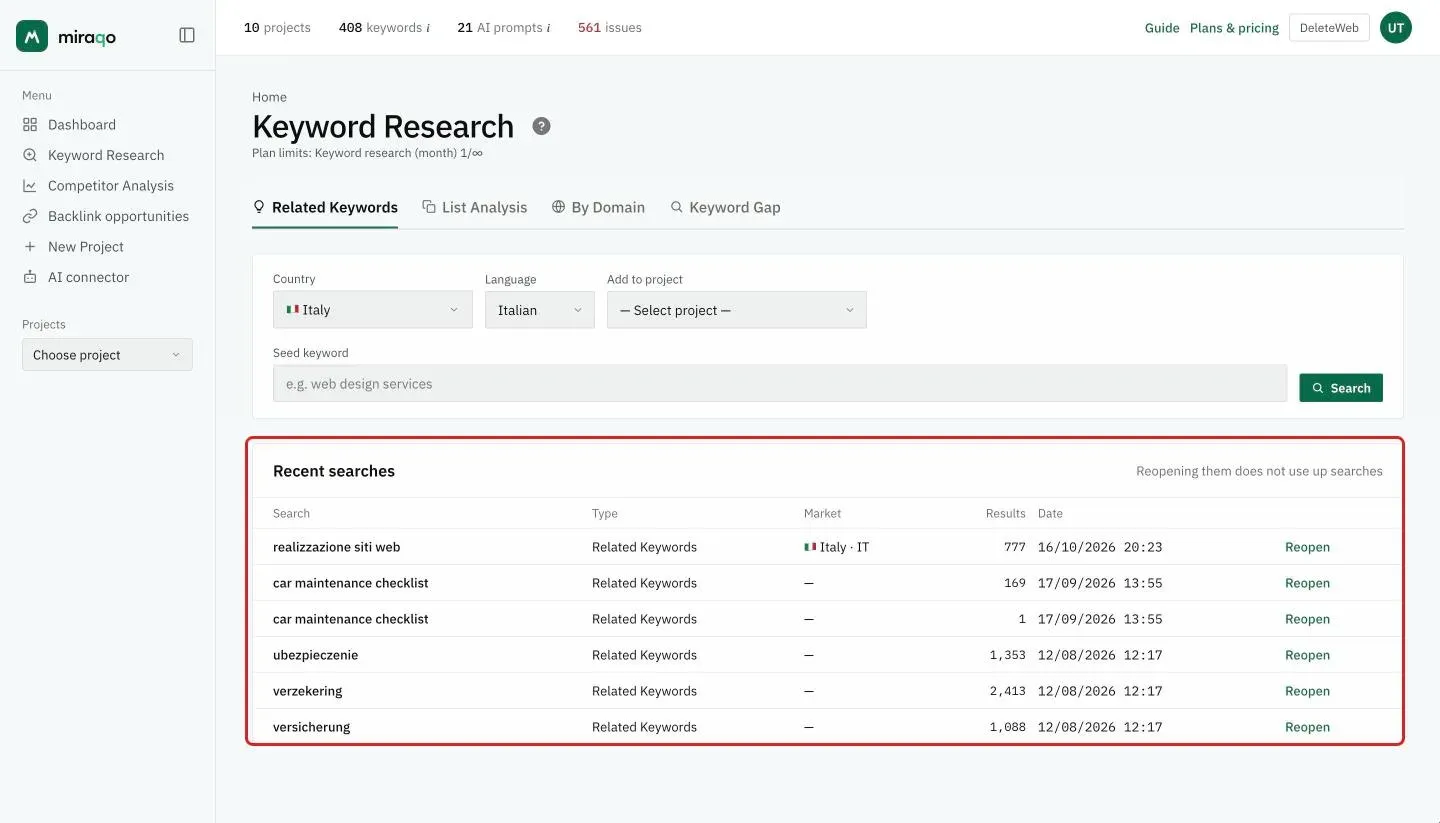
Recent searches
Below the modes, the Recent searches card lists your organization’s last 10 searches that returned at least one result, with mode, market, number of results and date. Reopen reloads the saved results and sets Country and Language back to those of the search: it doesn’t run the search again and doesn’t use up your allowance. Before repeating a search you’ve already done, check here.
Searches made before this feature don’t have the market saved: in the Market column they show “—” and reopen without changing Country and Language.
Usage limits
Each plan has a monthly keyword search allowance (one search = one click on Search/Analyse/Find Gap, regardless of how many keywords are returned). If you’ve exhausted the quota you see the error:
❌ Monthly keyword search limit reached (X/Y). [Upgrade]
Solo plans don’t include this feature: in that case the message is “Your plan doesn’t include keyword research”. The upgrade is done from Subscription.
Each search is recorded (even if you add nothing to a project) for consumption calculation.
Operational tips
- Related is the fastest entry point when you don’t know where to start — a sensible seed immediately produces 80–100 ideas.
- By Domain + Keyword Gap are the pair for competitor work: first explore what they do, then see what you’re missing.
- List Analysis is the mode to prefer when you get a brief: paste and in a single call you know which keywords to keep and which to discard.
- Keep an eye on the Volume + Ads competition + Intent combination: a high index means advertisers pay for that keyword, i.e. it brings customers; the intent tells you whether searchers want to learn or to buy. The real SEO difficulty shows up once you add the keyword to the project.
Common errors
- “Volume —” on many keywords — volume isn’t always available for niche or new keywords. If the keyword still interests you, add it to tracking anyway: the real volume you’ll deduce from Search Console impressions.
- “Ads competition —” — the index hasn’t been calculated for that keyword (happens with keywords without advertisers). The value doesn’t mean “easy”, but “unknown”.
- By Domain / Gap tabs empty — the entered domain isn’t indexed or doesn’t rank in the chosen SERP. Check Country and Language at the top.
- The same keyword in multiple Countries — you need to do two separate searches changing the Country field: results aren’t comparable between different markets.
Next steps: Add your first keywords to the project →
Last updated: 19 October 2026