YouTube positions
How to track, for each keyword, where your channel's videos rank in YouTube search — activation, what the YouTube page shows (KPIs, chart, top 20, who dominates, worth pushing), what it costs in trackings and how to read the data.
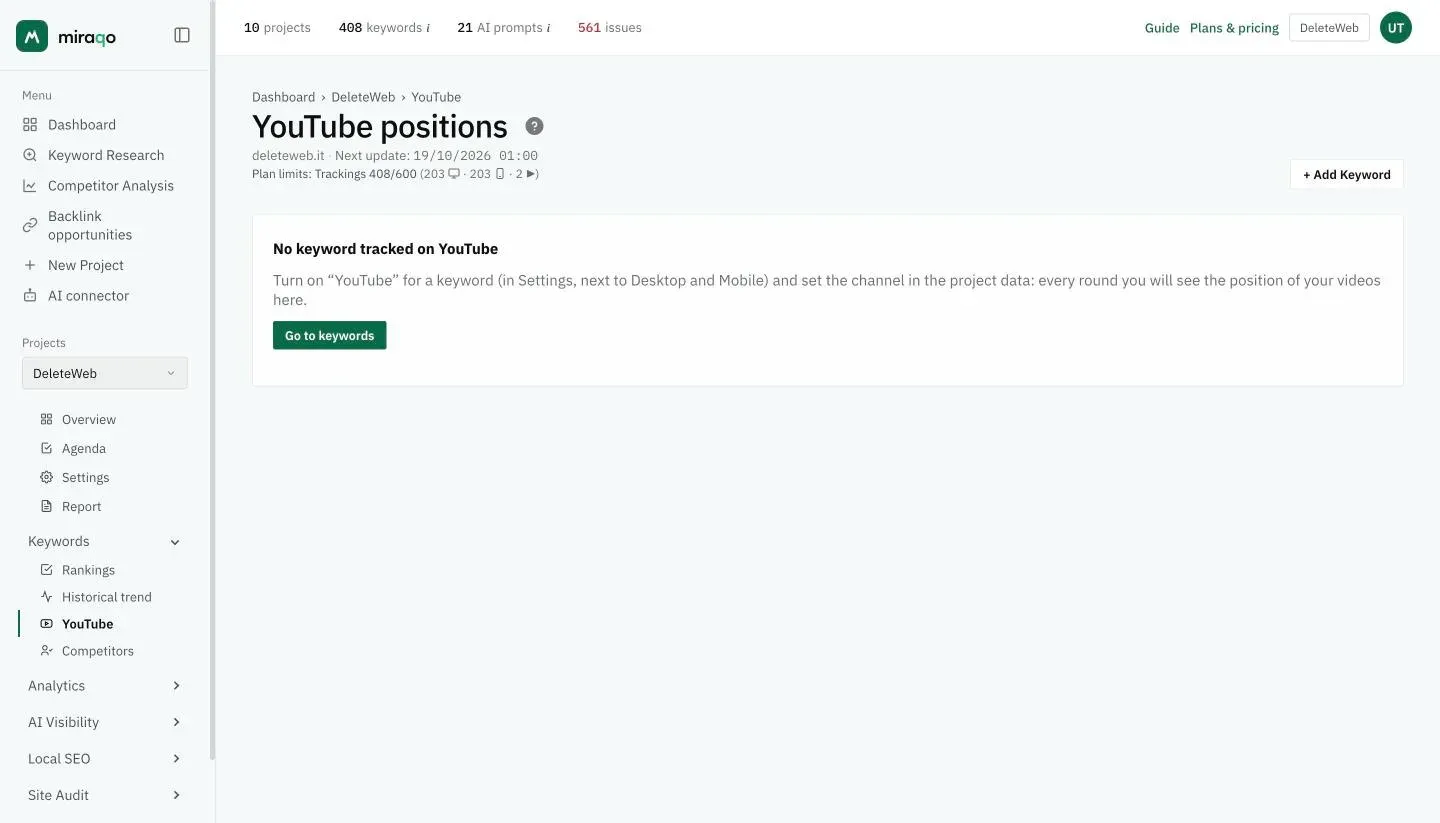
Besides Google, for each keyword you can also track YouTube search: Miraqo looks at the top 20 videos YouTube shows for that keyword, in the keyword’s country and language, and records where a video from your channel appears. It is not your web page’s position: it is a second result, next to the Google one, for whoever invests in video.
You reach it from the project → Keywords → YouTube in the sidebar.
▶ How to turn it on
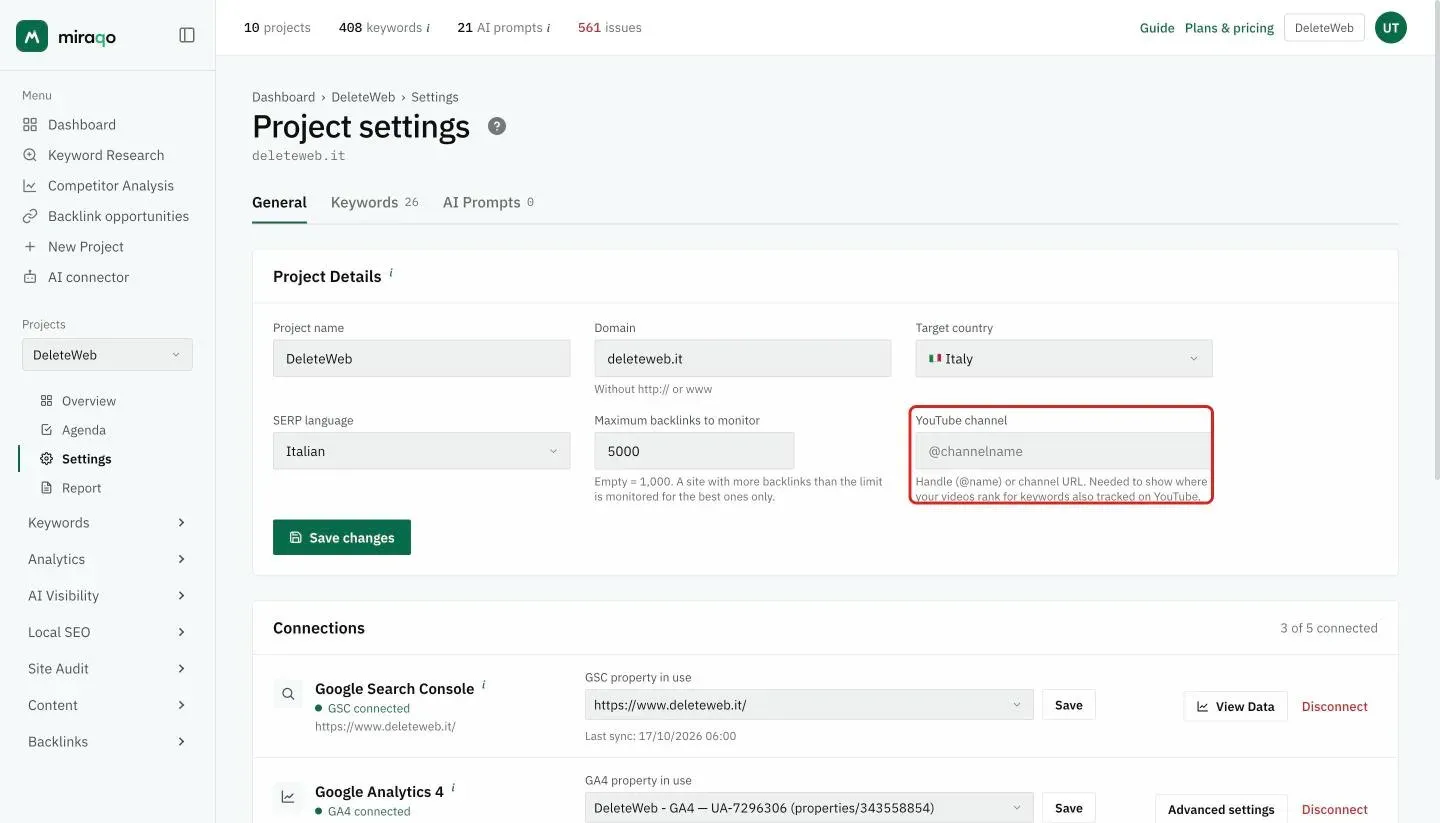
- Project settings → Project data: enter the YouTube channel (handle
@nameor channel URL). Without a channel the top 20 is still saved, but “your position” stays empty. - Settings → Keywords: in the add form, or in the keyword row next to Desktop and Mobile, tick YouTube (▶ icon).
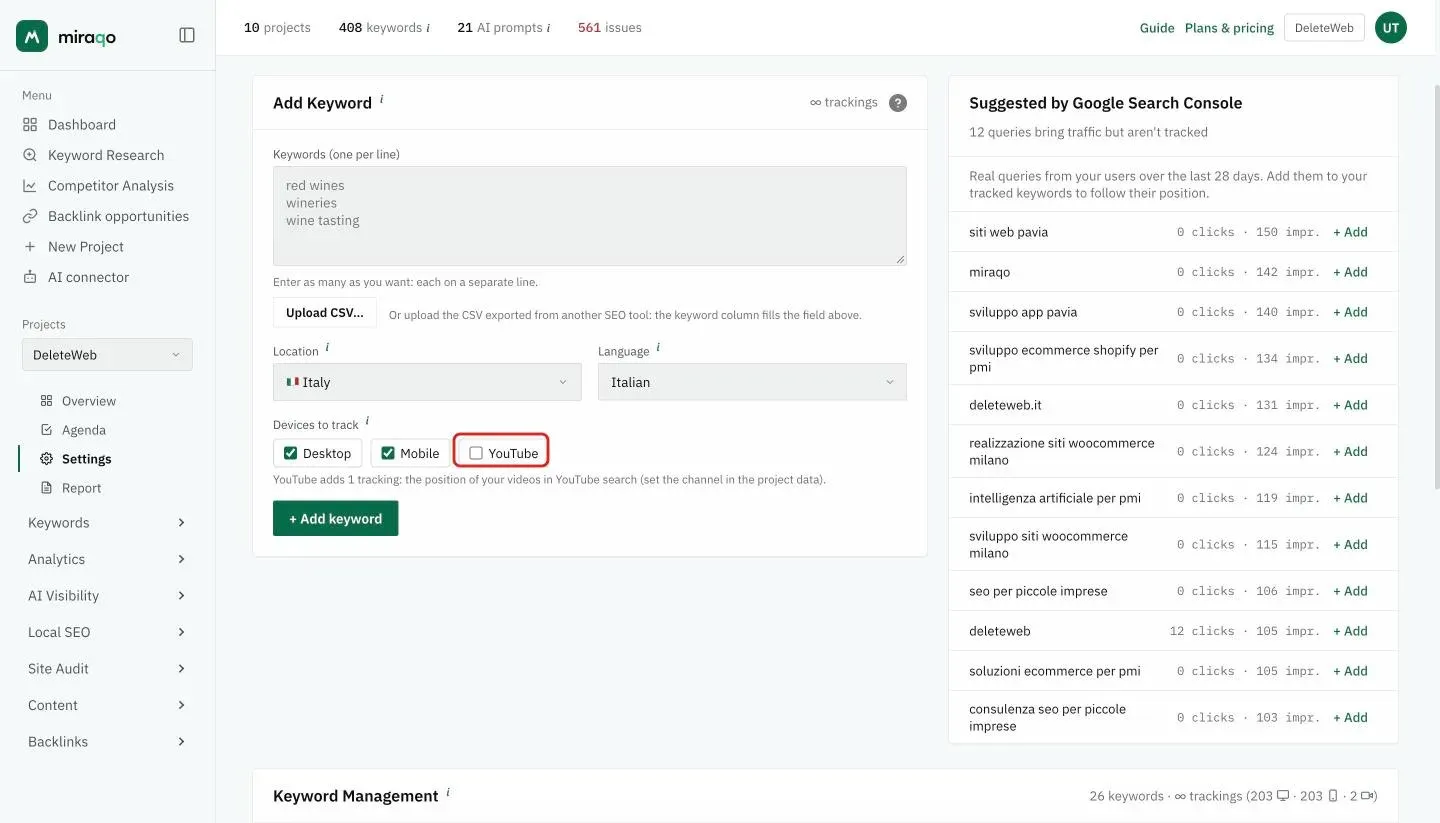
Every keyword with YouTube enabled uses 1 extra tracking, exactly like a device (see Trackings and plan limits). The cadence is your plan’s: YouTube checks run in the same rounds as Google positions. If you add a new keyword with YouTube already ticked, the first check starts right away; if you enable it on an existing keyword, it starts at the next round.
📊 What the YouTube page shows
- Tracked keywords, in top 20, in top 3 and average position. A keyword with no channel video in the top 20 counts as 20 in the average — the same rule as “out of Top 100” on Google.
- Average position over time: the chart of the daily average of checks.
- The keyword table: position with the change since the previous check (▲▼), the ranking video, views and the date of the last check. Opening “Top 20 · history” shows the sequence of the latest checks and the full list of the 20 videos (channel, views, age), with yours in bold.
- 🏆 Who dominates YouTube for your keywords: the channels most present in your keywords’ top 20s, with a bar for the share of keywords they appear in and a “you” tag on your channel. It is the map of who you need to beat.
- 🎯 Worth pushing – video: the keywords where your channel is not in the top 20. First those where Google already shows the video carousel (🎬 tag: a video there is more likely to bring traffic on Google too), then by search volume.
How to read the data
- YouTube positions swing more than Google’s. Between two searches a few minutes apart, positions 3–7 can swap. Watch the trend, not the single check.
- Position “—” with data present = no channel video in the top 20. Not an error: that is the data.
- ⚠ “data frozen at …” = the last check failed. Miraqo never records a fake position: the value shown is the last valid one and the chart stops there.
- A same-name channel on top? It happens: the ranking shows who is really there, even with a name similar to yours. The “you” tag appears only on the channel set in the project data.
Where else you find YouTube positions
- In the PDF report, section “YouTube positions” (enable it from the Report page).
- In the AI connector, with the
get_youtube_rankingstool (latest check of every keyword with the top 20, or the history of one keyword).
See also:
Last updated: 5 September 2026