Adding keywords to a project
How to add keywords to a project's tracking, automatic suggestions from Search Console, plan limits and what CANNOT be changed after creation.
Keywords are the Google queries on which you monitor your site’s position. When you add them, Miraqo starts tracking the position separately for desktop and mobile (rankings often diverge) at the frequency of your plan.
To read positions, charts and manage existing keywords see Keyword detail & management.
Adding keywords
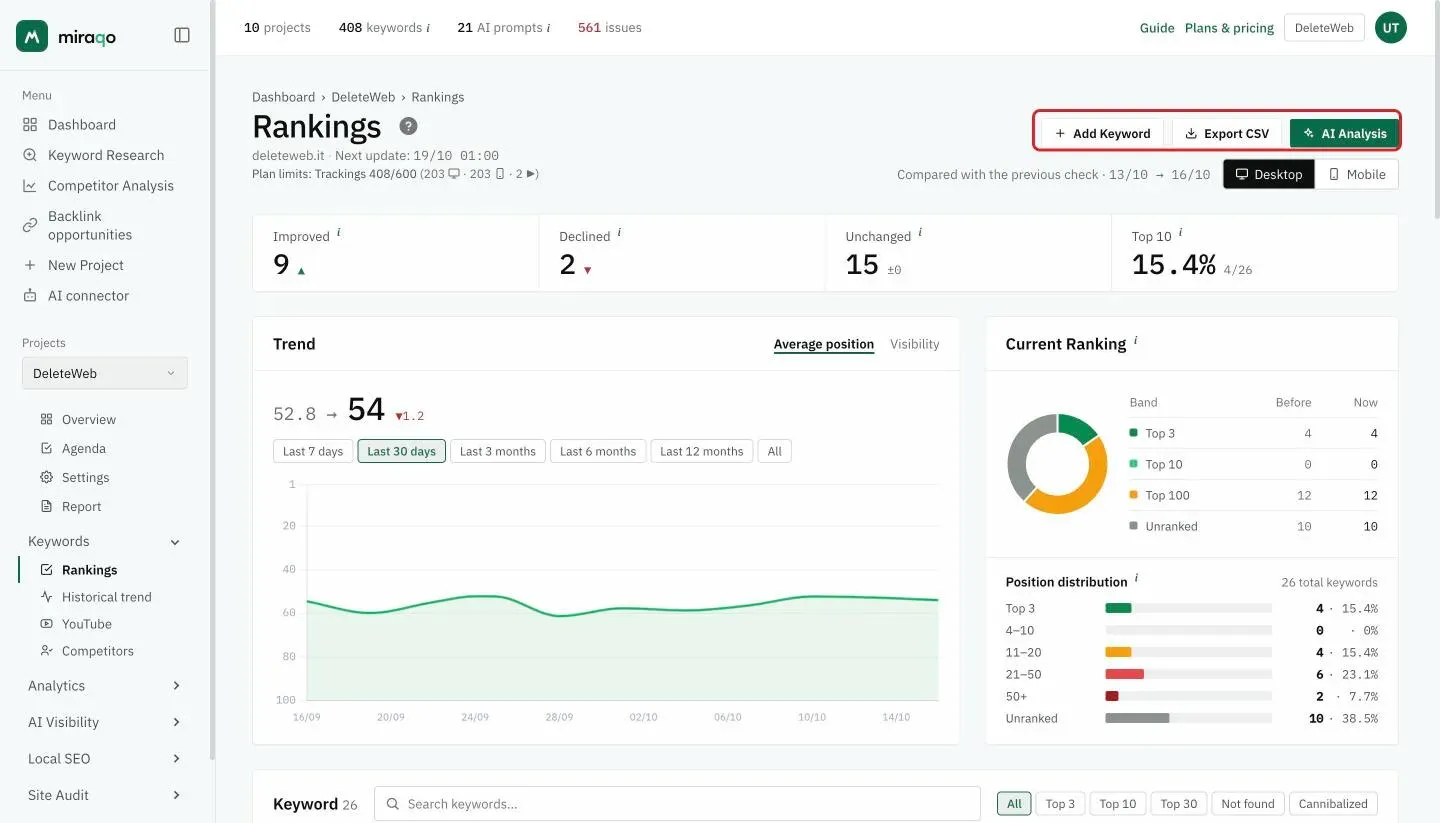
From the project’s Rankings page click Add Keyword in the top right: this takes you to Settings → Keywords where you’ll find the entry form.
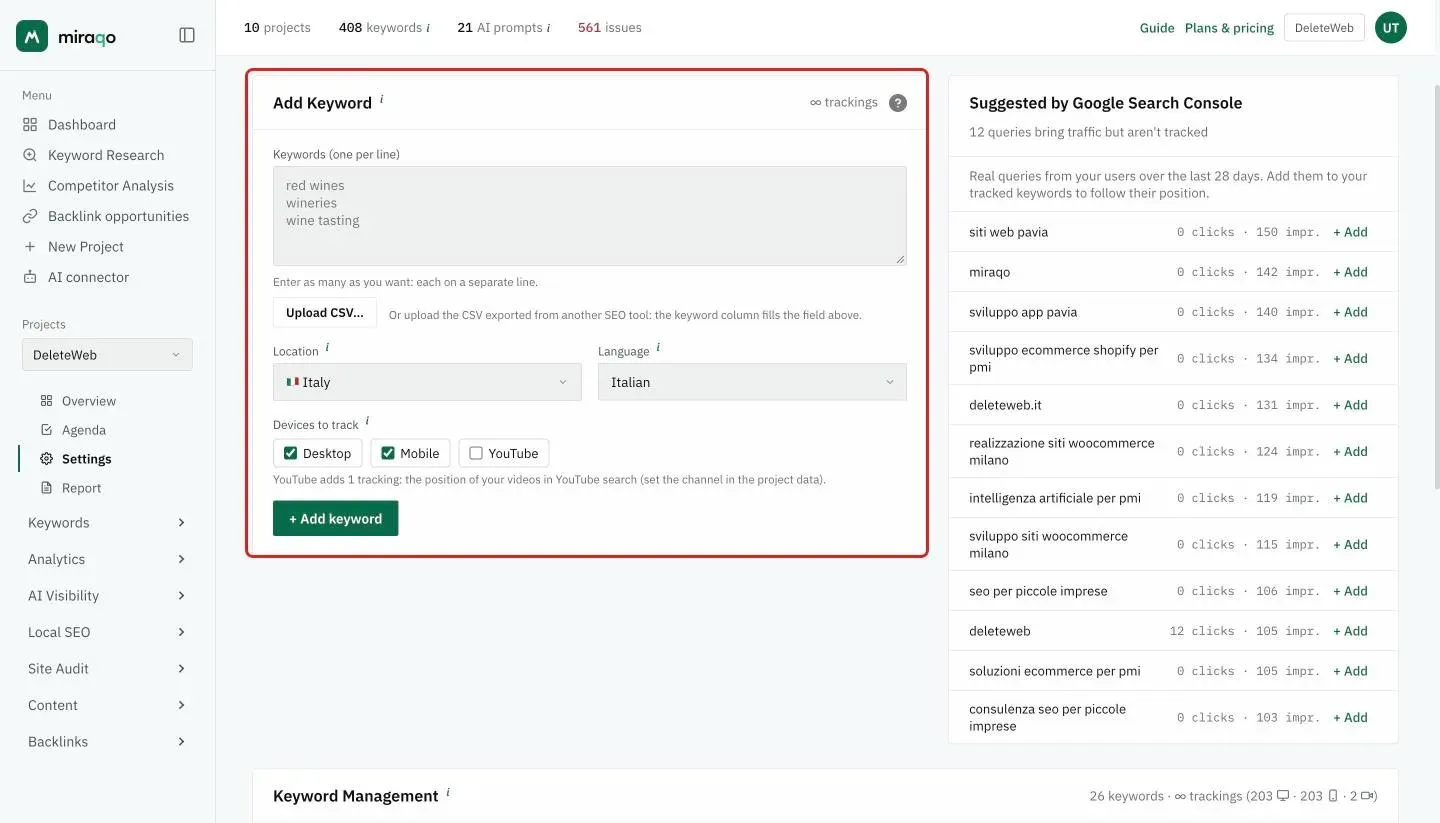
The form has these fields:
- Keyword textarea — one per line, as many as you like. Example:
resin flooring resin floor price best modern floors - Location — country from which to simulate the search (default: the project’s country). Determines the local SERP (google.com, google.co.uk, …).
- Language — the language of the Google search, among those valid for the chosen country (the menu adapts to the country by itself).
- Devices to track — Desktop and Mobile are selected by default; YouTube adds one more tracking (requires the channel in the project’s data).
The same keyword can be tracked on several countries at once within the same project: add it again picking the other country. Each country is a row with its own history, and a tag in the table with the market written out marks keywords outside the project market (countries and languages).
Confirm with + Add keyword. Keywords appear immediately in the list with a “pending” status: the first ranking arrives within the next update window for your plan (every 3 days / daily).
On the Keyword Detail page, newly created rows show “Data updating…” until the first detection has arrived.
Suggestions from Search Console
In Settings → Keywords, to the right of the form, you’ll find the Suggested by Google Search Console card (it fills up once Search Console is connected): it lists the real queries from the last 28 days that already bring impressions but aren’t yet tracked, with clicks and impressions. Each row has an + Add button to put it into tracking immediately.
If you haven’t connected GSC yet, connect it first: it’s the fastest way to populate tracking with queries your site is already capturing.
Plan limits
Consumption is measured in trackings: 1 tracking = 1 keyword × 1 device. A keyword tracked on Desktop + Mobile (the default) therefore uses 2 trackings. If you also turn on YouTube, the keyword uses one more tracking (see YouTube positions). The cap is shared across all projects in the organisation:
| Plan | Trackings included |
|---|---|
| Solo | 50 |
| Starter | 150 |
| Pro | 600 |
| Agency | 2,000 |
The trackings counter (with the per-device breakdown) is always visible below the Rankings page title. Full details in Trackings and plan limits.
Anti-abuse: removing a keyword does not immediately free up the slot. The slot remains occupied for 30 days after removal, to prevent consuming quota by cycling additions and deletions. If you just want to “pause” it, use deactivation (see Keyword detail & management) — the keyword retains its history, is no longer tracked, and doesn’t occupy a re-creation slot if you reactivate it.
What can be changed after creation (and what cannot)
- The keyword text — cannot change: it’s effectively an identifier. To change it you must remove the keyword and create a new one (you lose the history).
- The country — can be changed from Settings → Keywords (the language adapts to the country). Mind the history: readings already collected were measured on the previous market, so the chart lines up numbers from two different Googles. If you need the comparison, add the keyword on the new country as a separate row instead of moving it.
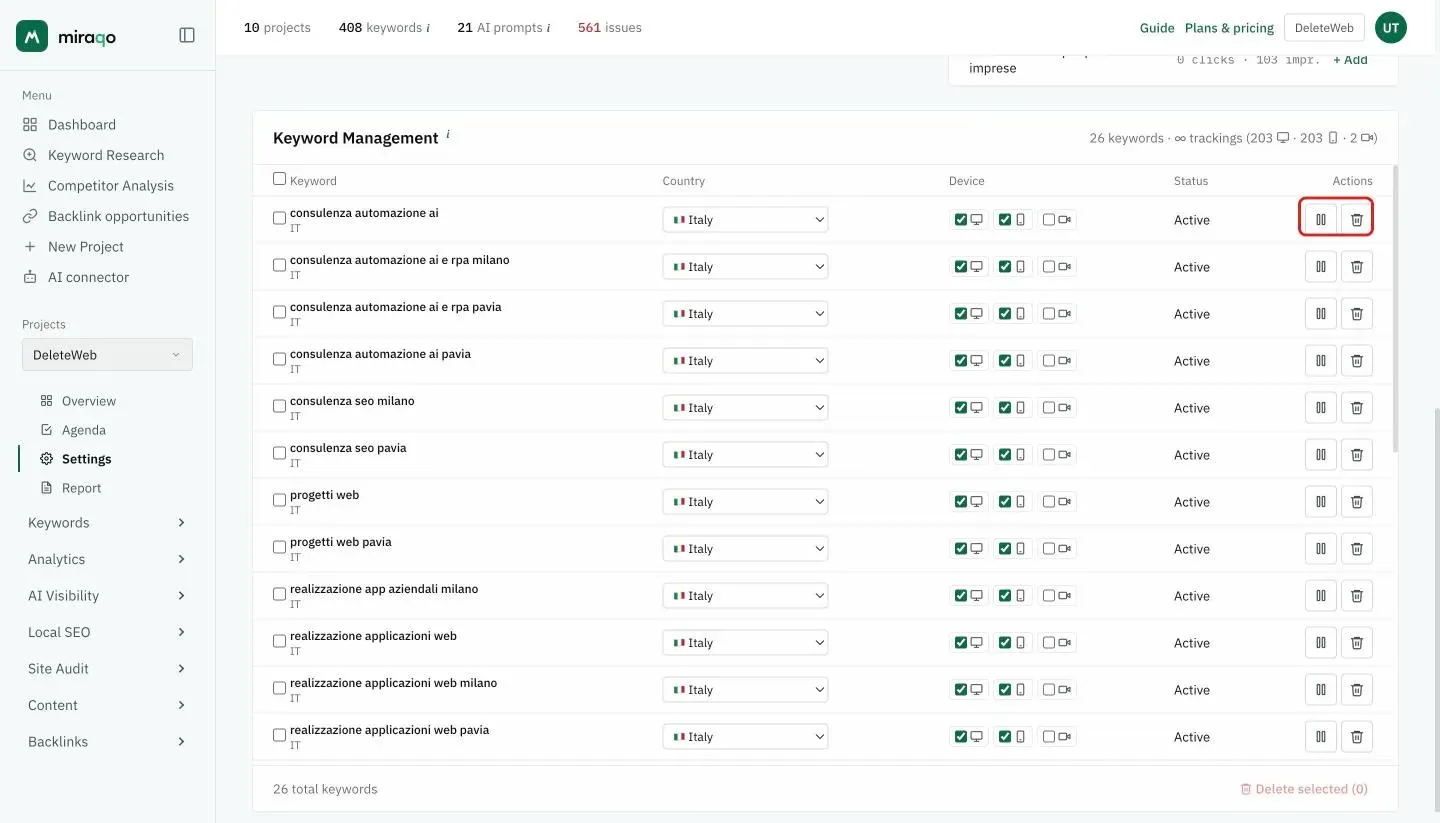
For the text the rule is “choose well the first time”: a typo on an important keyword means either starting the history over, or keeping it as is.
Operational tips
- Specificity over volume. A long-tail keyword like “decorative resin flooring london” is almost always more useful than “flooring”: easier to rank for and with a clear commercial intent.
- Start with 10–20 core keywords, then expand once you’ve understood what’s a priority. 200 “random” keywords make the dashboard unreadable.
- Mix brand + non-brand. Brand keywords give you a traffic baseline; non-brand keywords measure real SEO performance.
- Import from Search Console. If you’ve connected GSC, use the suggestions in Settings → Keywords to put queries already bringing impressions into tracking.
- Filter for “Not found” on the Keyword Detail page before proposing an action plan to the client: these are keywords you added but don’t rank for — the real gap to close.
Next steps:
- Connect Google Search Console → to enrich keywords with real impressions and clicks
- Connect Google Analytics 4 or Matomo → to populate the Sessions and Conv. rate columns
- Keyword Research → to discover new keywords to add
- Keyword detail & management → to read positions, charts and manage keywords
Last updated: 18 October 2026