Brand Profiles — logo and colours in PDF reports
Logo, colours and contacts used in PDF reports and public links. On the Agency plan you can create different profiles for each client.
A Brand Profile collects your agency’s (or client’s, on Agency plans) logo, colours and contact details. They’re used everywhere Miraqo produces something visible to the client:
- cover, header and footer of the PDF report
- header and signature of the delivery email
- header of shareable public links
Where to find it
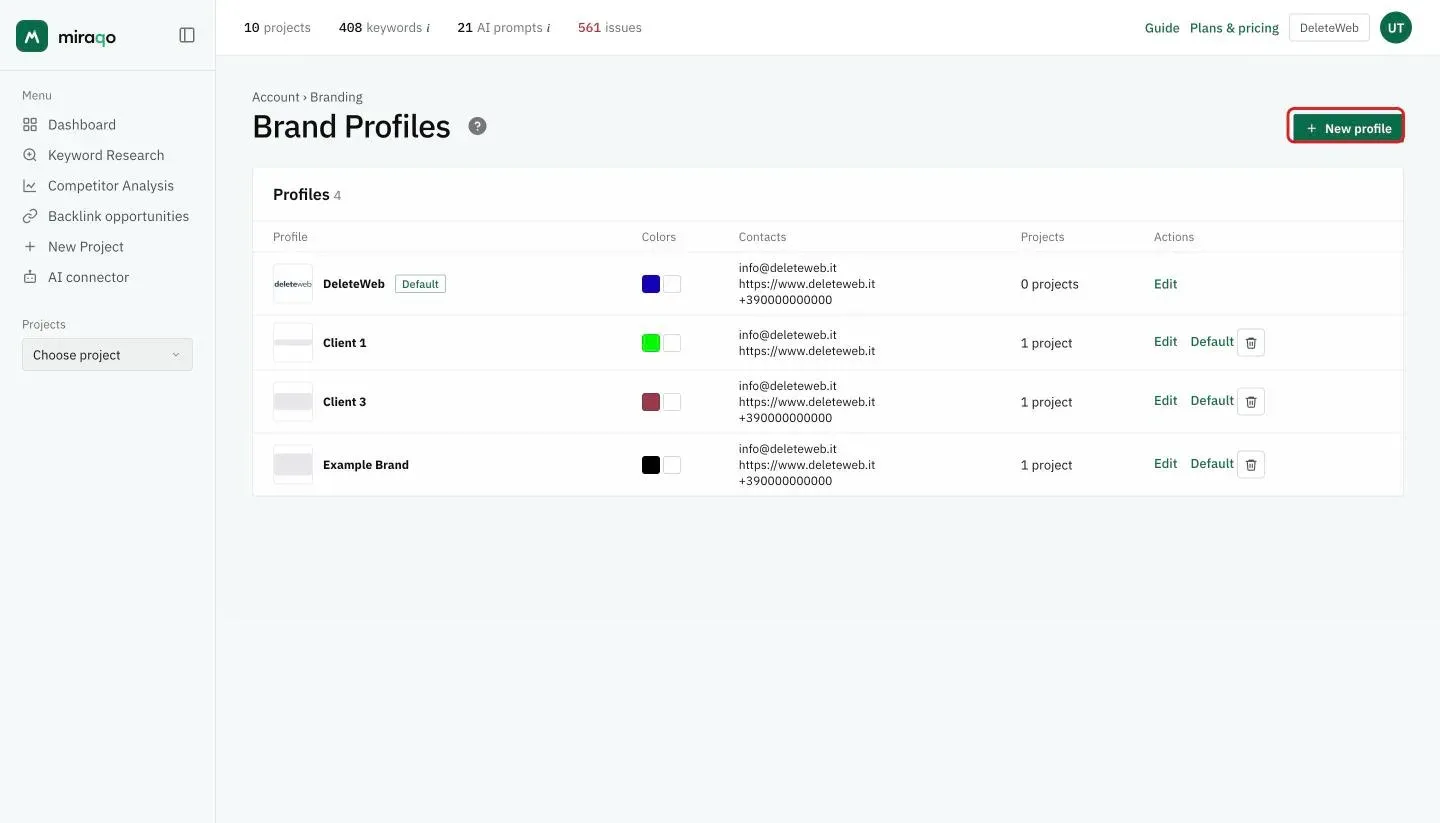
From the top-right user menu → Brand Profiles (visible to Owner and SEO Manager). Alternatively: Organisation → Branding → Manage Brand Profiles.
What a profile contains
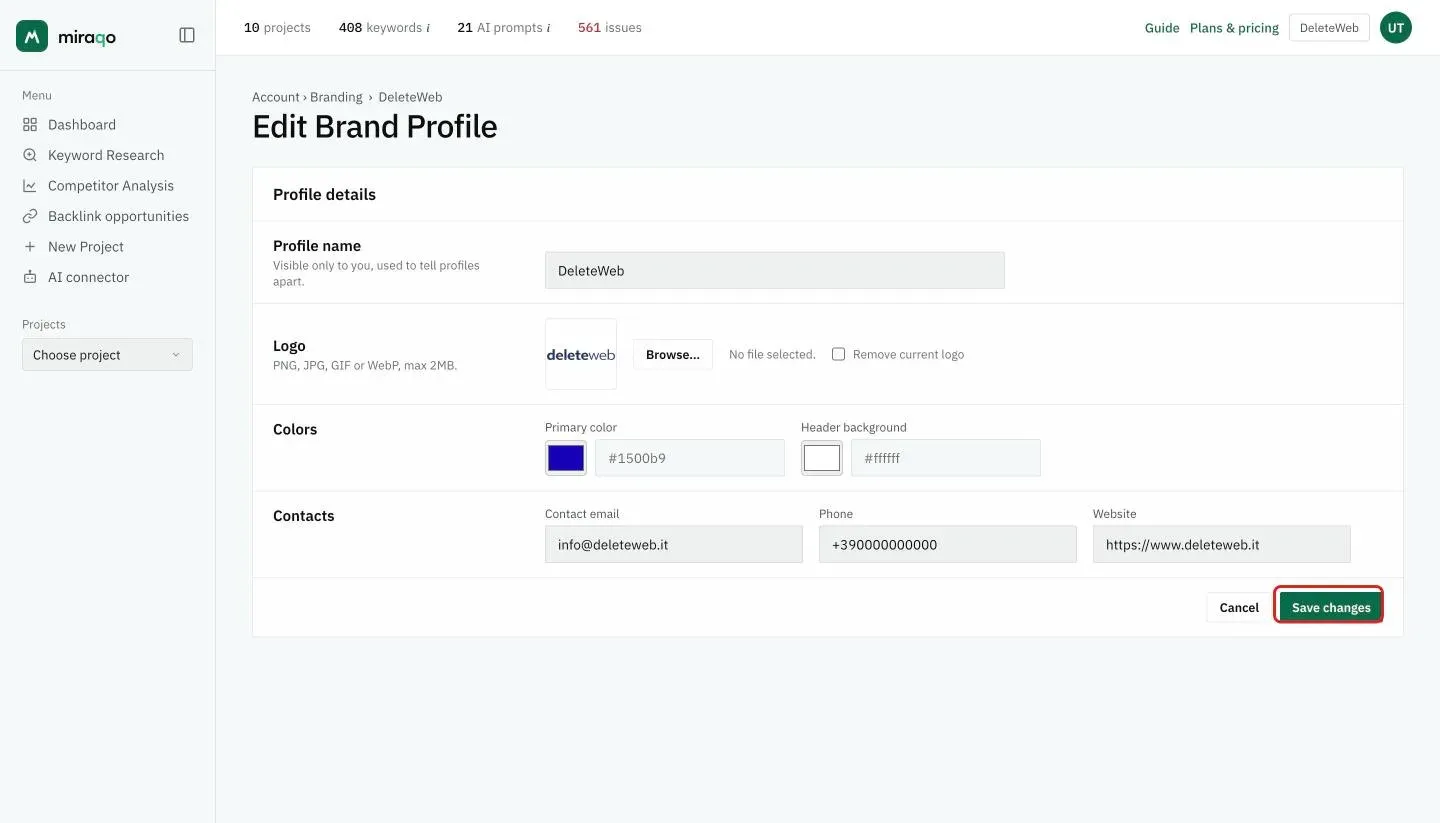
- Profile name — visible only to you, used to distinguish it from others (e.g. Main brand, Acme Client)
- Logo — image (PNG, JPG, GIF or WebP), max 2 MB. Transparent background recommended. Appears on the PDF cover and in the email header.
- Primary color — used for headings, links and accents (hex format, e.g.
#3d7eff) - Header background — background colour of the header (hex, usually white or a light grey)
- Contact email, phone and website — appear in the PDF footer and at the bottom of the email
Default profile
Every organisation always has one profile marked as Default — created automatically when the organisation is born (you don’t need to create it). It’s the one used for projects that don’t have an explicitly assigned profile.
To change which profile is the default: from the Brand Profiles page click Default on the profile you want to promote — the previous one automatically loses the flag.
How many profiles can I create
Depends on the plan:
| Plan | Brand Profile |
|---|---|
| Solo · Starter | Only the auto-created Default profile. Editable, but branding is never applied because PDF reports and shared links aren’t available on the plan. |
| Pro | 1 profile (the Default), fully active in PDFs and shared links. |
| Agency | Multiple profiles, one per client, assignable to individual projects. |
On Solo and Starter plans the page shows a notice “Custom branding is available on Pro and Agency plans” and the New profile button doesn’t appear. On Pro the button is visible but disabled (one profile granted). On Agency it’s always active.
Assigning a brand to a project (Agency only)
From the individual project: Report → Report Branding. You’ll find a selector with all the organisation’s Brand Profiles. Changing it, the next PDF generated (manual or scheduled) and public links will use the new brand.
Projects that don’t choose anything fall back to the Default brand — they’re never left without branding.
Deleting a profile
From the Brand Profiles page → the bin icon. You can only delete non-Default profiles. Projects that were using it automatically fall back to the Default — they don’t lose branding.
Common errors
- Distorted logo — the PNG has a white background instead of transparent, or the proportions don’t respect the box. Re-export with a transparent background and keep a margin around the logo.
- Colours “that can’t be seen” — very light primary colour on white background. Maintain good contrast (≥4.5:1) for PDF readability.
- “Can’t create a second profile” — you’re on Pro (1 profile granted). Switch to Agency to unlock multiple profiles.
- “I edit the Brand but the PDF stays plain” — you’re on Solo or Starter: the profile can be edited but branding isn’t applied because PDF/share aren’t included in the plan. Switch to Pro or higher.
- “I don’t see Brand Profiles in the menu” — you’re not an admin (Owner or SEO Manager). Members and Clients don’t have access to brand management.
Last updated: 18 October 2026