Team management: users and roles
Create, edit and delete users in your Miraqo organisation: SEO Manager and Client roles, the user list, password reset and per-project permissions.
The Team Management page lists all users in the organisation and allows you to create new accounts, edit them, reset their passwords, delete them and — for Clients — open the granular permissions page.
It’s different from the “Invite Member” card on the Organisation page: here you create new accounts directly, there you add already-registered users. See below for the role asymmetry.
Roles
Miraqo distinguishes four roles with increasing powers:
| Role | What they can do |
|---|---|
| Owner | Organisation owner: full powers, receives “System errors” emails, can’t be removed or downgraded. One Owner per organisation. |
| SEO Manager | Manages projects, members, branding and permissions. |
| Member | Accesses all organisation projects with full permissions. |
| Client | Limited access to only the projects explicitly assigned to them, with granular permissions (see User permissions). |
Important asymmetry. From this page you can only create and manage SEO Manager or Client. To add a user with Member role you need to use “Invite Member” on the Organisation page — which however requires the person to already be registered.
The user list
The table shows avatar, email, role, interface language and joining date. Each row has the Edit, Permissions and Delete (the bin icon) actions; on the owner’s row only the owner label appears.
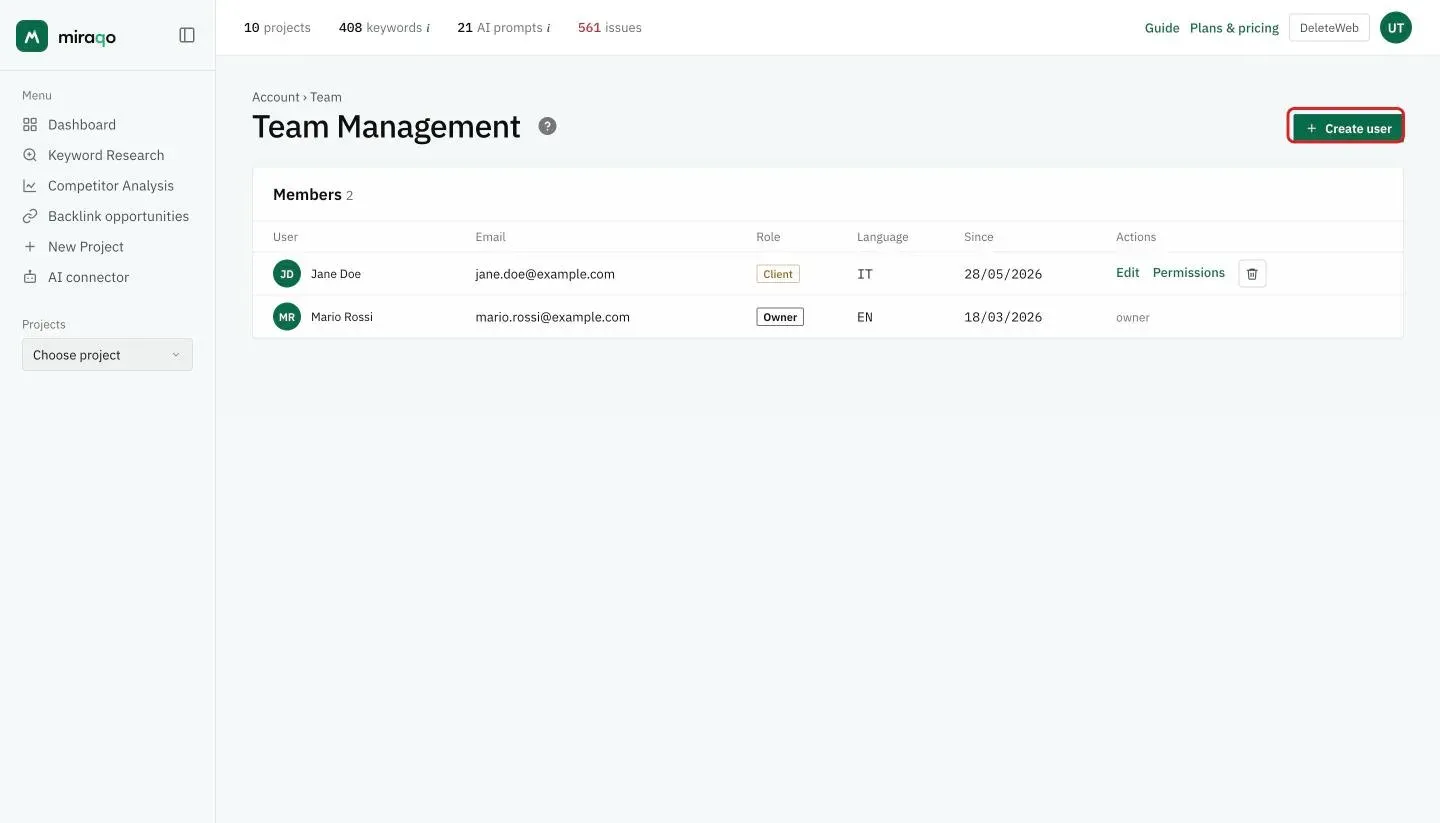
Create user
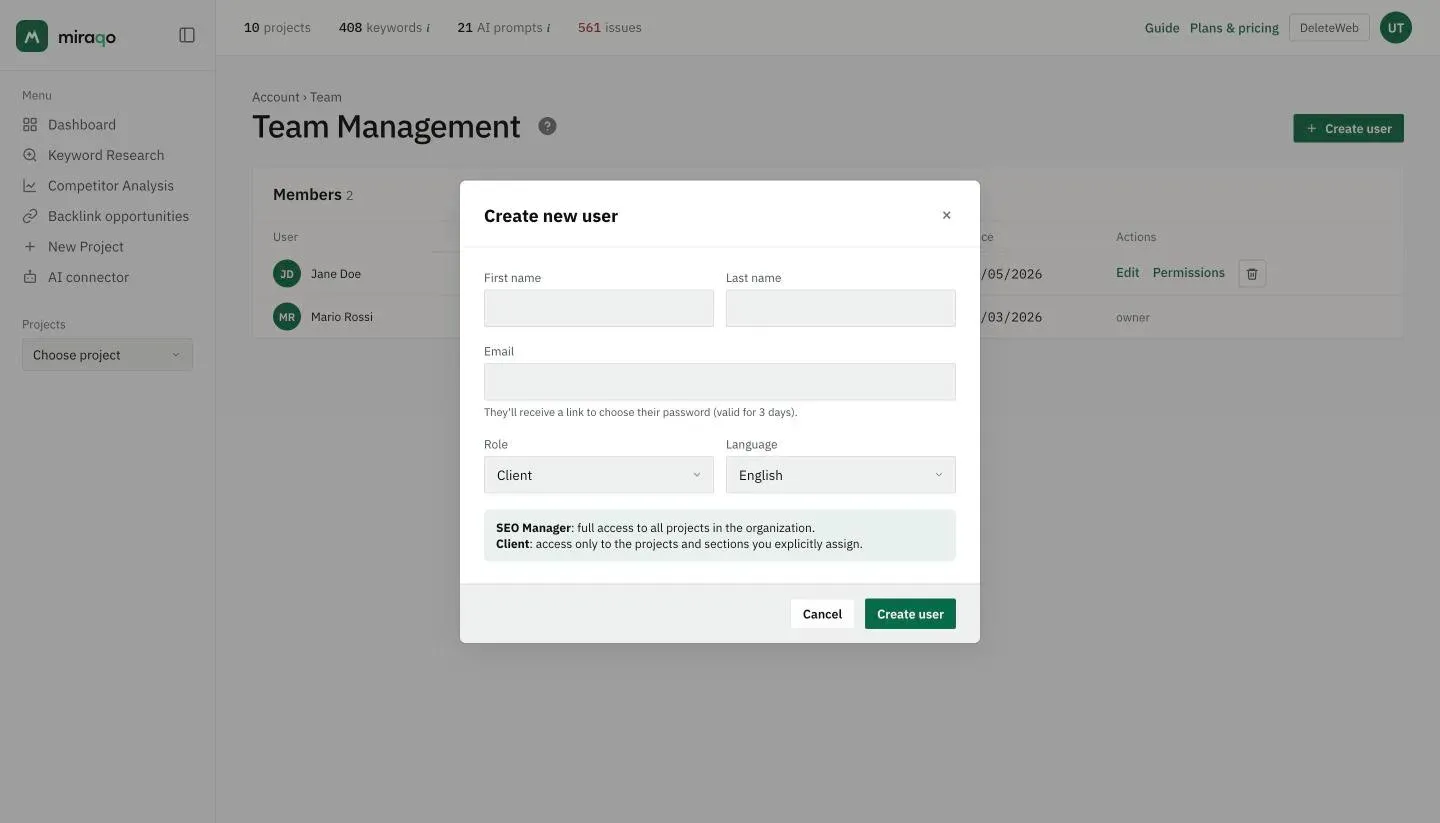
Creates a new Miraqo account directly without the person needing to register:
- Fill in name, surname, email, role (SEO Manager or Client — default Client) and language (by default the one you are using the interface in).
- Miraqo creates the account with an unusable password.
- Sends the user an email with a link to set their own password, valid for 3 days.
- If the email send fails, the link appears in a page message: you can copy it and forward it manually to the person.
Edit
Update name, surname, role (SEO Manager / Client), interface language and — optionally — the user’s password (minimum 8 characters, leave the field empty to not change it).
The organisation owner can’t change role from this page.
Permissions
Visible for all, but only useful for users with the Client role: opens the granular permissions page where you choose which projects the client has access to and what they can do on each one. For SEO Manager/Member/Owner roles, permissions are always full.
See the dedicated guide: User permissions.
Delete
Removes the user from the organisation (with confirmation). The person’s Miraqo account remains but they lose access to this organisation and its projects.
The number of team members depends on your subscription — see Subscription & billing.
Last updated: 18 October 2026