Competitor analysis by domain
How to use Miraqo's Competitor Analysis tool — a full profile of any domain (Domain Authority, organic keywords, estimated traffic, top pages, backlink list with broken links) with a 7-day cache.
Competitor Analysis is a global tool (not tied to a project) that returns a “full profile” of any domain: Domain Authority, backlinks, keywords it ranks for, top pages, estimated organic traffic. It’s different from the Project Competitors page, which instead compares your competitors against your own keywords.
When to use which.
- Want a general overview of a domain (new client, never-seen competitor, market you’re exploring)? → this guide.
- Want to see who beats you or follows you on your monitored keywords? → Project Competitors.
- Want to extract new keywords from a domain for keyword research? → By Domain / Keyword Gap tab in Keyword Research.
- Want to see who links to a competitor (and find broken links to use for outreach)? → Backlinks tab on this page.
How to run an analysis
Open Competitor Analysis from the sidebar, enter the domain (without https:// or www., e.g. example.com), choose Target country and SERP language and click Analyze domain. Processing is near-instant: the SERP/keyword part arrives immediately; the backlinks part (Domain Authority, total links, referring domains, page titles) is completed after a few minutes by asynchronous processing. Until it finishes you’ll see the “Backlink data processing” banner.
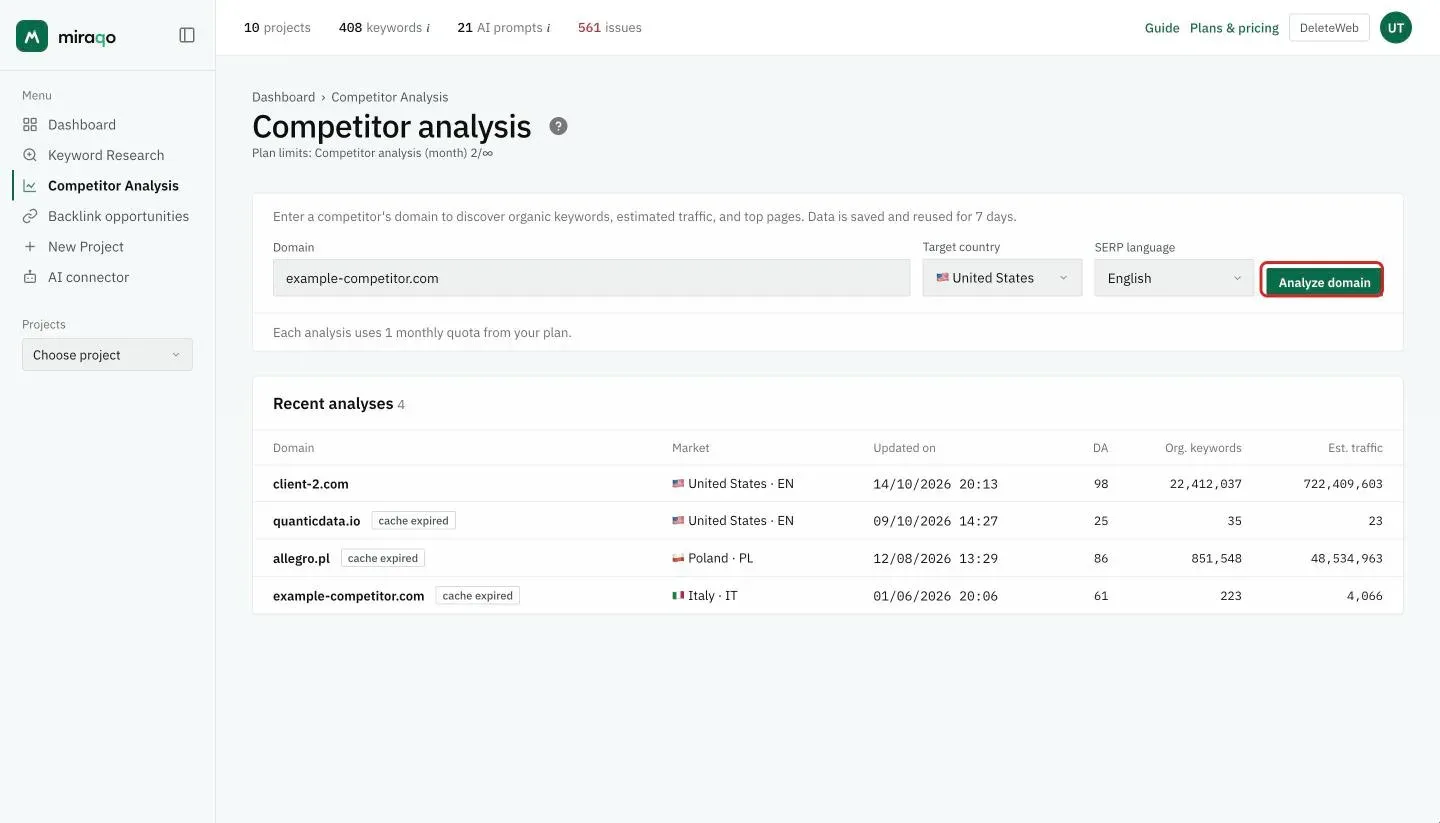
Every analysed domain consumes 1 monthly quota from the plan.
The “Recent analyses” list
All analyses launched by the organisation stay in cache for 7 days. Each row shows the domain, the market (country and language), the date of the last update, DA, organic keywords and estimated traffic. Clicking a row opens the detail. After 7 days the cache expired tag appears next to the domain: you can still open it, but for fresh data you need to re-run the analysis.
Domain detail — 4 tabs
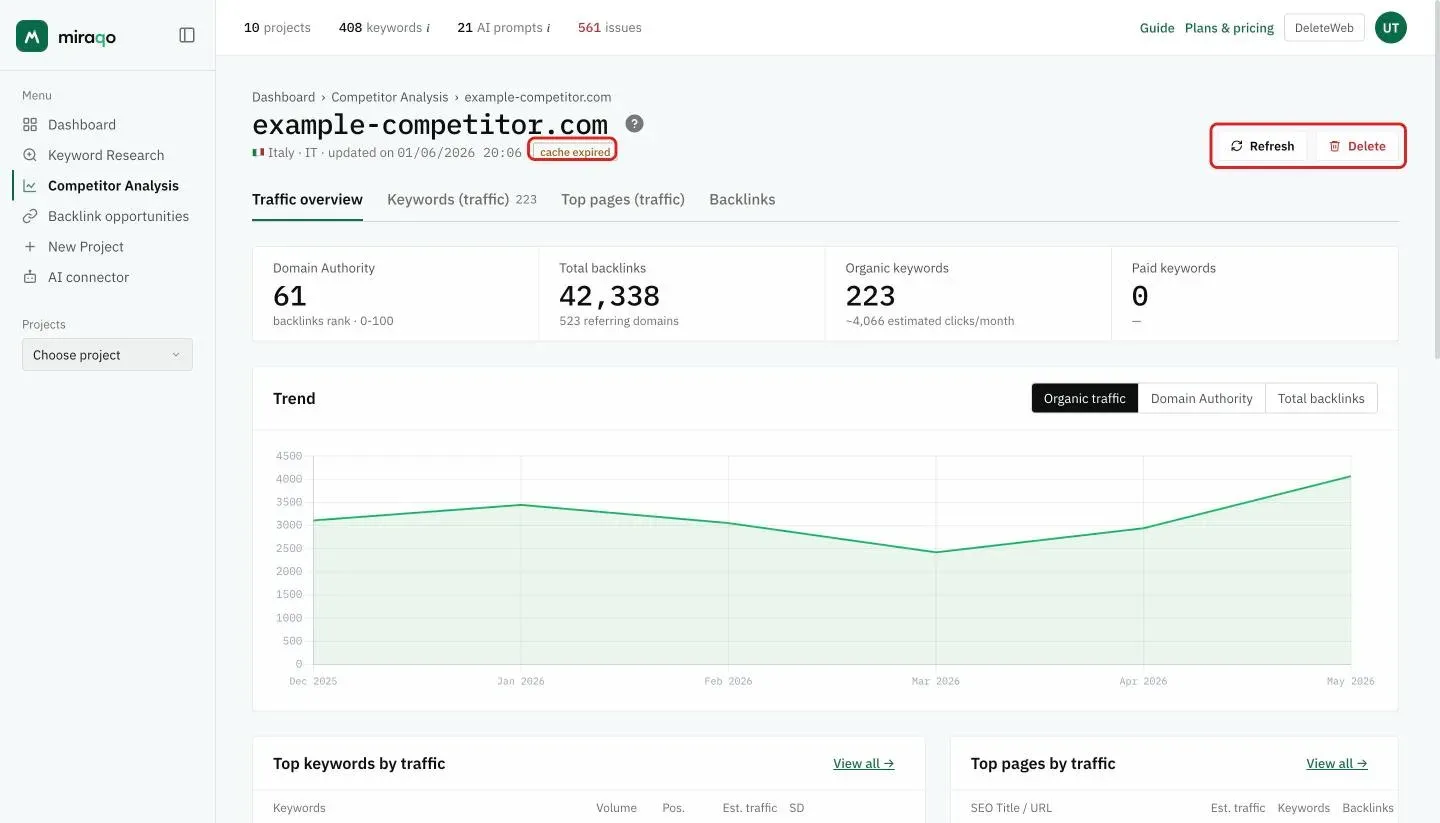
At the top you find the domain, the market and the date of the last update; below, four tabs: Traffic overview, Keywords (traffic) with the number of organic keywords, Top pages (traffic) and Backlinks.
Traffic overview
At the top, four summary figures:
- Domain Authority (0–100) — backlink rank score
- Total backlinks + Referring domains
- Organic keywords + Estimated organic traffic (clicks/month)
- Paid keywords + Estimated paid traffic
Below, the Trend card: at the top right choose Organic traffic, Domain Authority or Total backlinks and the chart shows the month-by-month trend.
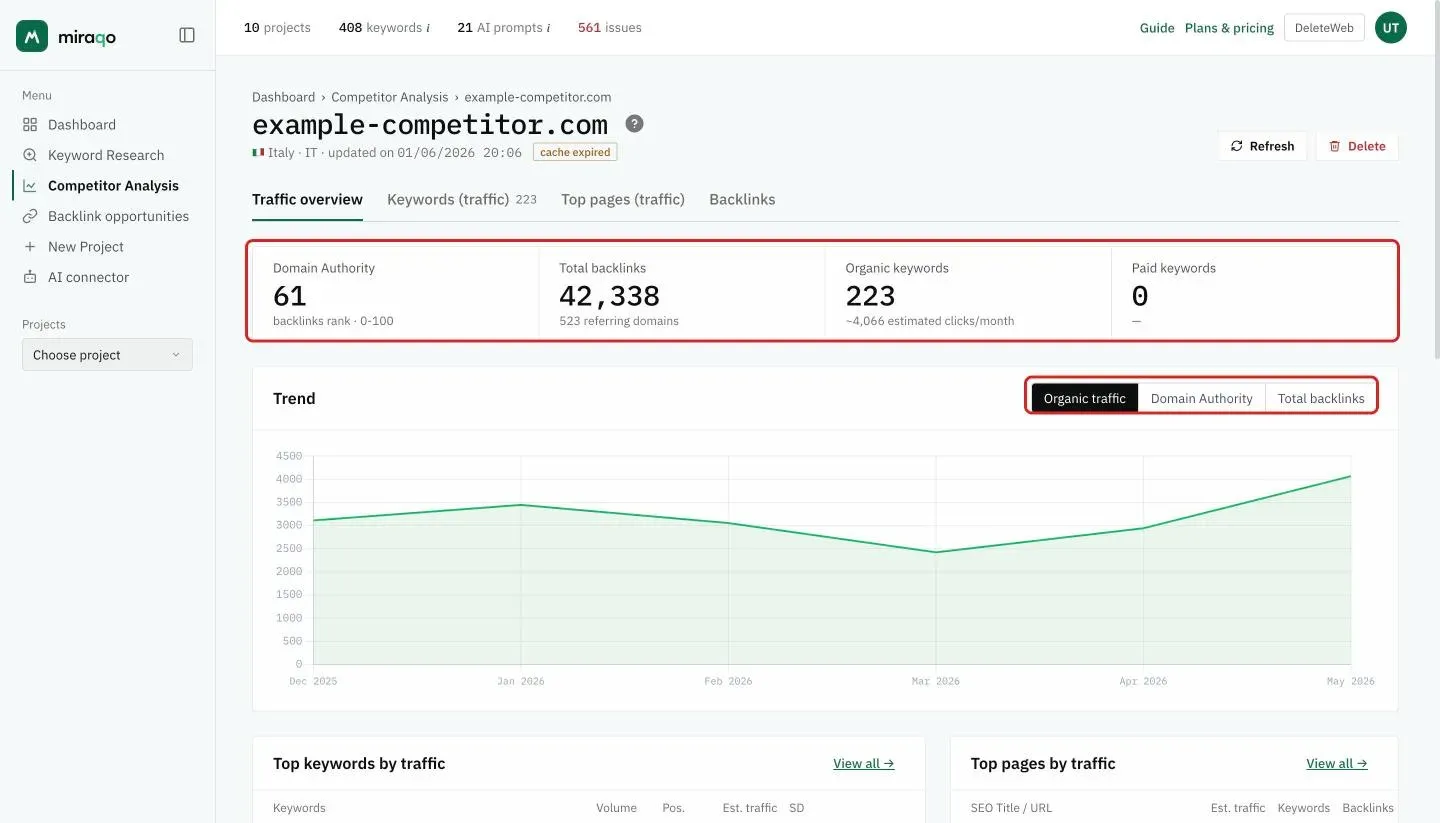
At the bottom, side by side: Top keywords by traffic and Top pages by traffic, each with the View all → link that opens the matching tab.
Keywords (traffic)
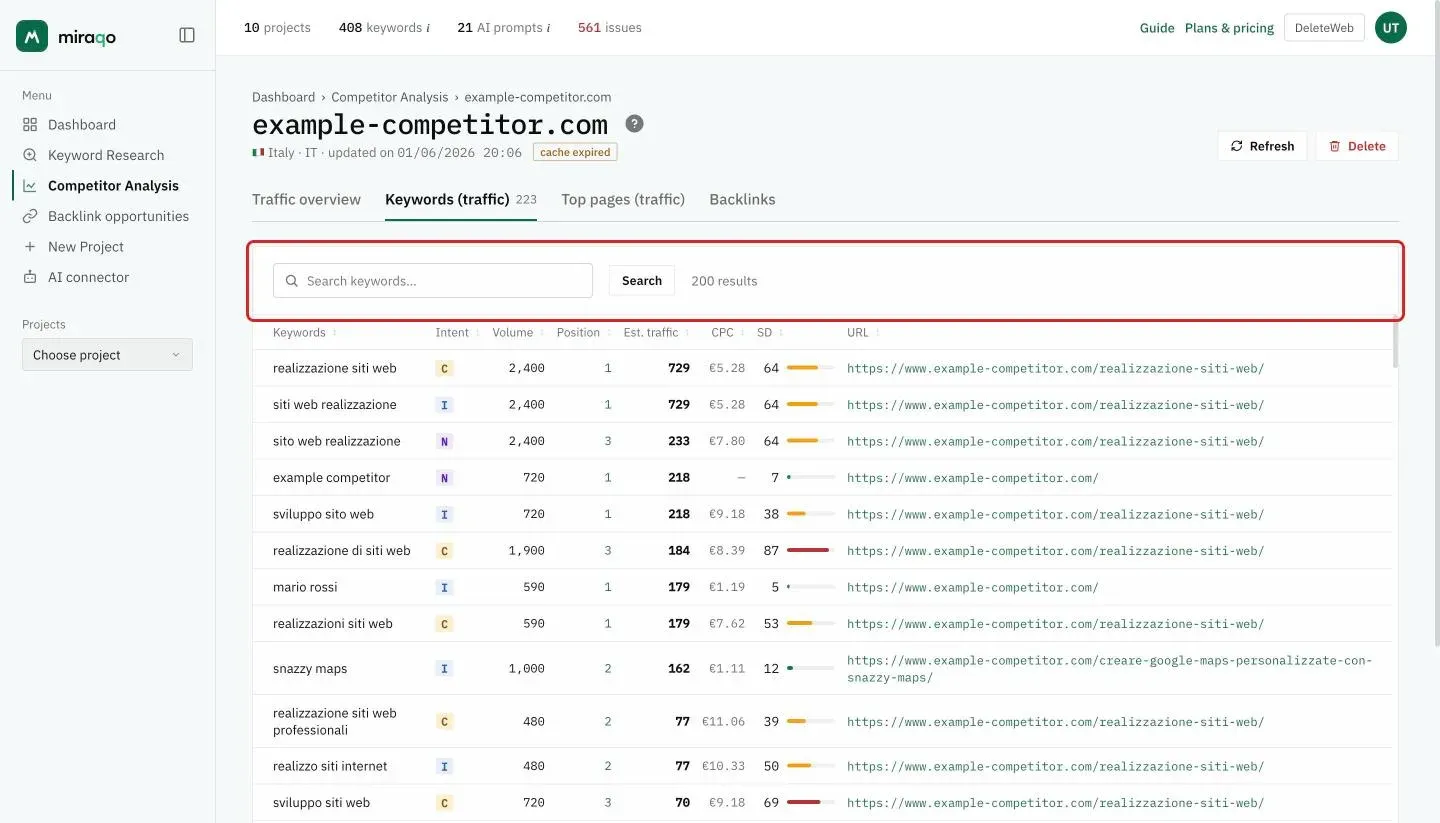
The domain’s keywords sorted by estimated traffic: each analysis saves up to 200 (the number on the tab is the domain’s total organic keywords, so it can be higher). Sort the table by clicking the headers:
| Column | What it is |
|---|---|
| Keyword | Query |
| Intent | Intent letter, if available (I informational, N navigational, C commercial, T transactional) |
| Volume | Monthly searches |
| Position | Domain’s position in the SERP |
| Est. traffic | Estimated monthly clicks |
| CPC | Average cost per click (€) |
| SD | Keyword difficulty 0–100, with a bar going from green (easy) to red (hard) |
| URL | The ranking page |
At the top the search field with Search filters by text; next to it you read how many results there are.
Top pages (traffic)
Table of pages sorted by estimated traffic (up to 100 per analysis). Shows SEO title + URL, estimated traffic, number of organic keywords ranking on the page, backlinks and referring domains to that individual page (not the entire domain).
Backlinks
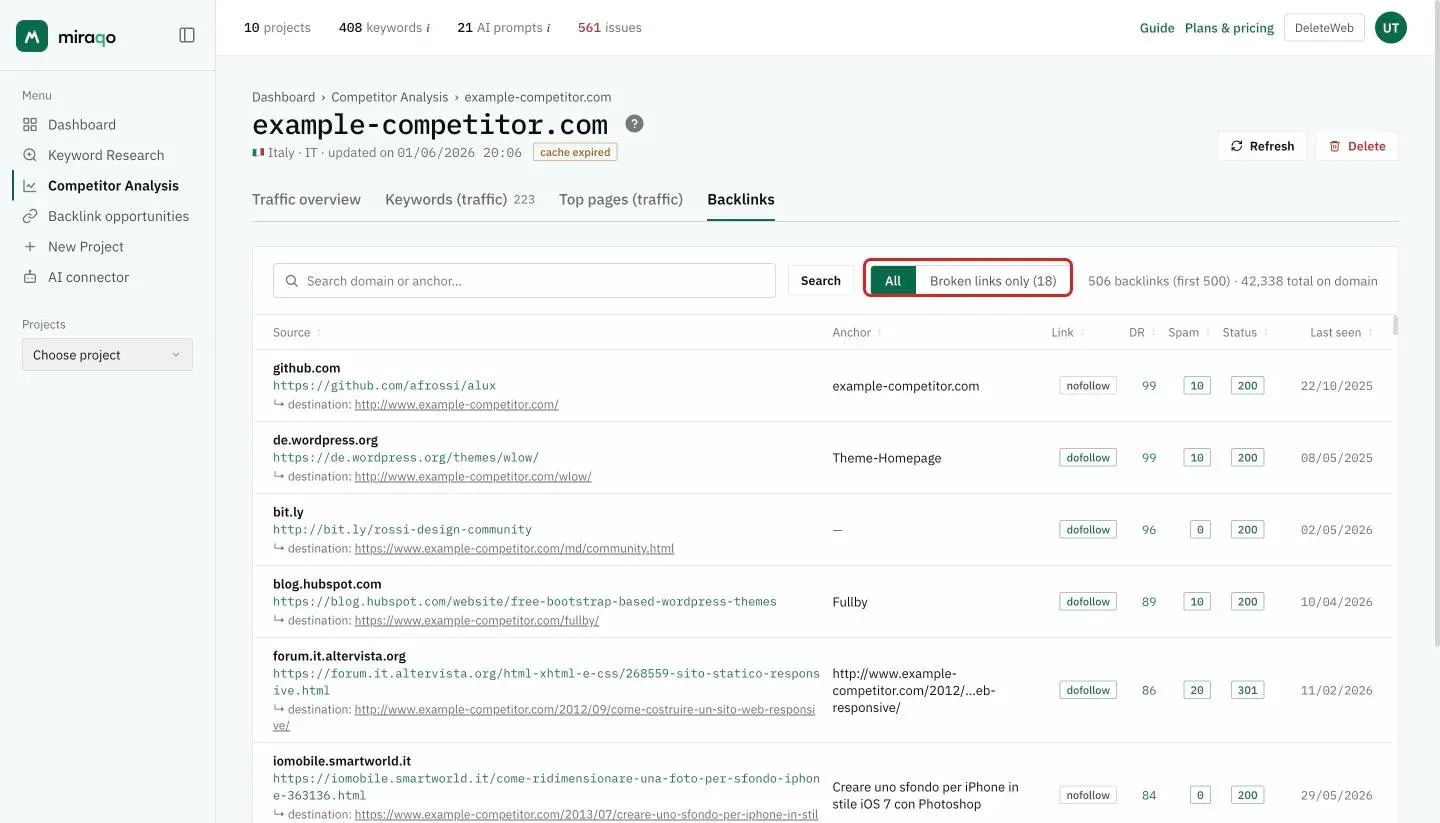
List of incoming links to the analysed domain: the sites that link to it. It’s designed primarily for outreach and broken-link building. To keep it readable it generally shows one representative link per referring domain (the one with the highest authority), sorted by descending authority. Next to the filters you read how many links were saved, how many you see (the first 500) and the domain’s total backlinks.
Each row has:
| Column | What it is |
|---|---|
| Source | The page containing the link — this is the URL to contact for outreach. Below, in small text, the ↳ destination: the page on the domain receiving the link |
| Anchor | The link text (anchor text) |
| Link | dofollow / nofollow pill |
| DR | Domain Rating of the source (0–100): the higher, the more authoritative the link |
| Spam | Link toxicity score (lower is better) |
| Status | HTTP code of the destination page (200 = online; see below for broken links) |
| Last seen | When the link was last seen |
The search field at the top, with Search, filters by domain or anchor. All columns are sortable by clicking the header.
Finding broken links (broken-link building). The All / Broken links only (N) filter at the top, next to the search, isolates links pointing to a page that no longer exists on the domain. The Status column distinguishes:
- broken · 404/410 (red) — the destination page is really dead: an opportunity for broken-link building (you can propose to the source to replace that link with equivalent content of yours);
- blocked · 401/403/429 (amber) — access was blocked by an anti-bot protection or rate limit: the page is normally online, this is not an opportunity;
- other statuses indicate server errors or reachable pages.
Note. The backlink list is populated by an asynchronous process after the analysis: if it just started, give it a few minutes. If you analysed the domain before the introduction of broken-link detection, the already-saved rows don’t update automatically: use Refresh (top right, consumes 1 quota) to repopulate them with the updated status.
Updating or deleting an analysis
On the detail page, top right (below the domain you see the date of the last update and, after 7 days, the cache expired tag):
- Refresh — forces a new fetch consuming 1 additional monthly quota. Confirmation required.
- Delete — removes the analysis from the list. Does not consume quota.
Limits and quota
Each plan has a monthly domain analysis allowance. When you exhaust the quota the button becomes “Limit reached” and the only possible action is “Upgrade plan” from the card. The quota resets at the start of the next billing month.
If your plan doesn’t include the feature (field disabled with “Upgrade plan” instead of “Analyze domain”) you need to move to a higher tier.
Usage tips
- New client, first audit. First thing: analyse the client’s domain to get the baseline (DA, ranking keywords, estimated traffic). Then analyse 2–3 direct competitors for the numerical comparison in the pitch.
- Market you’re exploring. Use it to “scan” 5–10 players in a sector you want to enter: 5 minutes of analysis replaces hours of manual research.
- Outreach and broken-link building. Open a competitor’s Backlinks tab, filter on Broken links only and get a list of pages linking to content that no longer exists: contact those sources proposing your equivalent content as a replacement.
- Not the right tool for continuous monitoring. For that you need project keyword monitoring + Project Competitors. This tool is “spot”: it gives you a snapshot cached for 7 days.
- Very small or new domains may return empty data (not enough indexed SERPs). This is not a tool bug.
- Backlinks pending: if the banner stays on “processing” for more than ~15 minutes, try “Update” (consumes 1 quota) or contact support.
Next steps:
Last updated: 18 October 2026