Create your first project
How to create a project in Miraqo: domain, language, update frequency and initial settings, plan limits and how to edit or delete the project later.
A project in Miraqo is a single website to monitor. Just one. Everything — keywords, audit, backlinks, AI visibility — is organised by project, so you can manage multiple clients separately without their data mixing.
Prerequisites
You need two things: an active Miraqo account (trial is fine) and the domain of the site to monitor, for example example.com. Access to Google Search Console for that site helps, but it’s not required.
Procedure
- From the Dashboard click + Create project in the top right, or New Project in the sidebar.
- Enter:
- Project name: usually the client’s name or the site’s name (e.g. “Client Magazine”)
- Domain: without
https://orwww.— just the domain (example.com) - Target country and SERP language: the pair tells Miraqo which Google to query (e.g. United Kingdom/English for
google.co.uk; see countries and languages)
- Click Create project.
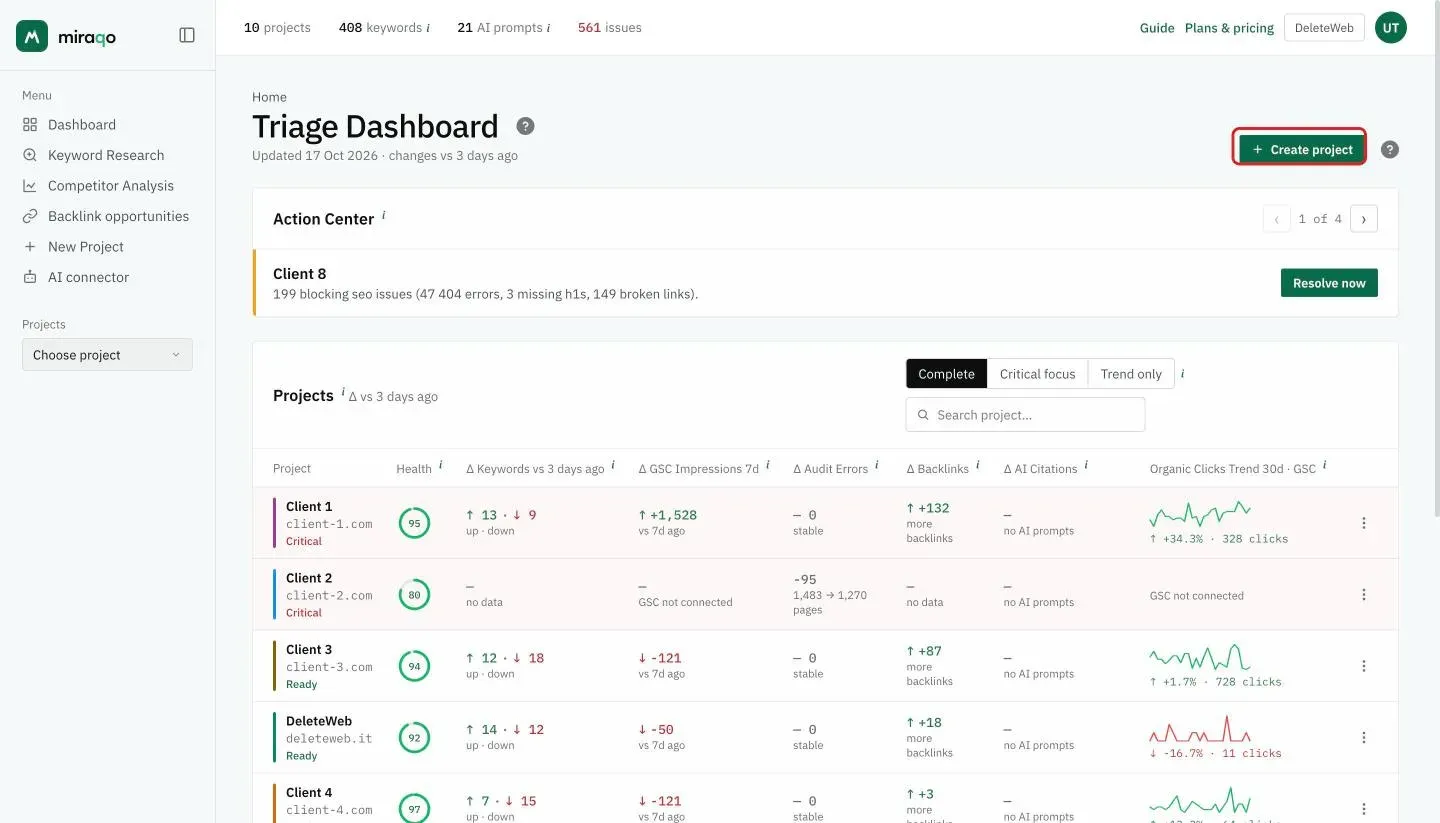
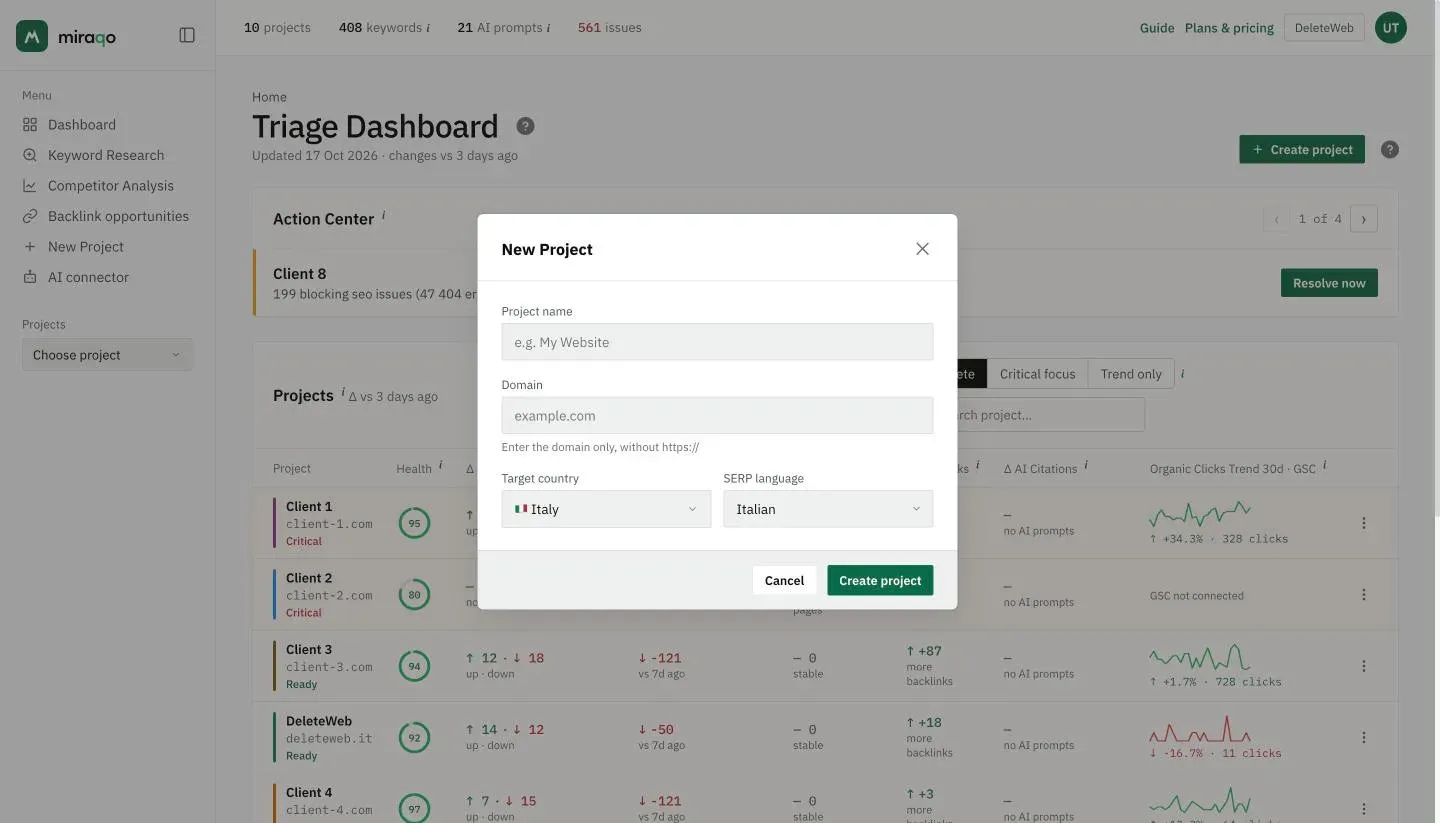
The project is immediately active. From there a 3-step wizard walks you through the setup: you connect Google Search Console (optional but recommended — see Connect Search Console), add the first keywords (Add keywords) and run the first site audit.
How often is data updated?
Each plan (Solo, Starter, Pro, Agency) is available in 2 frequency variants:
| Frequency | When ranking updates |
|---|---|
| Every 3 days | Two checks per week (base frequency, lowest price) |
| Daily | Every day (highest price) |
The frequency is chosen when subscribing to the plan (see Pricing) and applies to all projects in the organisation. The update is automatic. The date of the last check? On the Keyword Detail page, below the project title.
Local SEO. A new location (or a new grid keyword) is scanned immediately; then the grids update automatically at the same frequency as the plan. There’s no manual scan.
Plan limits
Each plan has a maximum number of projects you can create:
| Plan | Projects |
|---|---|
| Solo | 1 |
| Starter | 3 |
| Pro | 10 |
| Agency | 25 |
The current limit is visible in the sidebar next to the “Projects” selector and in the pricing table.
Tip: if you manage multiple clients in the same sector, avoid creating a single project for “everything”. One project = one domain. The data model is optimised this way.
Editing or deleting
Renaming the project or changing its language is done from the project → Settings → General. Changing the domain, on the other hand, is not recommended after the first few days: you lose the ranking history of the old domain (if you really need to, contact support).
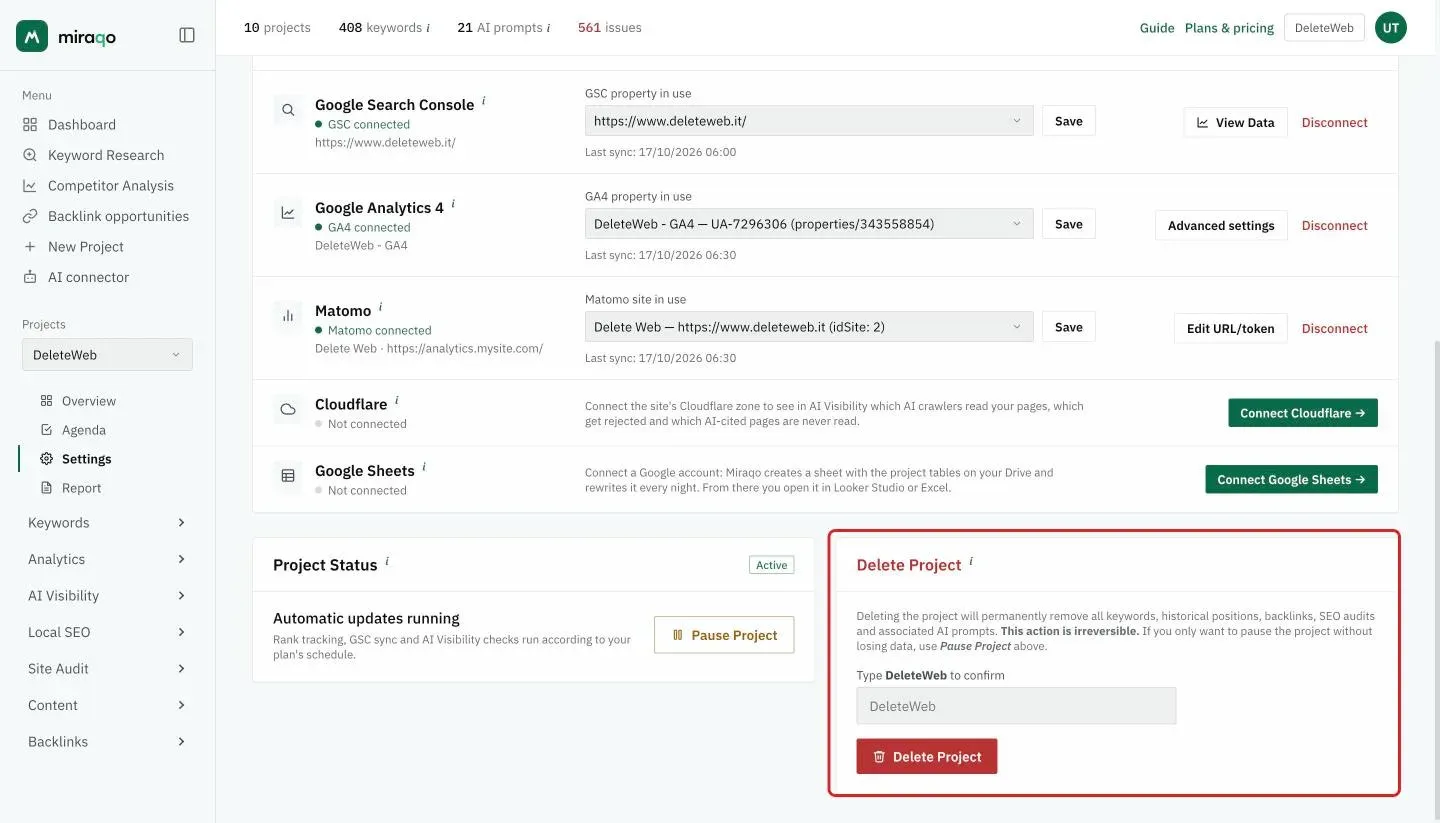
Deleting the project — Settings → General → Delete Project, at the bottom of the page — is irreversible: to confirm you need to type the project name. It removes keywords, ranking history, audits, backlinks and reports for that project. If you just want to pause the project without losing data, use Pause Project in the Project Status card, right next to it.
Next step: Add your first keywords →
Last updated: 5 September 2026