Business topics — generating AI prompts
How to generate AI Visibility prompts starting from the themes your business covers — instead of SEO keywords. Topic-first flow (3–8 topics → conversational prompts balanced by intent), Prompt Research (from a seed topic, the full map of direct questions, comparisons, objections and follow-ups) and Prompts from a page (paste the URL, get the questions that page answers best). With ✨ badges on keywords where the AI Overview really appears, and model selection with the credit cost in plain sight.
The prompts that users make to ChatGPT, Perplexity or Google AI Overview don’t look like SEO keywords. They’re conversational, often multi-phrase, and come from a concrete intention: understanding something, comparing alternatives, solving a problem. That’s why Miraqo doesn’t start from your keywords, but from your business topics: you describe what you do, we generate the prompts people actually ask about those topics.
Where to find it
Open the project → Settings → AI Prompts tab. At the top is the Prompts to monitor card, with the check frequency (see AI Visibility — Report and prompts), the add form and the table. Below it, Suggested prompts appears when there are candidates to approve, and at the bottom is the Find new prompts card, with one tab for each way of generating them: Business topics, Prompt Research, Prompts from a page, Recurring questions, From CSV (plus From keywords if Search Console isn’t connected).
What to write in the textarea
Enter 3 to 8 topics, one per line (or comma-separated). Each topic is a theme your business covers, described with enough specificity.
Good examples:
CRM for small businessesB2B sales automationlead management from WhatsAppdental practice management software ItalyGDPR consultancy for e-commerce
Too generic (avoid):
marketing→ too many players, diluted promptssoftware→ huge categoryconsultancy→ without a domain it’s useless
Practical rule: if a friend asked “what exactly do you do?”, the topic is the answer you’d give without slipping into the generic.
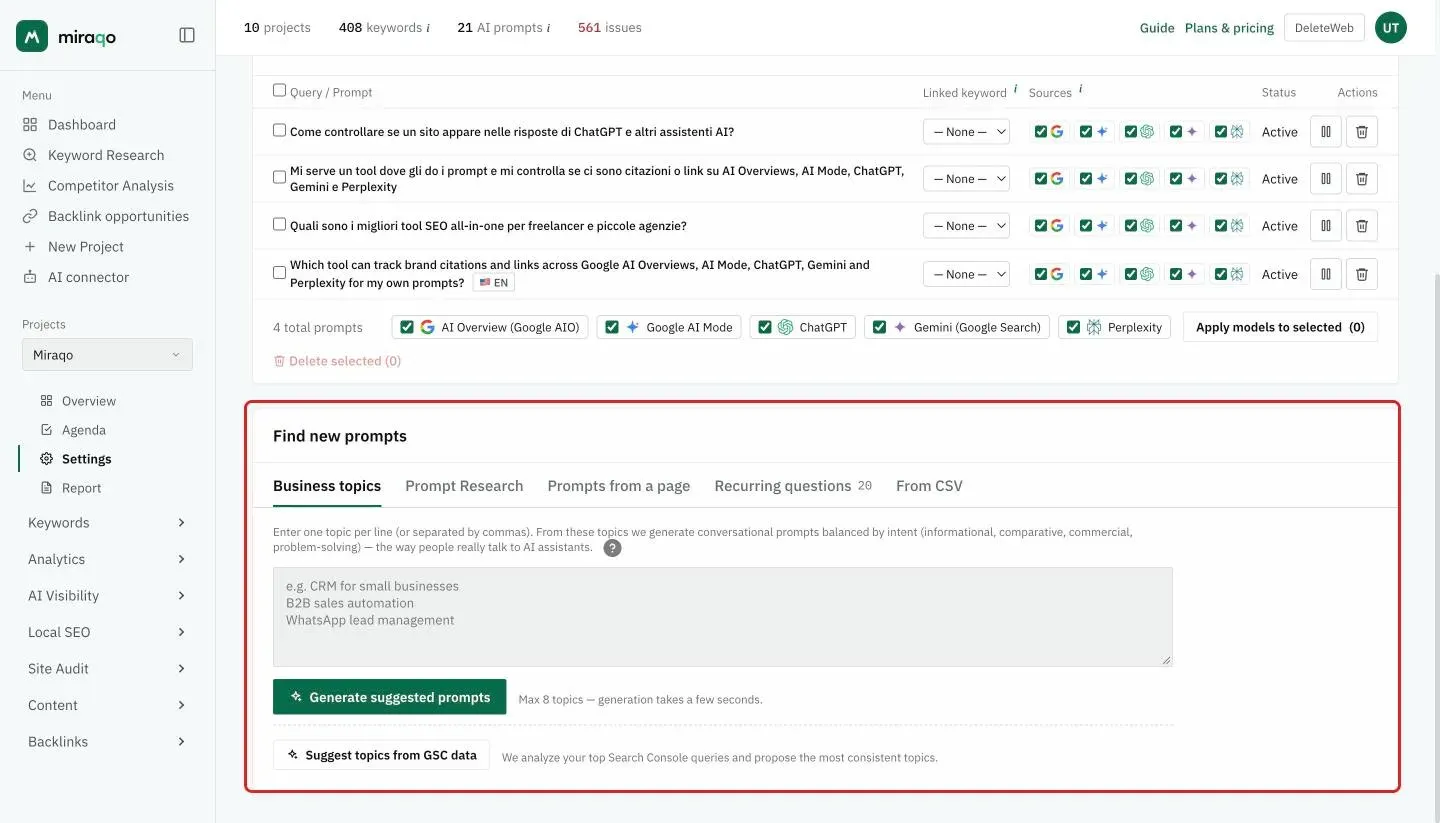
Shortcut: suggest topics from Search Console data
If you have Google Search Console connected to the project, below the textarea you’ll find the Suggest topics from GSC data button. Clicking it, Miraqo:
- reads your top 80 GSC queries from the last 90 days (sorted by impressions)
- groups them into 3–8 coherent business topics — merging semantically related queries, discarding pure brand and navigational searches
- appends them to the topics already in the textarea (case-insensitive dedup, cap 8 total)
This lets you start from topics you’re already receiving traffic on instead of a blank page. They’re still editable: remove the ones that don’t represent the business or add others written by hand. Then click Generate suggested prompts to produce the conversational candidates.
The button is only visible if GSC is connected; without GSC the flow remains manual (textarea + placeholder examples).
What happens when you click “Generate suggested prompts”
Miraqo generates conversational, natural-language prompts on each of your topics, balanced across four different intents — because a user doesn’t just ask “which is the best”, but also “how do I do it”, “X vs Y”, “I have this problem, how do I solve it”:
| Intent | What it is | Example |
|---|---|---|
| Informational | The user wants to understand something | “what’s the difference between a CRM and ERP?” |
| Comparative | The user is comparing alternatives | “HubSpot vs Pipedrive for a small business, which is better?” |
| Commercial | The user is close to making a choice | “best CRM for small businesses with WhatsApp automation” |
| Problem-solving | The user has a concrete problem | “how to manage leads coming from WhatsApp Business without losing them?” |
The prompts are grouped by intent in the Suggested prompts card, each with a badge indicating which topic it was derived from.
Generation takes a few seconds. With 5 topics you’ll typically receive 15–25 candidates total.
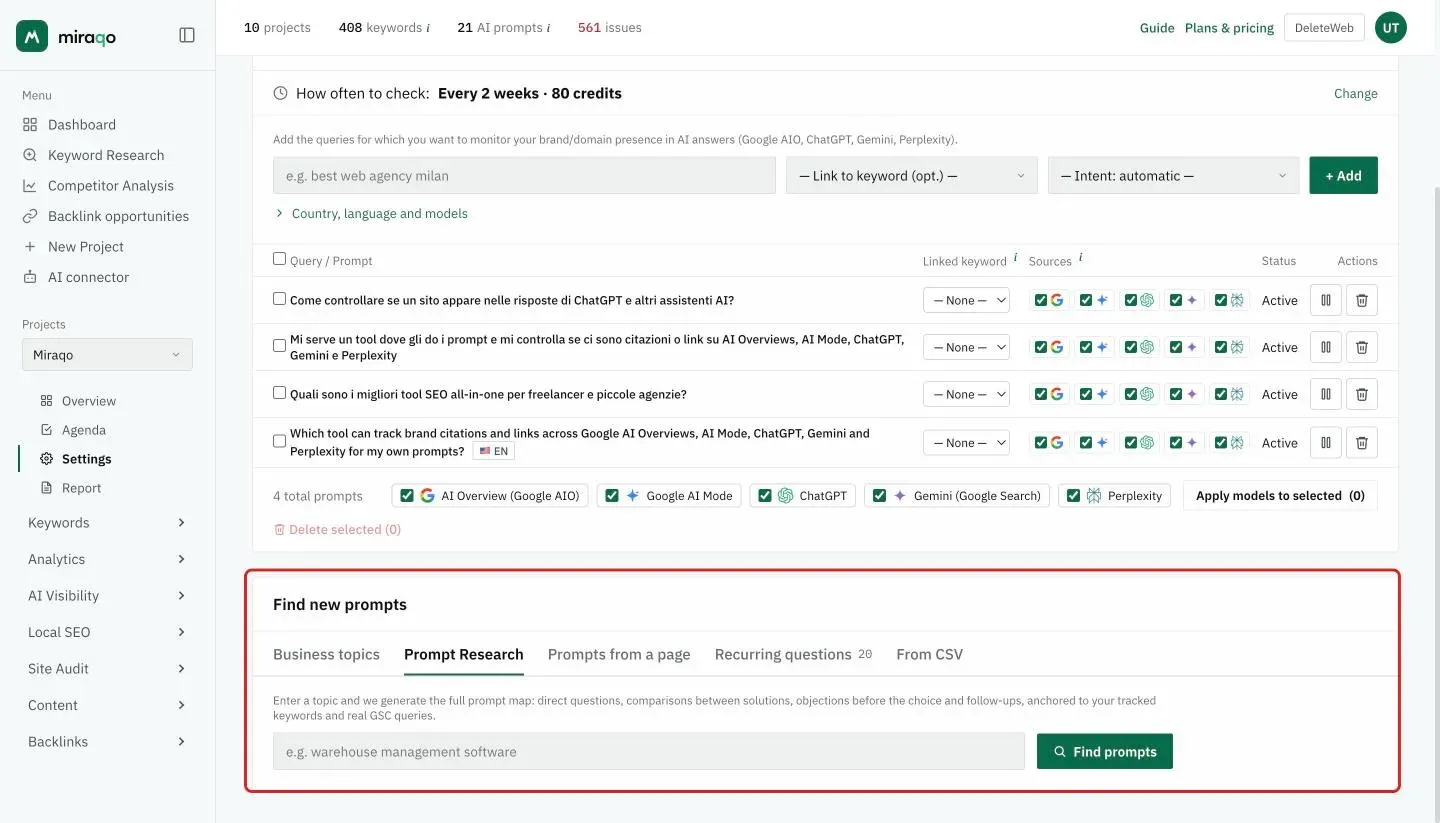
Prompt Research: the full map from a single topic
The Prompt Research tab is the equivalent of keyword research, but for AI prompts. Instead of starting from several topics, you start from a single theme (e.g. warehouse management software) and Miraqo builds the full map of questions along the search journey:
- direct questions of discovery (“how does it work…”, “what is…”)
- comparisons between solutions (“X vs Y”, “alternatives to…”)
- objections and doubts before choosing (cost, reliability)
- follow-ups — the questions that naturally follow the first answers
The difference from “Generate suggested prompts”: Prompt Research is anchored to your real data — it crosses the topic with the keywords you already track (favouring high-volume ones) and with real Search Console queries from the last 90 days, so the prompts reflect needs already observed in your audience, not just the abstract topic.
The candidates (16–20 per search) land in the same Suggested prompts card, grouped by intent, and are added to monitoring through the same selection flow. Each new search replaces the previous candidates that haven’t been added yet.
Prompts from a page: one prompt for every page that matters
The Prompts from a page tab is for pages you’ve already written. If you’ve already written a page meant to be cited by AI assistants, paste its URL: Miraqo reads the page text and suggests the questions that page answers better than a generic one — the prompts where it actually makes sense to monitor whether AI cites it as a source.
- Paste the URL (project domain pages only: for other people’s sites there’s Competitor analysis)
- Pick the intent from the menu, or leave All intents
- Click Analyse page
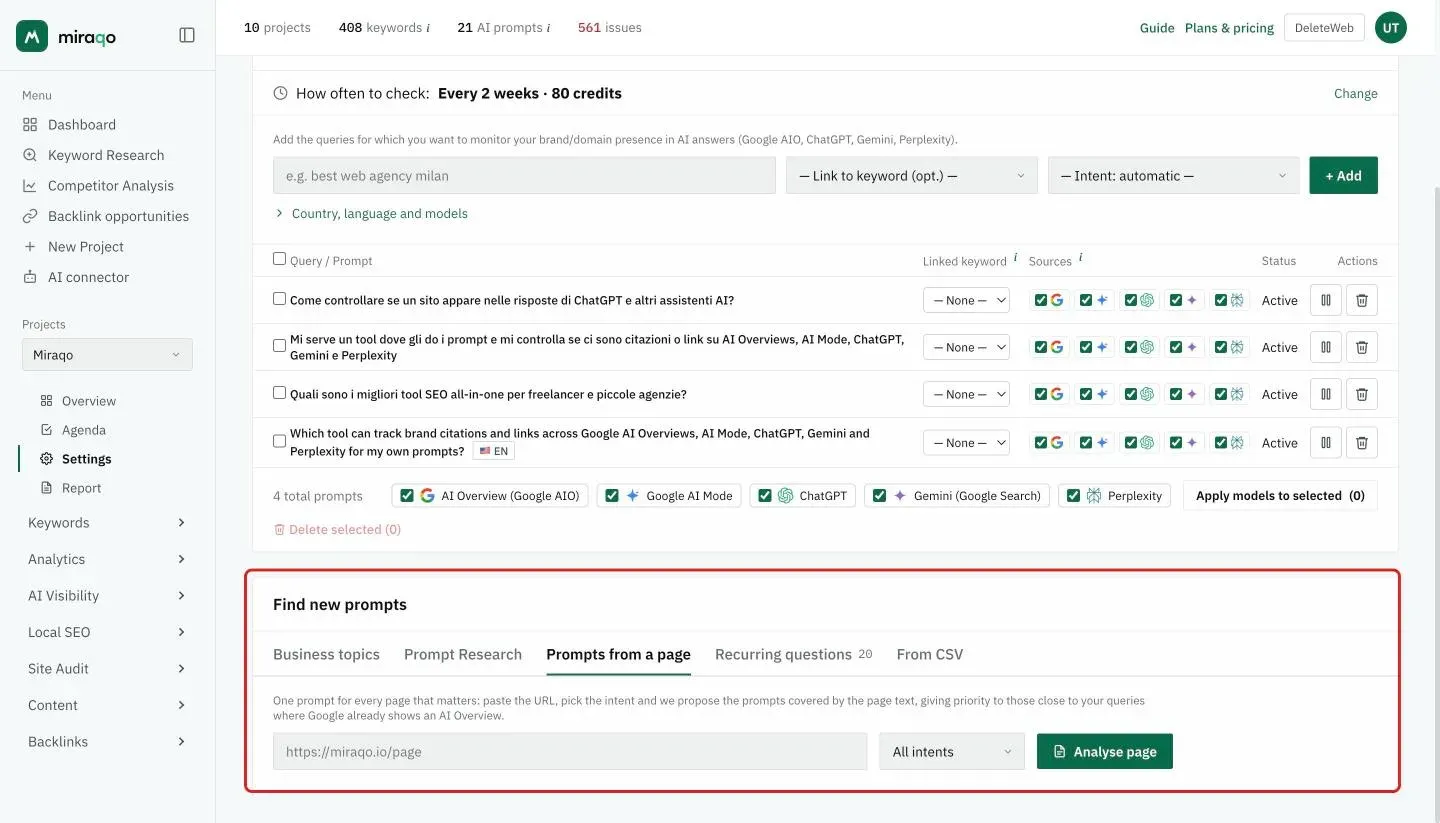
The candidates appear in the same Suggested prompts card, with the page title as a chip on the right: analyse several pages and you can see at a glance which prompt came from which.
It needs text. A page made only of images, videos or a few lines isn’t enough: Miraqo tells you instead of inventing prompts. If the page isn’t publicly reachable the fetch fails and you get an explicit message.
Analysing a page uses the monthly AI generators budget shared with “Generate suggested prompts” and Prompt Research — not AI Visibility credits, which are only consumed when you actually add a prompt to monitoring.
The ✨ badge: which candidates are actually worth it
Some candidates in the list carry an ✨ badge with a keyword and its volume. It means that prompt leans on a keyword you already monitor and where Google really does show an AI Overview.
It’s the only measured signal in the list: without the badge, the candidate order is just what the model considered plausible. A candidate with a badge sits on ground where AI is already answering — start there.
Selecting and adding
At the top of the list you have Select all + the counter of selected items. Above the candidates you’ll find the model toggles the prompts you’re about to add will be monitored on, each with its credit weight (AIO 1, AI Mode 1, Perplexity 2, Gemini 2, ChatGPT 2). Below the toggles, the cost updates as you tick: “N credits per prompt · M in total”.
Tick the prompts you want to monitor, choose the models and click + Add selected.
Don’t leave all 5 models on out of habit. On all 5 a prompt costs 8 credits; on the 3 cheap ones (AIO + AI Mode + Perplexity) 4. If you only care whether the AI Overview triggers, AIO alone costs 1. At least one model is required: without it the add doesn’t run (there’s no automatic fallback to all 5 — a fallback here would be paid in credits).
Budget by plan:
| Plan | Credits | Max prompts (1 assistant) | ≈ complete prompts/month | ≈ cheap prompts/month |
|---|---|---|---|---|
| Solo | 120 | up to 120 | ~15 | ~30 |
| Starter | 280 | up to 280 | ~35 | ~70 |
| Pro | 680 | up to 340 | ~42 | ~85 |
| Agency | 1,680 | up to 420 | ~52 | ~105 |
A complete prompt = 5 assistants × 3 sampled answers (15 answers per check). In the “prompt per model” unit used by other tools, the plans are worth about 75, 175, 210 and 260 prompt × assistant combinations across all 5 assistants. The max is the “up to” shown on the pricing cards: all credits spent on a single 1-credit assistant (AI Overview or AI Mode), at the plan’s default check cadence.
If you select more candidates than you have credits remaining, Miraqo stops at the limit and notifies you.
Recommended strategy: don’t tick everything. Choose 8–15 representative prompts well distributed across the 4 intents — a mix that covers the customer journey is more informative than 50 similar prompts in the same range.
Recurring questions in AI responses
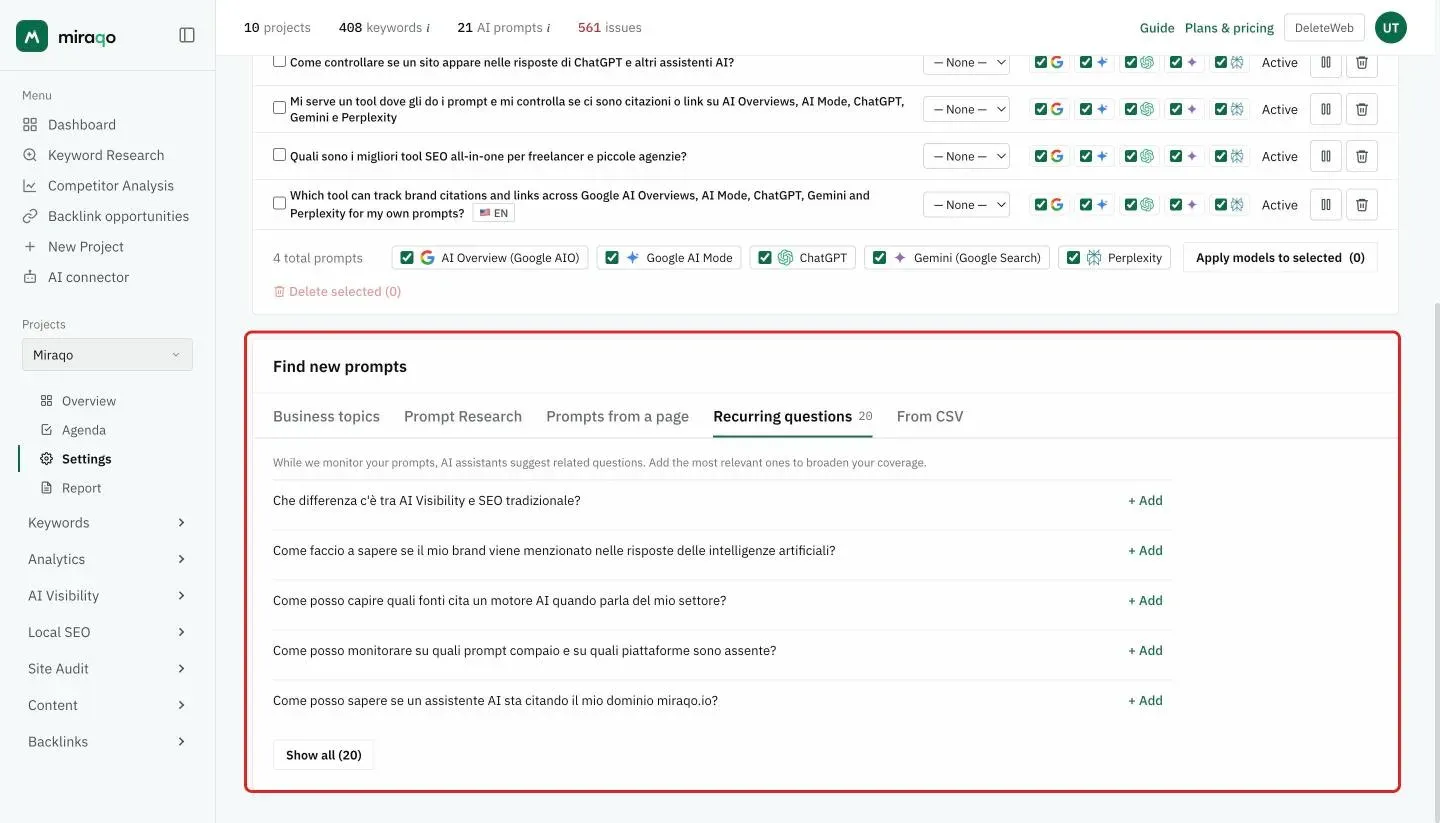
After the prompts start being monitored, AI assistants spontaneously suggest related questions within their responses. Miraqo aggregates these in the Recurring questions tab, with the number of questions next to its name. The first 5 are shown; Show all opens the rest.
These are often excellent candidates to add as new prompts: the AI is already “thinking” around your queries, so if you monitor them you discover whether it mentions you there too. Each question has an + Add button that promotes it to a monitored prompt on all 5 sources (8 credits): if you want a cheaper subset, reduce the models from the row toggles once the prompt has been added.
Reusing and refining topics
Topics stay saved on the project: return at any time and edit the textarea to:
- Add a new theme when you launch a product line
- Refine a too-generic topic (“CRM” → “CRM for small businesses with a sales team of 2–5 people”)
- Regenerate candidates: every time you click “Generate” the list refreshes taking into account the current topics
Regeneration doesn’t touch already-added prompts: it only affects the candidates in the Suggested prompts card. You can regenerate as many times as you want without losing anything.
Differences from the “Add single prompt” field
At the top of the page, in the Prompts to monitor card, you’ll also find the classic manual add form (+ Add) that lets you enter a prompt you’ve already written and optionally link it to a keyword; country, language and AI sources are under Country, language and models. The two flows coexist:
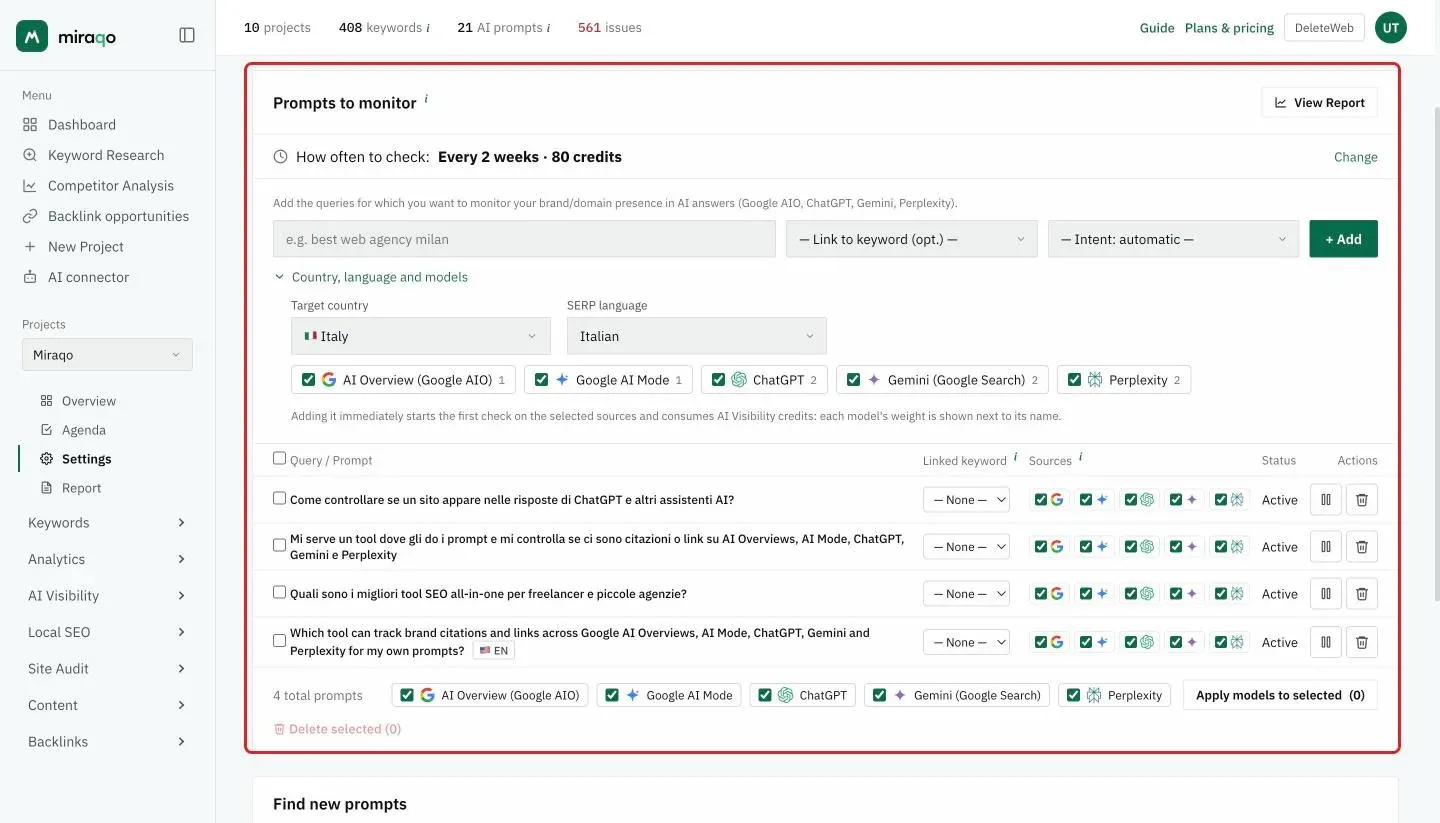
- Topics → Generate = fast and balanced discovery of prompts you wouldn’t have thought of
- Add manual = entering a prompt you already have in mind, with full control over linked keyword and sources
See also:
- AI Visibility — Report and prompts to read the report once prompts start being monitored
- Project settings for the complete overview of the AI Prompts tab
Last updated: 18 October 2026