Create white label SEO reports in PDF
Configure templates, cover page and scheduling to generate and send SEO PDF reports with your agency's logo — 12 toggleable sections, automatic table of contents, optional detail lists and PDFs in 5 languages.
Miraqo’s branded PDF reports let you deliver a professional document to clients with your agency’s logo, colours and contact details. Once the template is configured, the PDF downloads with one click — or goes out automatically by email at the cadence you decide.
Plan required: report generation and sharing are included from Pro and Agency plans. On Free plans the Report tabs remain visible in read-only mode with a notice.
Where to configure it
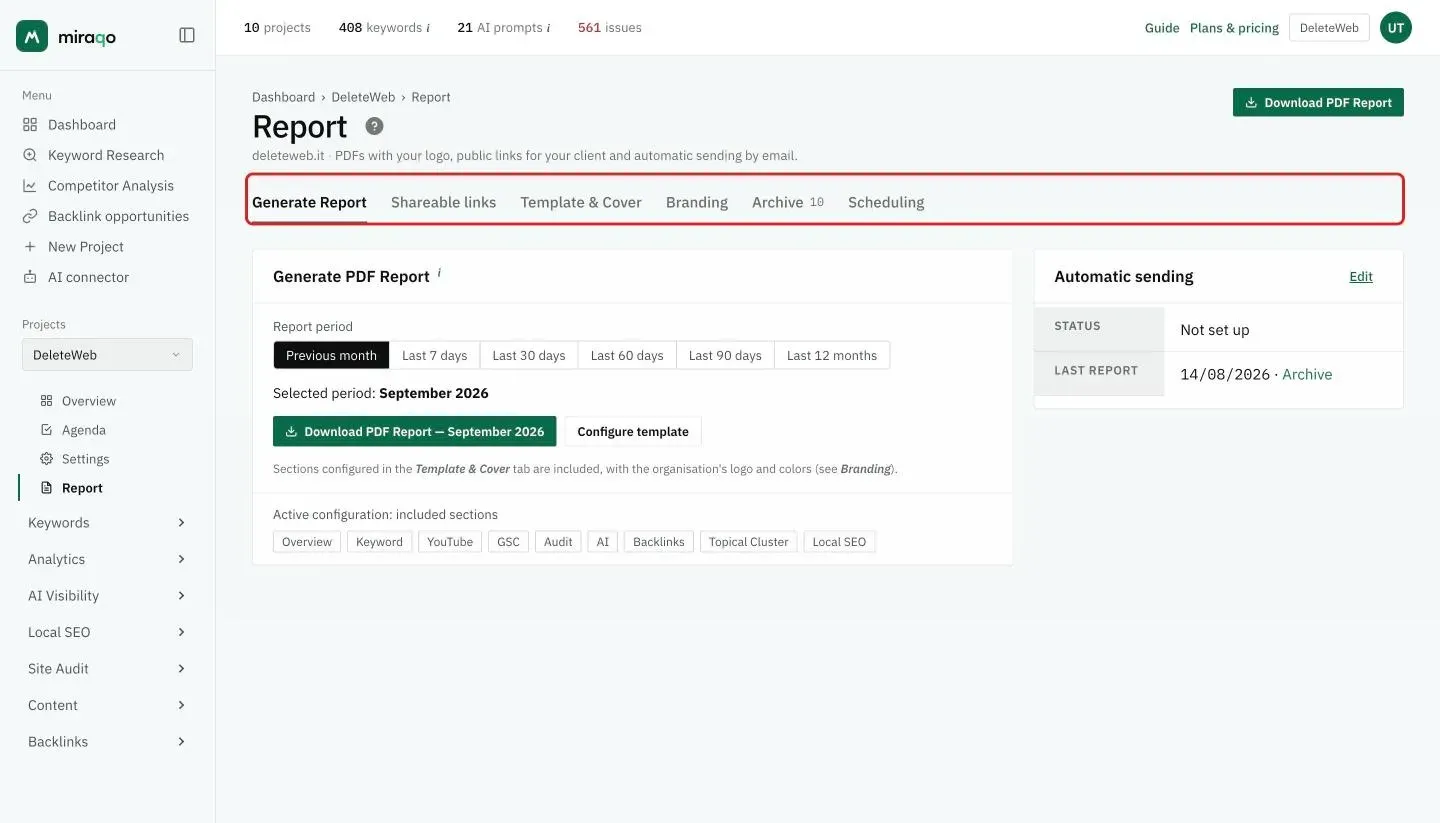
From any project go to Report. You’ll find 6 tabs:
- Generate — download the PDF immediately for the period you choose
- Shareable links — public read-only links of the project (with optional password and expiry)
- Template & Cover — which sections to include and cover text
- Branding — which Brand Profile to use for this project (logo, colours, contacts)
- Archive — the last 12 generated PDFs are kept here
- Scheduling — automatic email delivery
Report sections
The PDF opens with the cover page and an automatic table of contents with page numbers. It’s modular: you can enable/disable each of these 12 sections from the Template & Cover tab:
- Overview — initial summary: rankings, AI Search, Analytics and backlinks
- Keywords — rankings, variations and the URL that’s ranking
- YouTube — the channel’s position in YouTube search for keywords also monitored there
- Google Search Console — impressions, clicks, CTR, average position
- Technical Audit — issues detected ordered by severity
- AI Visibility — citations and rankings on AI engines
- Backlinks — link profile, new/lost, top referrers
- Local SEO — position heatmap and GBP data
- Competitors — comparison with the monitored competitors
- Core Web Vitals — performance of the key pages
- GEO Audit — how ready the site is for AI engines
- Topical Cluster — topic coverage and content structure
Disabled sections are skipped; the data remains accessible in the app.
Optional details
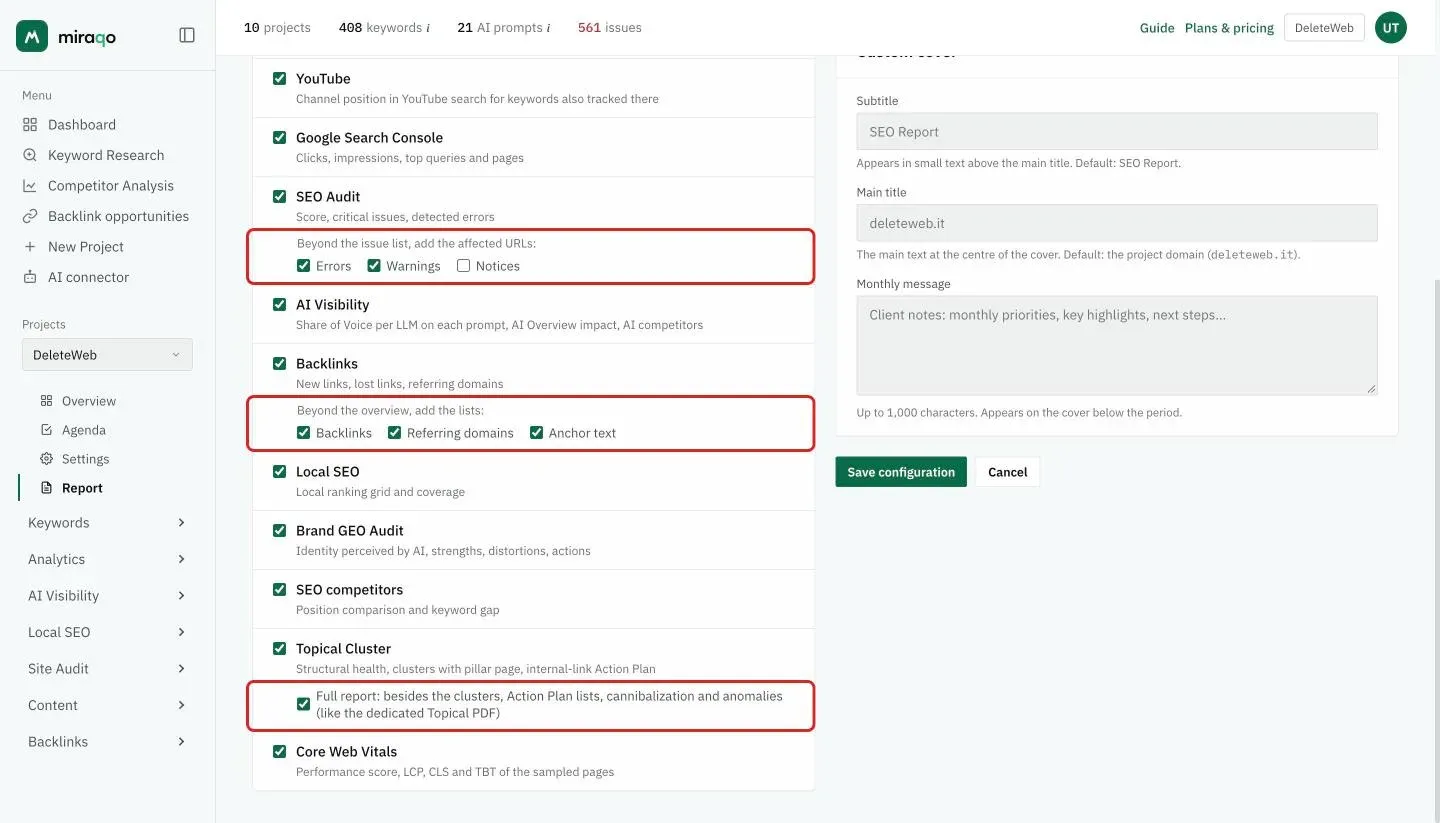
Some sections have an extra level of detail, off by default because on a large site it’s worth dozens of PDF pages (the report you hand to a client is meant to be a summary):
- Audit — full issue lists, toggleable separately for errors, warnings and notices
- Backlinks — list of individual backlinks with full clickable URL, link status and spam score; referring domains list; anchor text list
- Full Topical Cluster — adds the operational lists from the dedicated Topical report to the PDF: missing links from the pillar, content gaps, reciprocal links between clusters, cannibalisations and structural anomalies
Cover page and language
Also from the Template & Cover tab you can customise the cover:
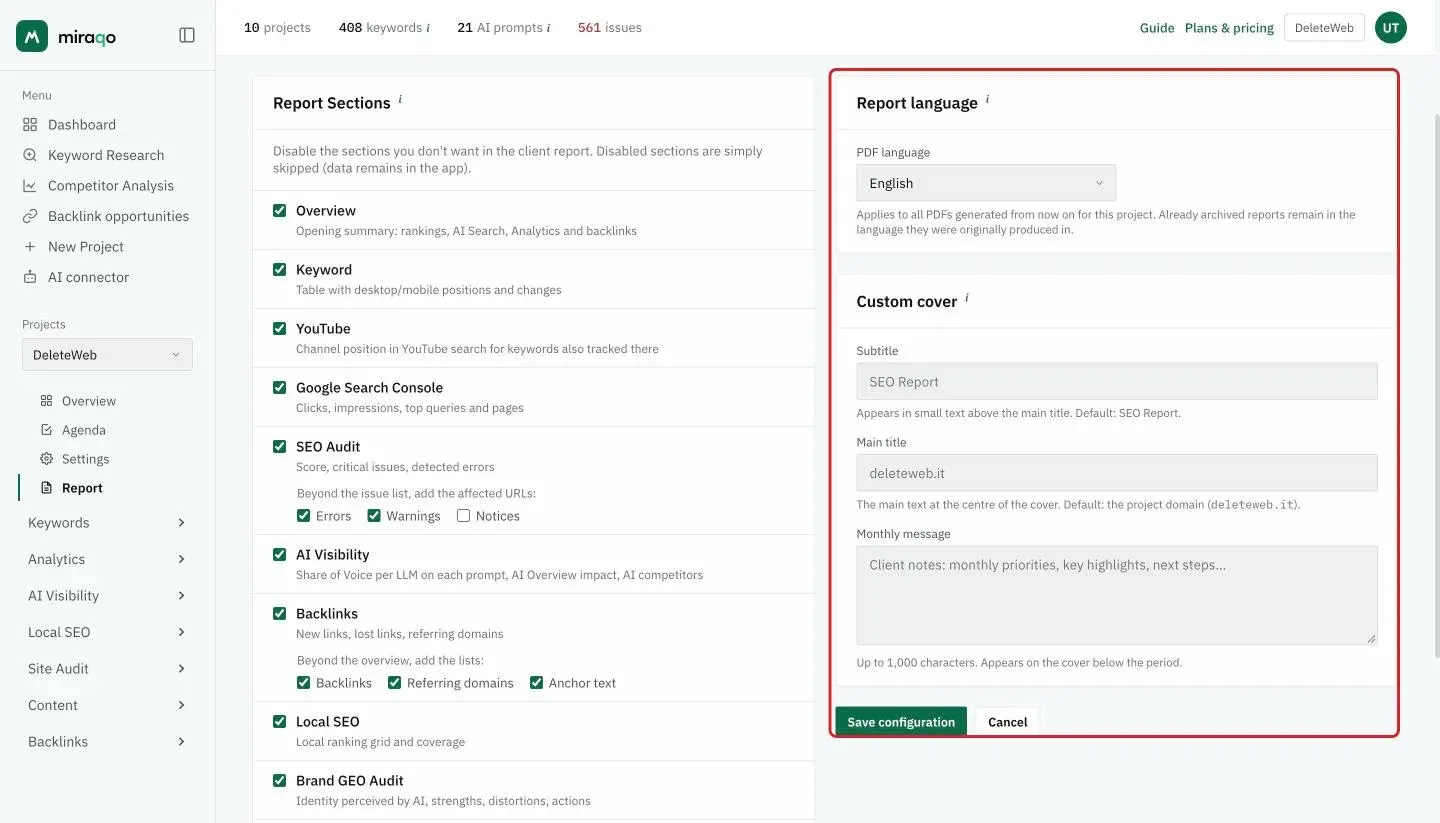
- Subtitle — appears small above the large title (default: SEO Report)
- Main title — the main text at the centre of the cover (default: the project’s domain); useful for the client’s name
- Monthly message — free text that appears on the cover below the period (up to 1,000 characters); ideal for summarising the period or flagging next steps
- PDF language — Italian, English, German, French or Spanish: changes labels, headings and date/number formats in the PDF. Applies to PDFs generated from that point on; reports already in the archive stay in their language
Confirm with Save configuration.
Available periods
From the Generate tab choose one of these periods:
- Previous month (recommended for monthly delivery)
- Last 7 days
- Last 30 / 60 / 90 days
- Last 12 months
Custom date ranges are not currently available.
Branding
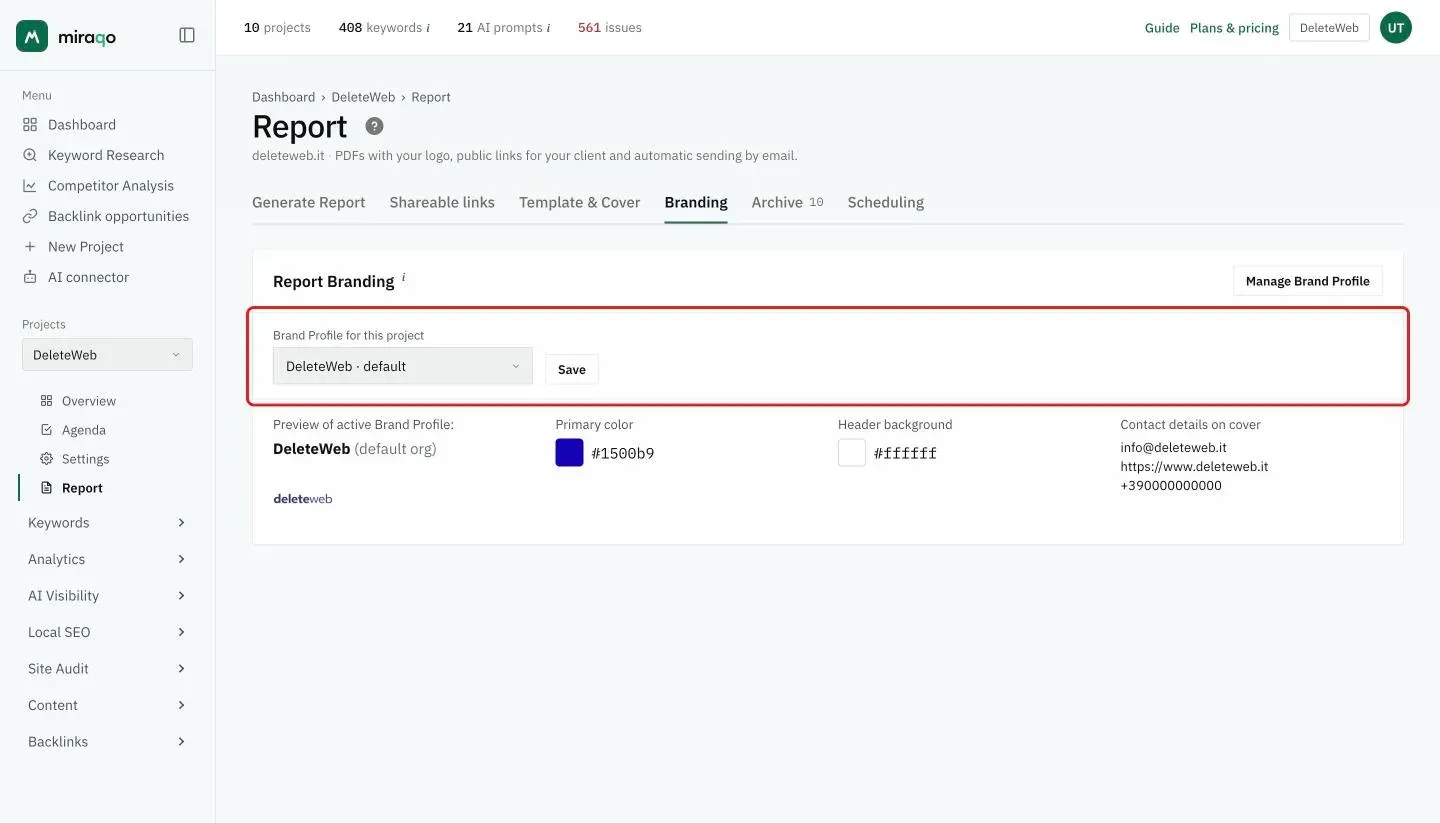
The PDF’s logo, colours and contacts come from a Brand Profile (see Brand Profiles). On the Pro plan you have one (default for the whole organisation); on the Agency plan you can create more than one and, from the Branding tab of the project, choose which one to use for that individual client.
Each Brand Profile contains:
- Logo (PNG/JPG, max 2 MB)
- Primary colour
- Header background colour
- Contact email, phone and website
The PDF retains a “Powered by Miraqo” footer. White-labelling is not available.
Automatic scheduling
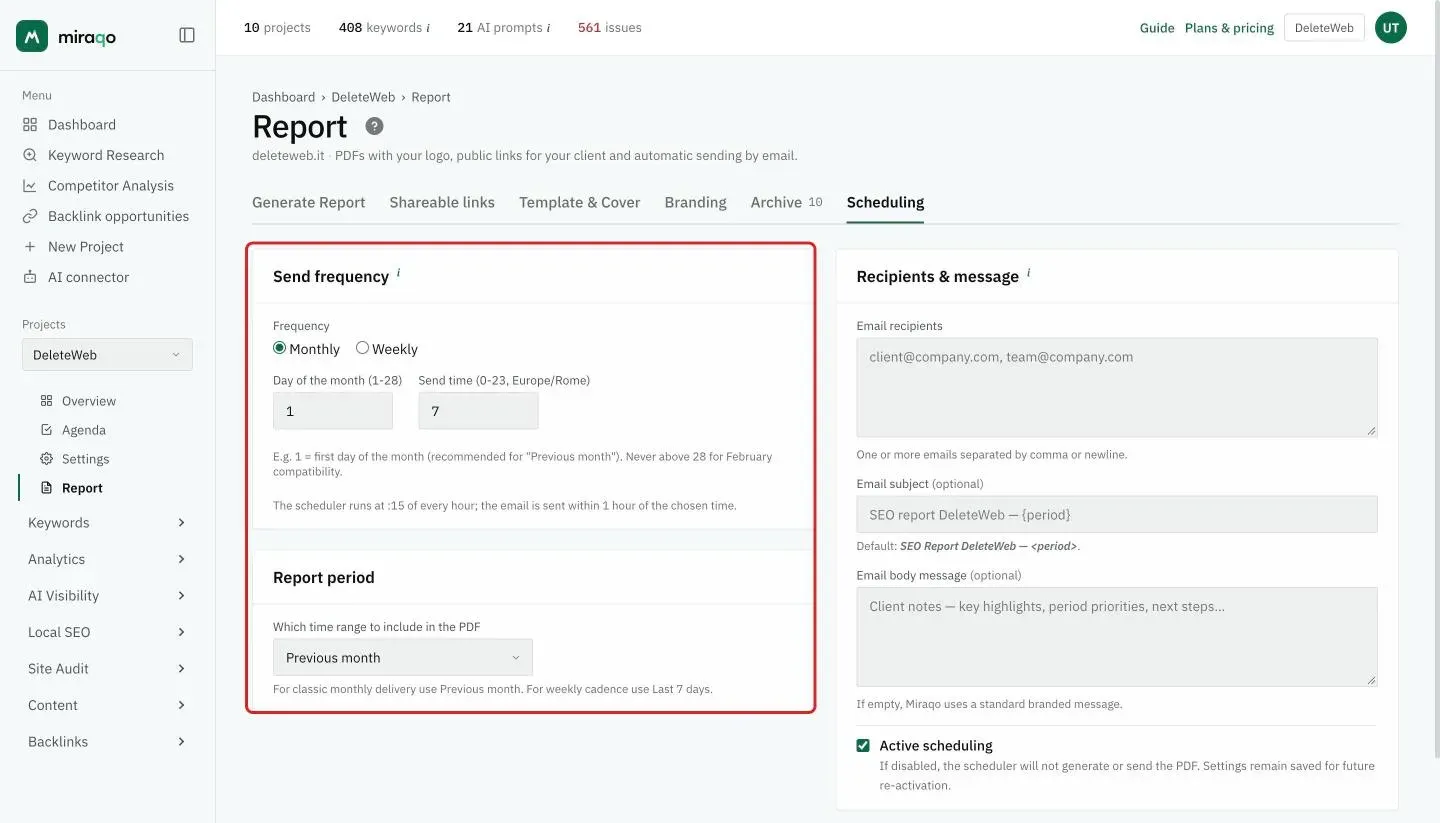
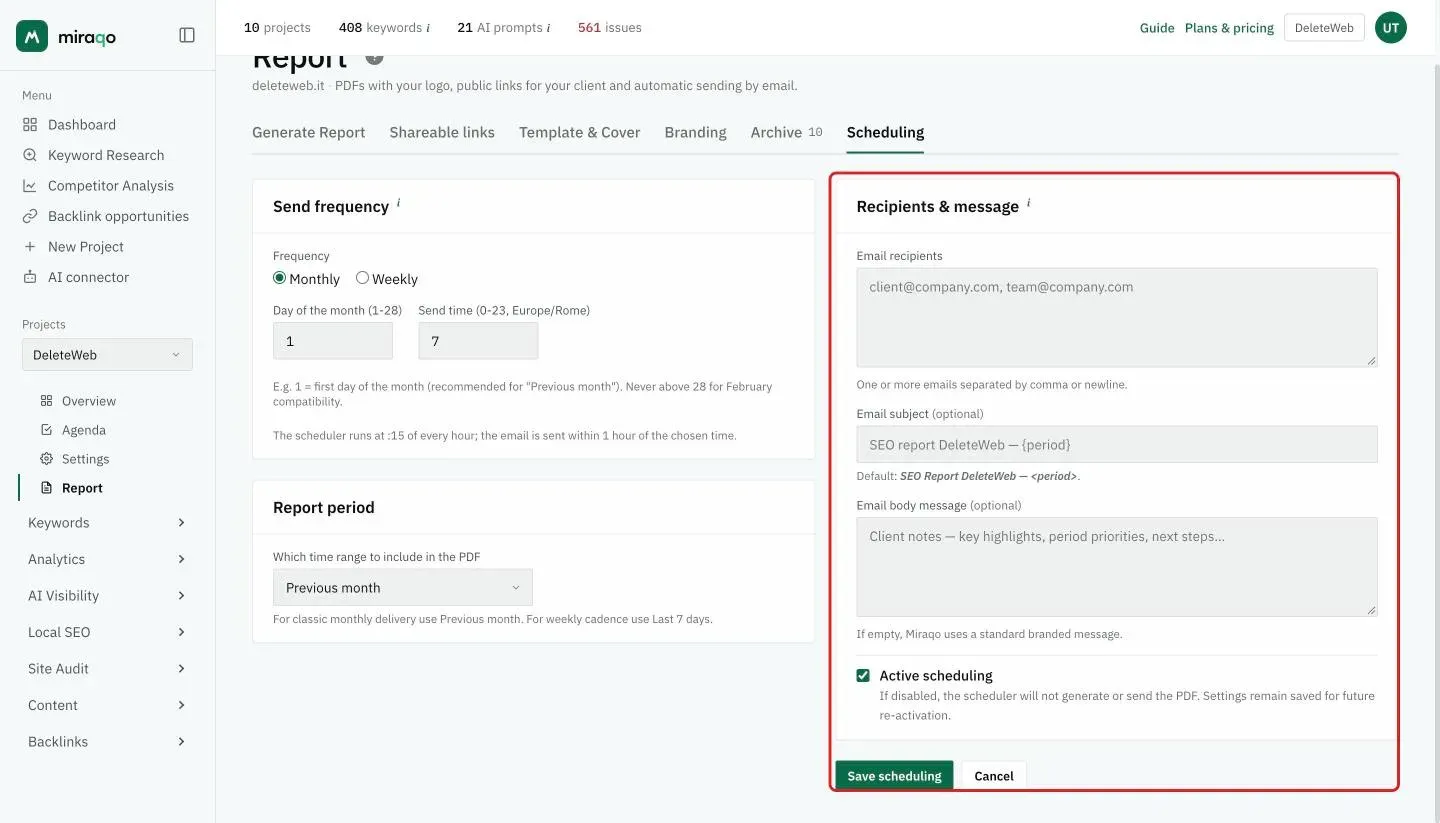
From the Scheduling tab you set up recurring email delivery:
- Frequency — Monthly (day 1-28) or Weekly (day of the week)
- Send time — 0-23 in Europe/Rome timezone; the scheduler runs at :15 past each hour
- PDF period — one of the 6 available periods (e.g. “Previous month” for monthly delivery, “Last 7 days” for weekly)
- Recipients — one or more emails separated by comma or newline
- Email subject (optional) — default: SEO Report {project name} — {period}
- Body message (optional) — free text that appears highlighted in the email; if empty a branded default is used
The last delivery status (date, outcome, any error) and the next scheduled delivery are shown above the form. From there you can also Send now for an immediate test or Deactivate to suspend without losing settings.
CSV attachments or raw data exports are not included: the email attachment is the PDF only.
Google Sheet for Looker Studio and Excel
If the client wants a dashboard of their own, or you work in Looker Studio, connect a Google account from Project settings → Google Sheets. Miraqo creates a “Miraqo — project name” sheet on your Drive with six tabs: Keywords, AI Visibility, Backlinks, Search Console, Audit, Indexing. It rewrites it every night at 7:30; “Update now” rewrites it immediately.
In Looker Studio add a “Google Sheets” data source and pick the sheet: each tab is a table. For Excel, download it from Drive as .xlsx (File → Download → Microsoft Excel). The Google permission requested is limited to files created by Miraqo: no access to the other files on your Drive.
If you delete the sheet a new one is created on the next run (the URL changes: redo the source in Looker). “Disconnect” leaves the sheet on your Drive but stops updating it. The “Export CSV” permission on the project is required.
Shareable links
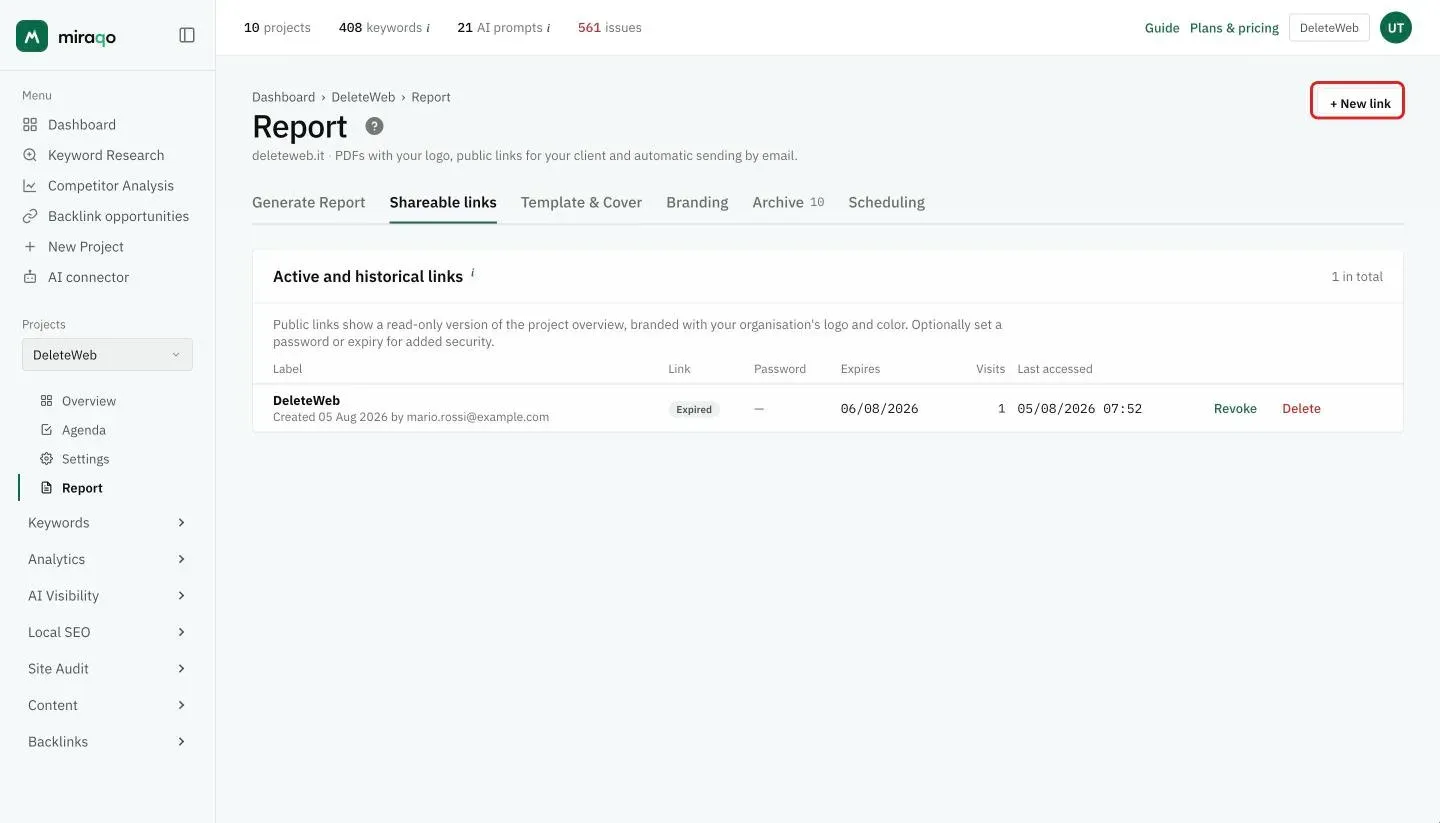
As an alternative (or addition) to email delivery you can create a public link to the project from the Shareable links tab. It shows a read-only branded overview, with no login required. For each link you can set:
- Label (to remind you who you gave it to)
- Password (optional)
- Expires (optional)
For each link you see how many times it’s been opened and the last access. You can revoke it (it stays in the archive) or delete it permanently.
Archive
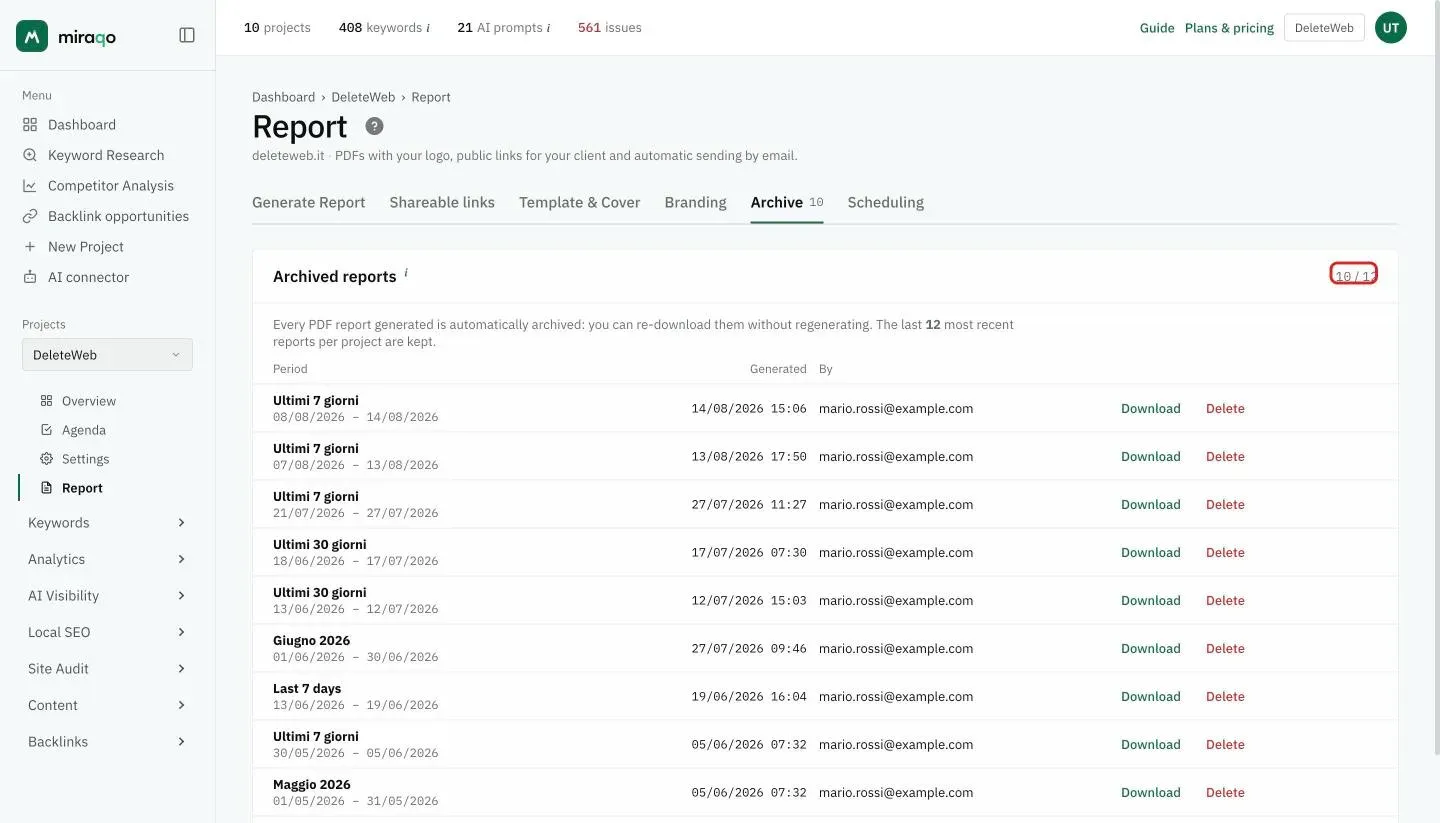
The last 12 PDFs generated per project remain accessible from the Archive tab (both those downloaded manually and those produced by the scheduler). Older ones are automatically deleted to avoid filling storage.
Common errors
- Deformed logo in the PDF — the PNG has a non-transparent white background. Export with transparent background.
- Empty section in the PDF — the section is enabled but the project doesn’t yet have data for that module (e.g. backlinks: wait for the first scan).
- Email doesn’t reach the client — check the Promotions / Spam folder; ask the client to add the sender to their contacts.
- Scheduling “disabled” — check in the Scheduling tab that the Scheduling active toggle is on and there’s at least one valid recipient.
Last updated: 18 October 2026