Switching to Miraqo from another tool
What you can import from Semrush, SEOZoom, SE Ranking, Ahrefs or Ubersuggest (keywords and AI prompts), how to export the right CSV and why position history is not imported.
If you are coming from another SEO tool you don’t have to retype anything: Miraqo reads the CSV file you export from there and lets you review everything before confirming. The file is read in your browser and is never uploaded to any server.
What gets imported (and what doesn’t)
- Keywords — yes. From the rank-tracking CSV of your old tool, in Settings → Keywords.
- AI prompts — yes. From the prompt-list CSV of an AI visibility tool, in Settings → AI Prompts.
- Competitors — by hand, one at a time: there are usually three or four.
- Position history — no, and it is a deliberate choice. Every tool measures with a different depth, device and location: lining up its readings with Miraqo’s would create jumps in charts and averages that match no real movement. Miraqo measures the starting position on the first run, and from there the history is consistent. Keep the old tool’s export if you want a manual comparison.
- Backlinks, audit, Search Console, Analytics — not needed: Miraqo detects backlinks and runs the audit itself, while Search Console and Analytics connect with one click.
Step 1: export the CSV from your tool
The rule is always the same: open the keyword (or prompt) table, look for the Export button and choose CSV. Miraqo finds the right column on its own by reading the header: Keyword, Query, Prompt, Question and their Italian, French, Spanish and German equivalents. If it recognises no header, it uses the first column.
- Semrush — Position Tracking → Overview → Export → CSV. The column is called
Keyword. - SEOZoom — from the project’s rank tracking, use the table export. If you get an Excel file, open it and save it as CSV: the semicolon used by localised Excel is fine.
- SE Ranking — Rank Tracker → Export → CSV. The
Keywordcolumn is not the first one: that doesn’t matter. - Ahrefs — Rank Tracker → Export. Both UTF-8 and UTF-16 are read.
- Ubersuggest and AI visibility tools — export the prompt list as CSV: the column is usually called
PromptorQuery. - Excel or Google Sheets — your own list works too: one column with a
Keywordheader, saved as CSV. Or a plain text file with one keyword per line.
.xlsxfiles are not read: save them as CSV.
Step 2: import the keywords
- Go to Settings → Keywords and click Upload CSV… below the keywords field.
- The keywords appear in the field, one per line, without duplicates. Review them and remove the ones you don’t need.
- Choose Location, Language and Devices: they apply to every line. If you track several countries, import one file per country.
- Click + Add keyword.
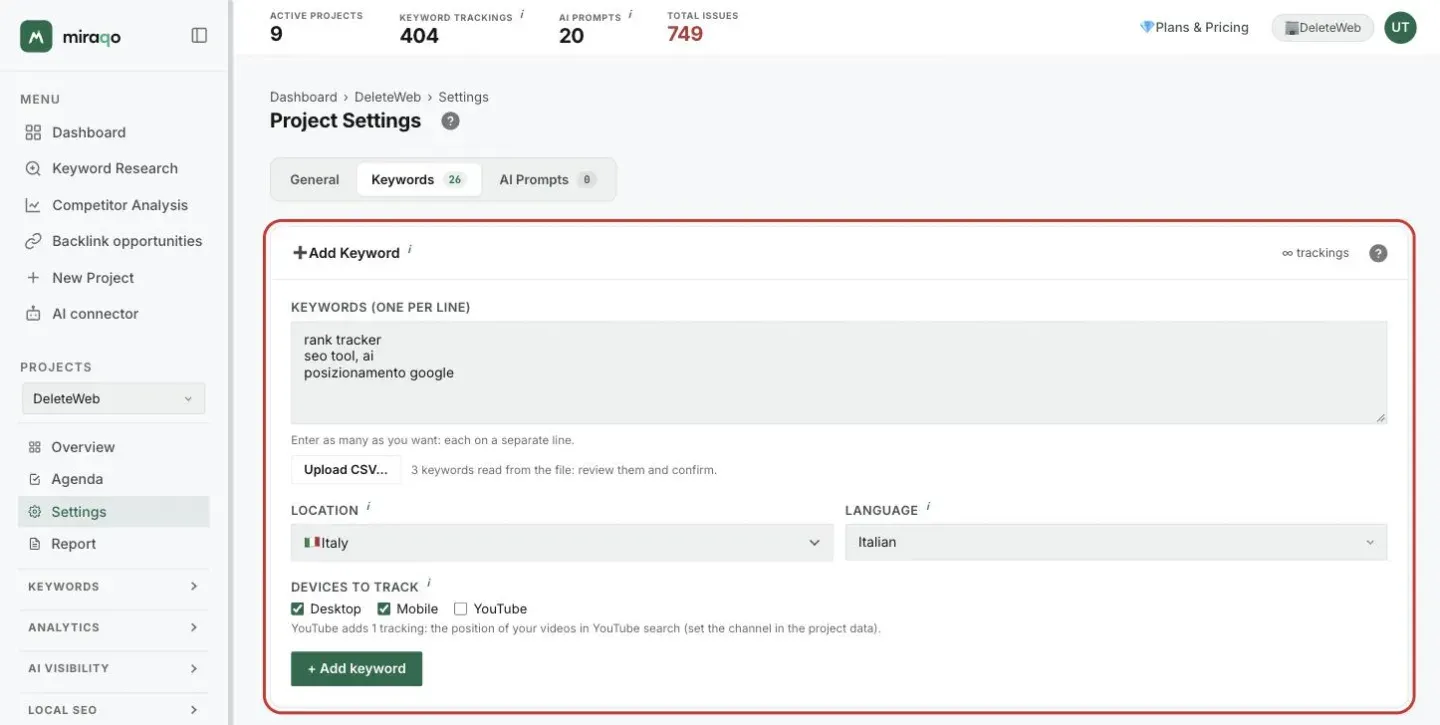
If you upload several files in a row, the keywords are appended to those already in the field. The plan limits apply exactly as for manual entry: if you exceed the available trackings, you are told before saving.
Step 3: import the AI prompts
- Go to Settings → AI Prompts, open the From CSV tab of the Find new prompts card and click Upload CSV….
- The prompts appear in the Suggested prompts card, with the file name as a label. Prompts already monitored are skipped.
- Select the ones to monitor and choose the models: the credit cost is shown below, per prompt and in total.
- Click + Add selected. The first check starts right away and each prompt’s intent is assigned automatically.
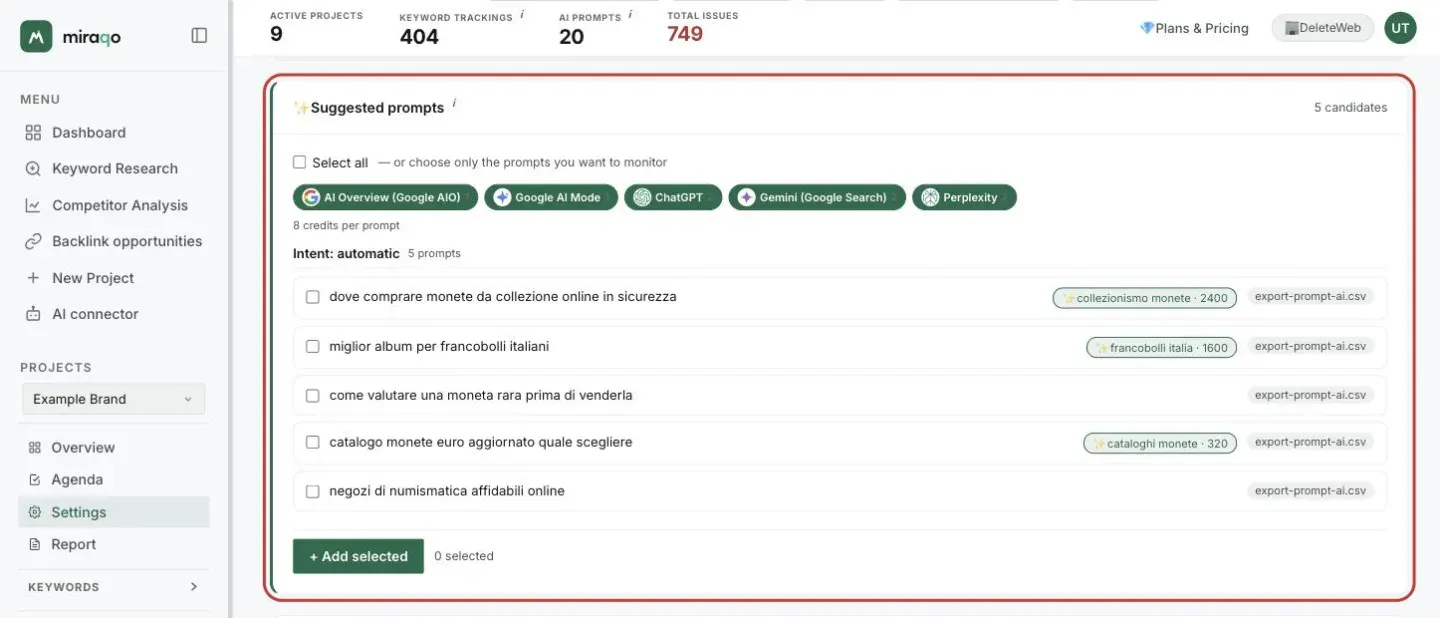
Imported prompts never start on their own: as long as they stay among the suggestions they use no credits. For very large files, at most 300 prompts are read at a time.
Changing the models of several prompts at once
In the prompt table, tick the rows you want, choose the models in the bottom bar and click Apply models to selected. The chosen combination replaces the one of each selected prompt, and the check starts only on the models that were added. If the total exceeds your plan’s credits, the whole operation is refused: no prompt is left half-changed.
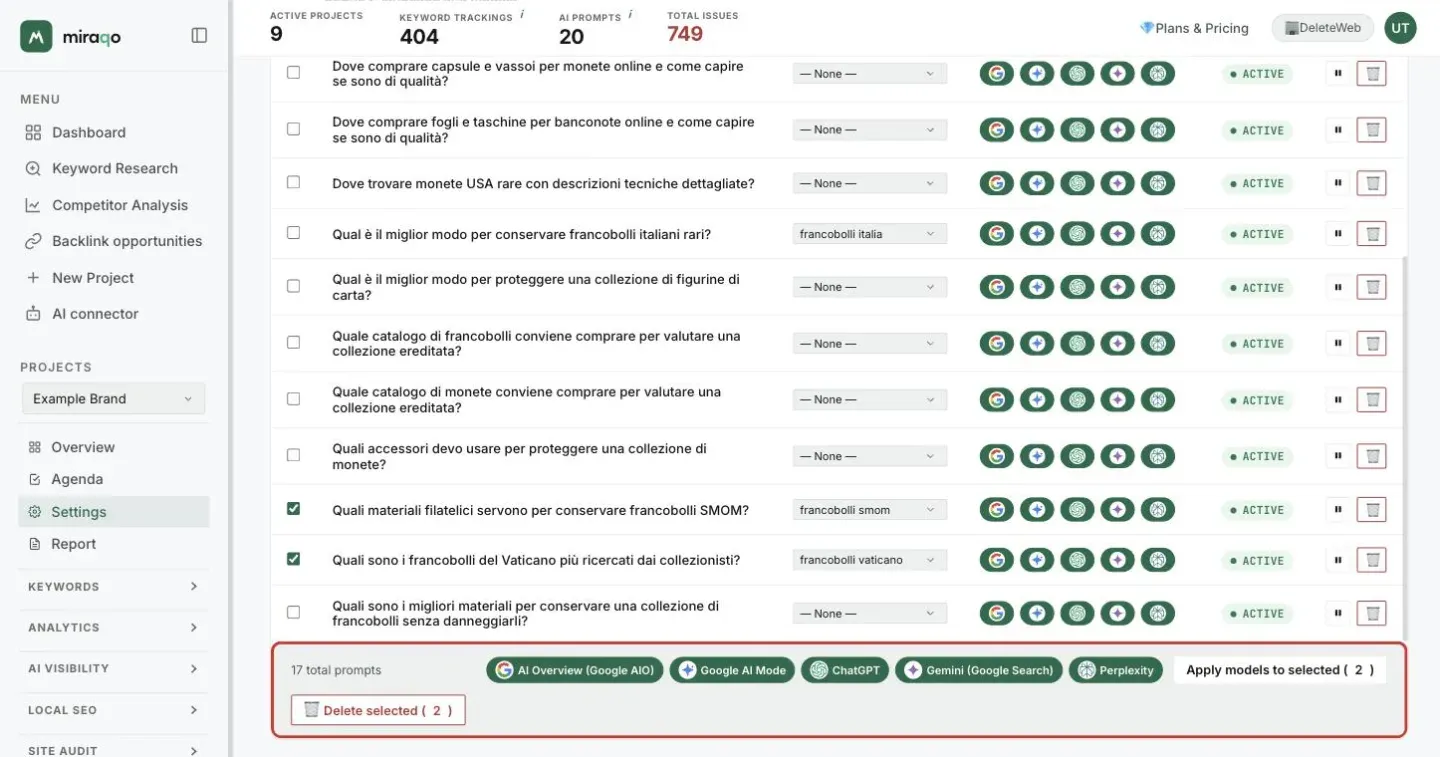
After the import
- Keyword positions arrive within the plan’s next update window; until then the row shows “Updating data…”.
- The first reading is the starting point of the history: from there, charts and averages are comparable with each other.
- Newly added prompts show ⏳ until the first check has returned.
Next steps:
- Adding keywords to a project → for the details on countries, languages and devices
- AI Visibility: report and prompts → to learn how to read the prompt results
- Connect Google Search Console → to get real impressions and clicks right away
Last updated: 29 September 2026