Generate SEO articles with AI
How to generate SEO-optimised articles and pages with Miraqo — settings, brief, editor, cover image (AI or openly licensed photo), plagiarism check and export.
The Content Generator creates SEO-optimised drafts of articles, pages and product categories starting from a keyword. The text is aligned to your Topical Cluster (internal links to the project’s content, pillar first, authoritative external citations and an automatic table of contents), so every draft reinforces the site’s architecture instead of living in isolation.
Prerequisites
- An active paid plan with the Content Generator add-on enabled from the Subscription page (see Pricing).
- The Use content generator permission on the project. Owners and admins always have it; for team members grant it in Settings → Team (see User permissions).
- Having saved the generator Settings at least once (see below): on first access Miraqo takes you there, so drafts start with your style already applied.
You’ll find the section in the project sidebar under Content → Content Generator: the page lists the content already generated (type, date, status) and has the Settings, Naturalness Check and New content buttons at the top.
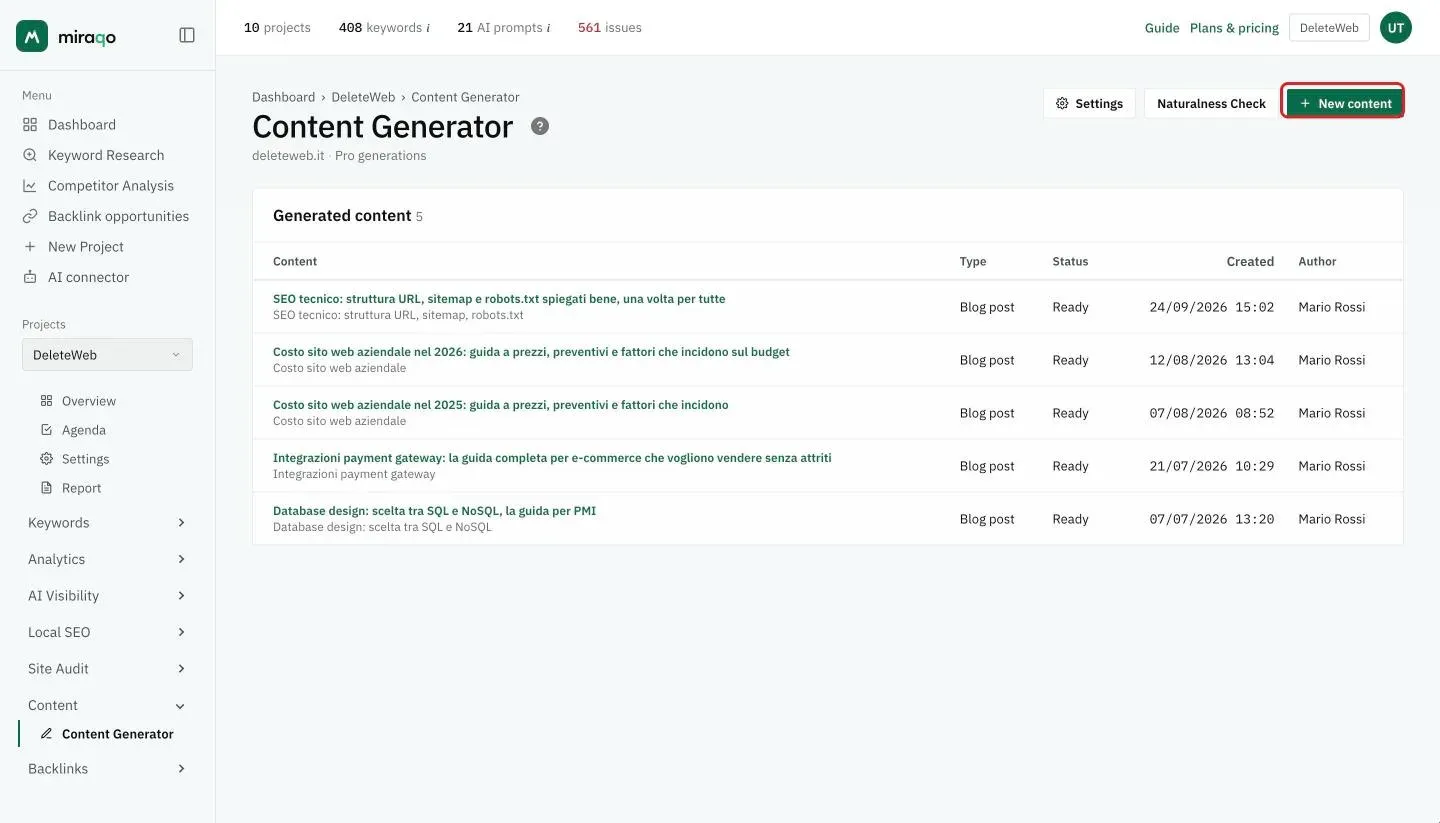
Settings (style and integrations)
Settings apply to the whole project and are split into 3 tabs:
- Generation: the writing — tone of voice (5 styles), min/max words and paragraphs, a humanize option to avoid the typical formulas of AI text, citation after the intro, table of contents (TOC) and H1 heading in the text — then the images: the cover source (AI-generated, or an openly licensed photo from Openverse that you pick yourself), how many AI images (0 to 4 per piece), format, cover dimensions, automatic alt text — and the default values for the SEO fields (title, meta description, slug, summary).
- Style: colours, font and width of the exported HTML and the preview, with typography per individual element (H1–H5, text, links).
- Integrations: WordPress and Google Drive to publish or export (see below).
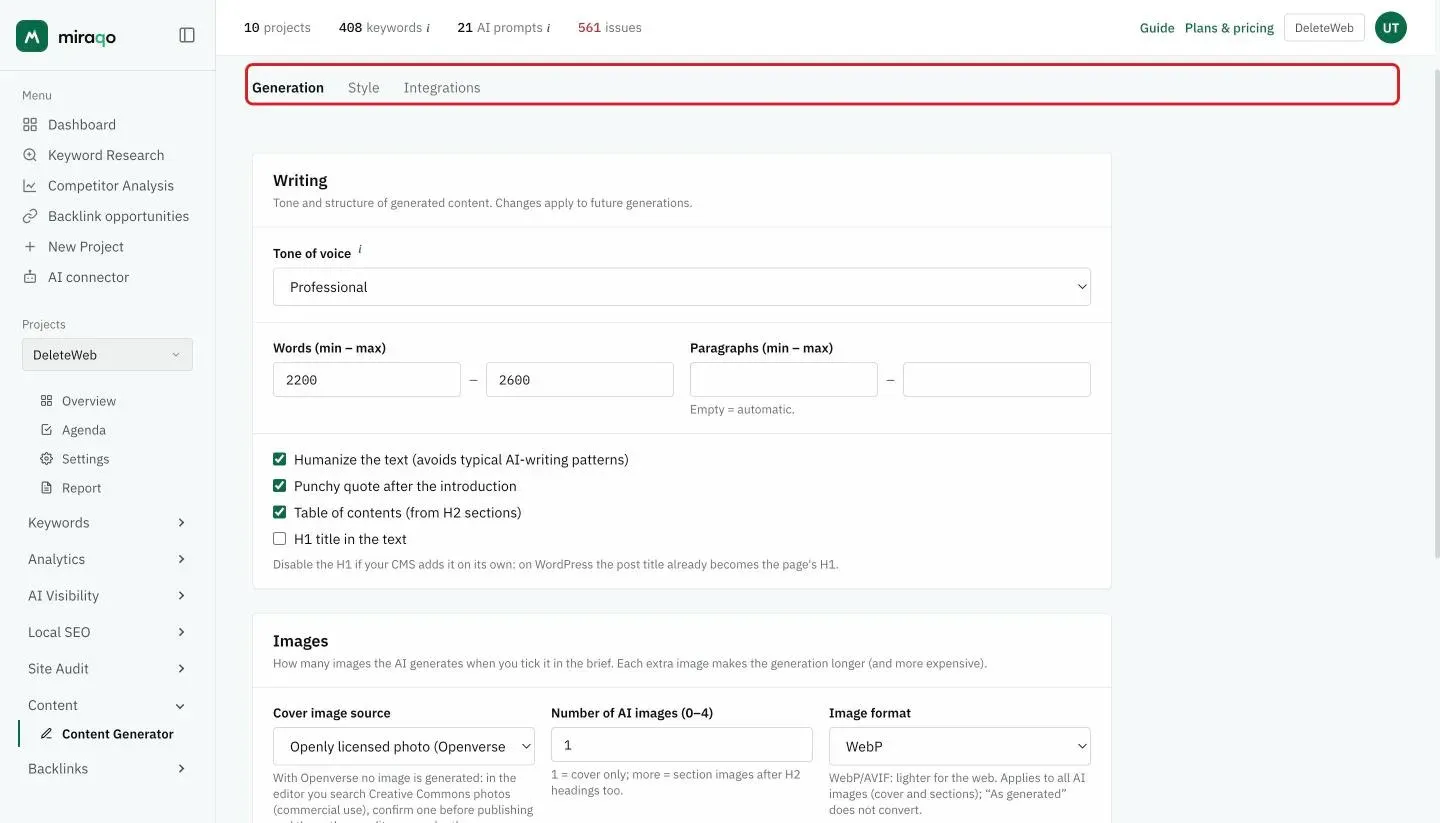
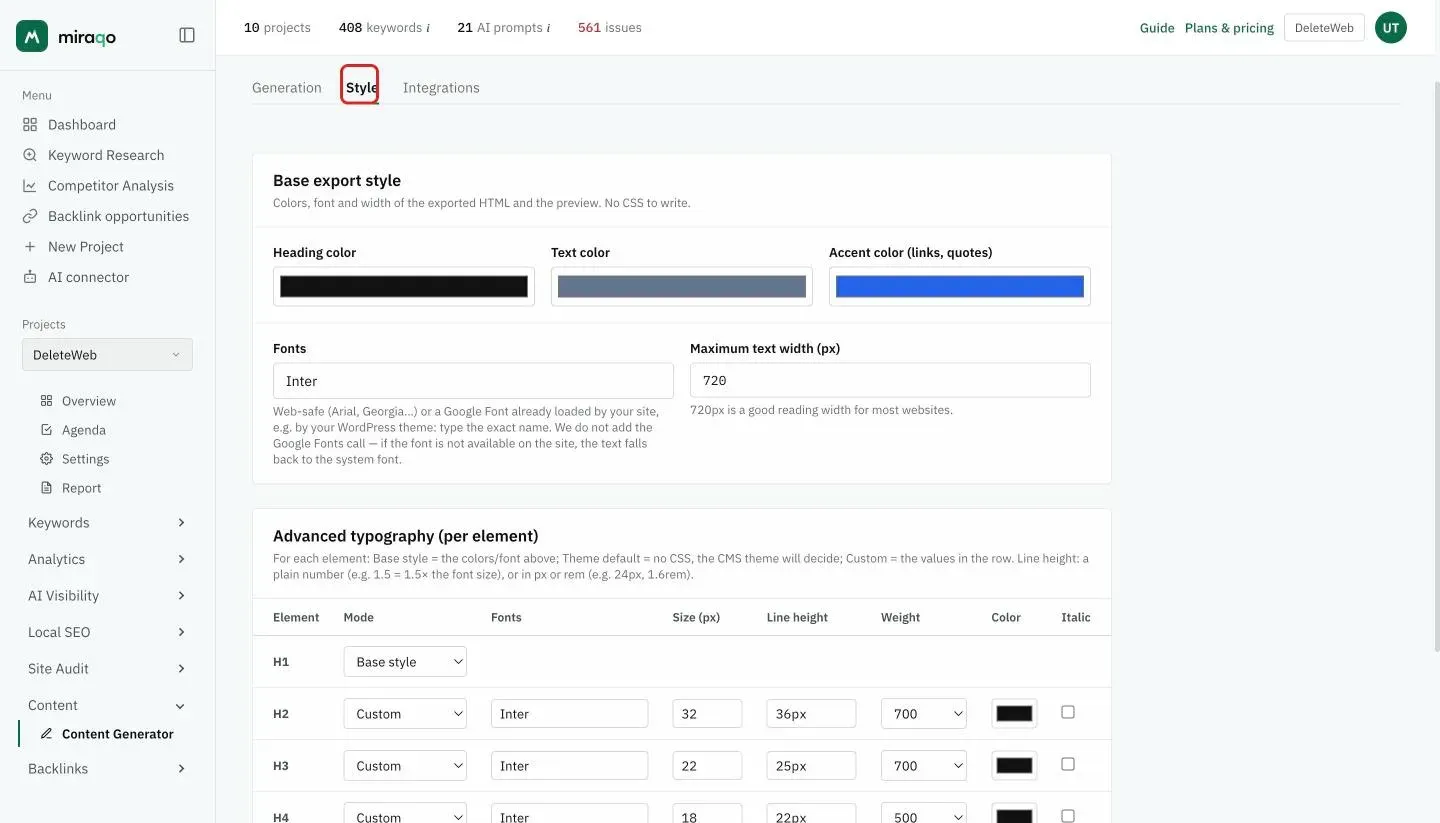
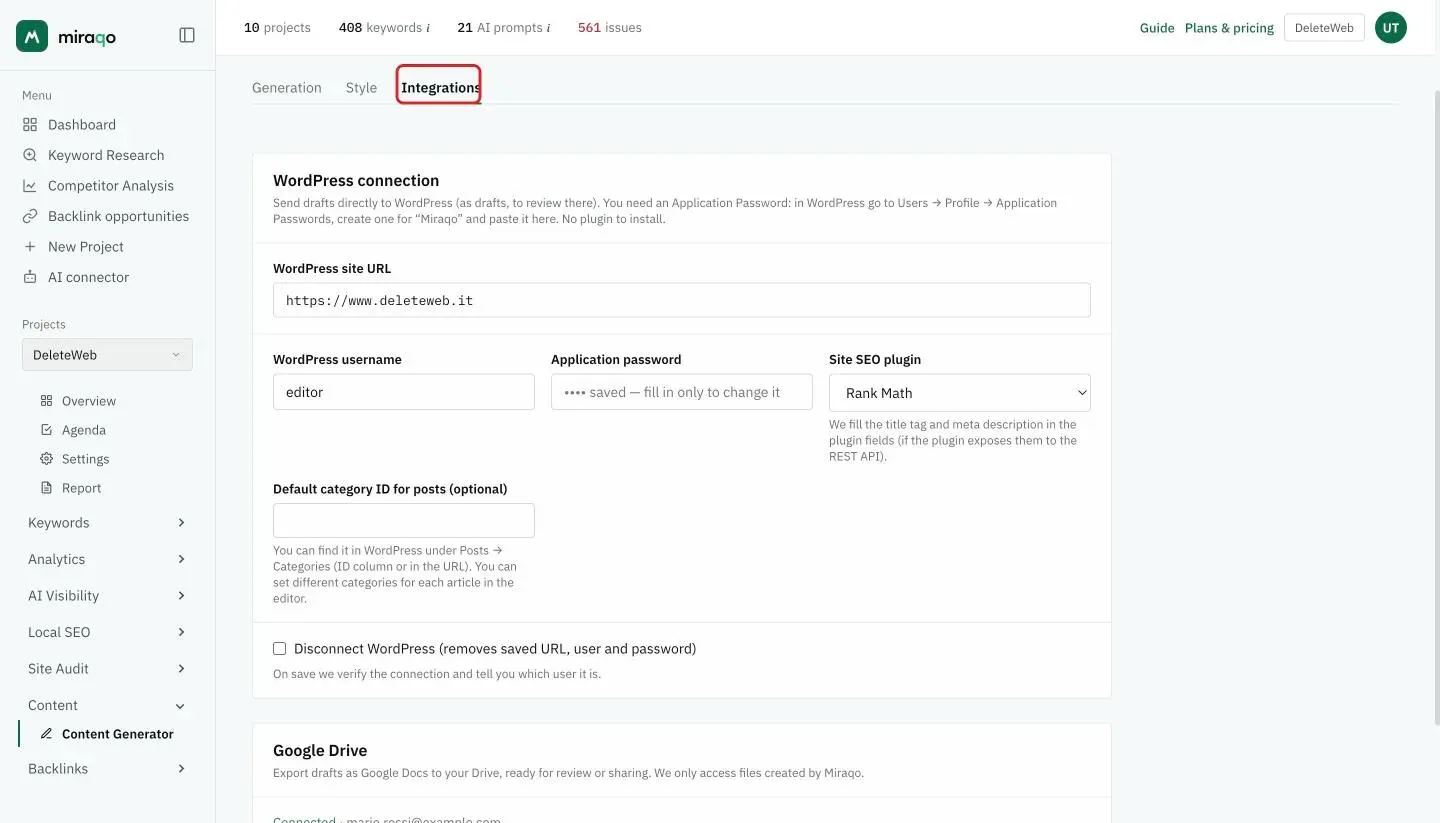
Tip: set tone, font and image count once. Every new draft inherits them, and you can still fine-tune each individual piece.
Creating a piece
- From Content Generator click New content. Alternatively, from the keyword detail page click Write an article: the form opens with that keyword already filled in.
- Choose the type: blog post, page or product category.
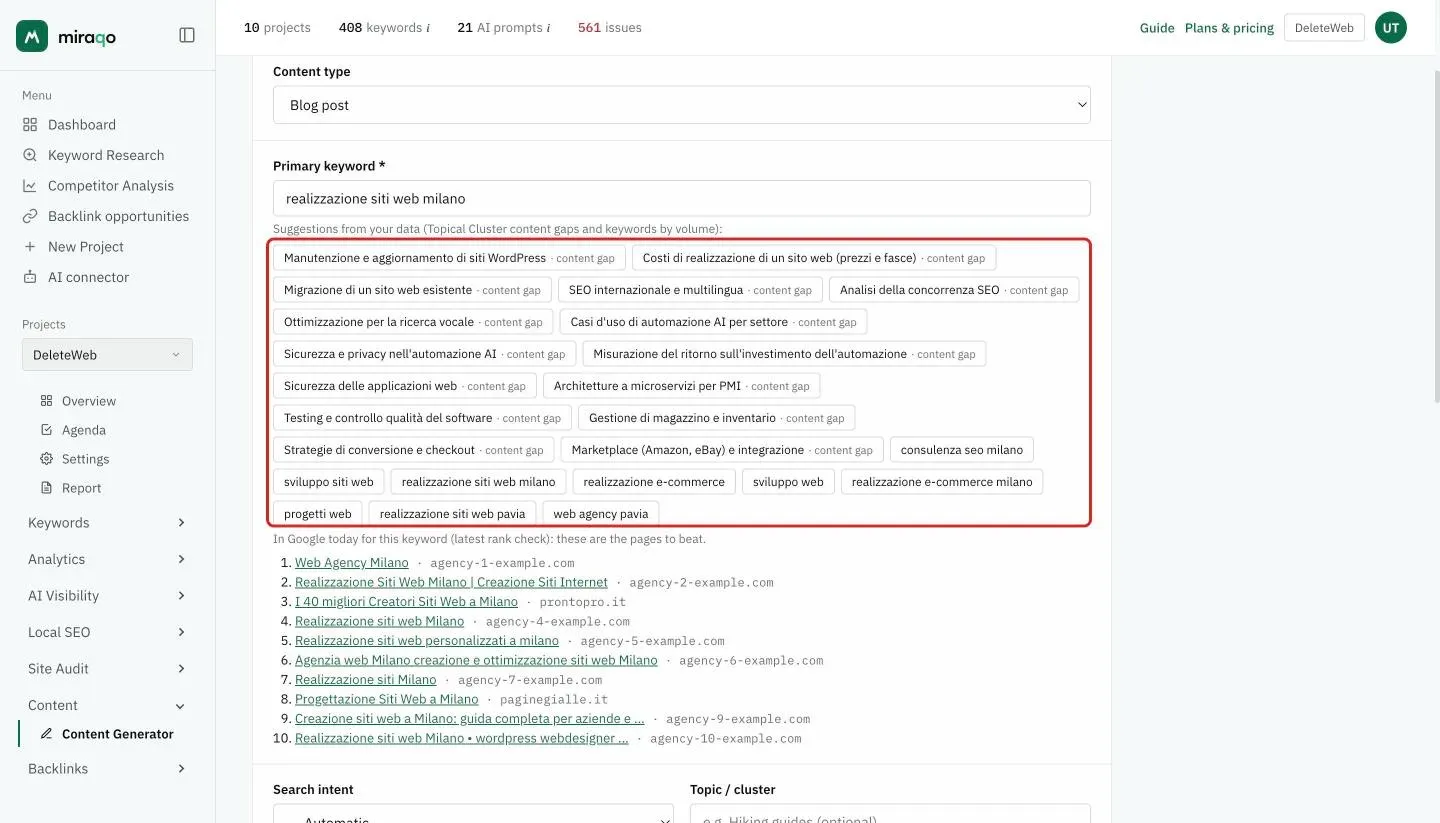
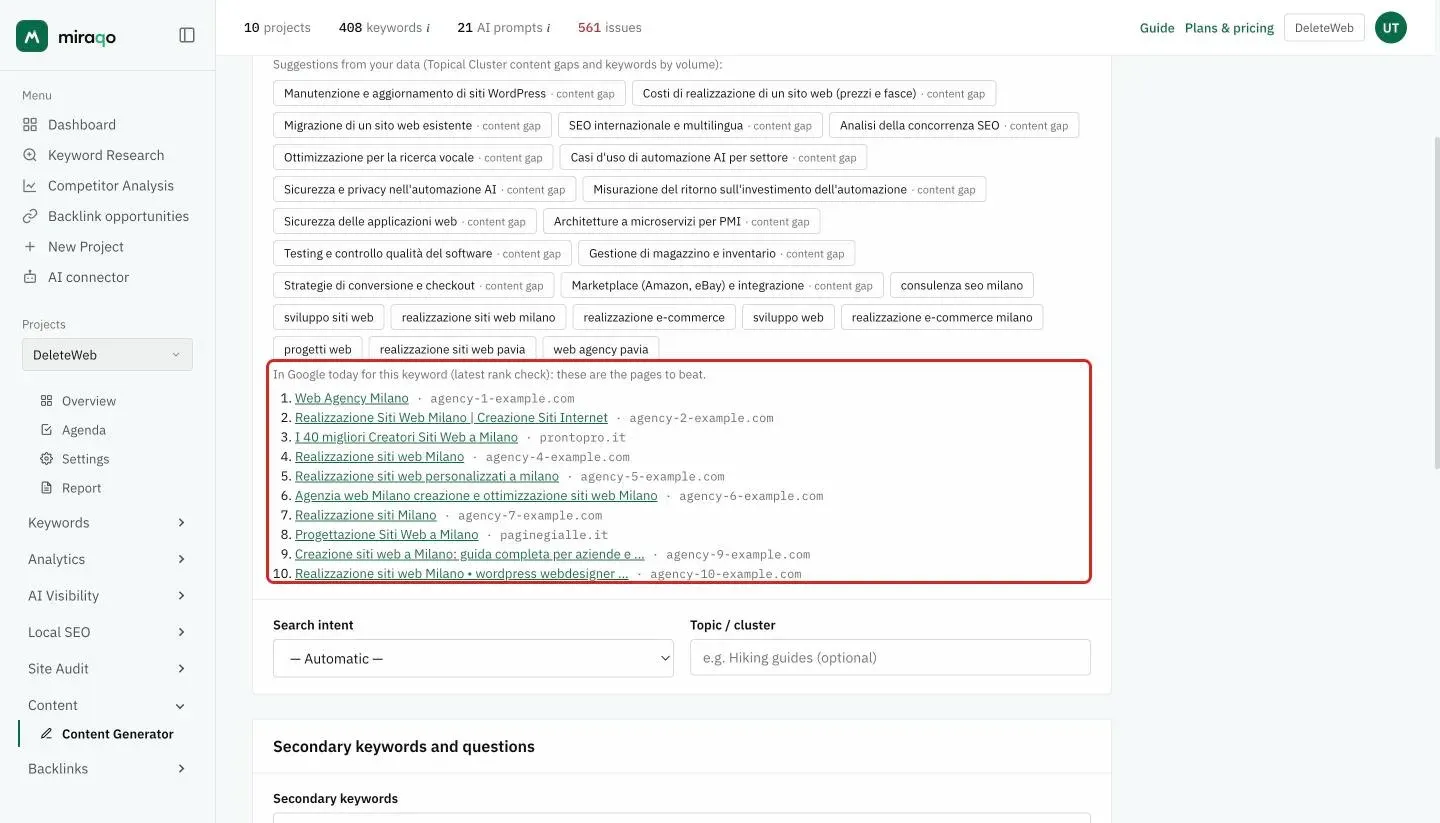
- Enter the primary keyword. Below the field you’ll find suggestions from your data (Topical Cluster content gaps and project keywords by volume): one click to use them. If the primary keyword is one you track, In Google today also appears: the top 10 results from the latest rank check, with title and domain. These are the pages to beat: look at their angle and at what’s missing.
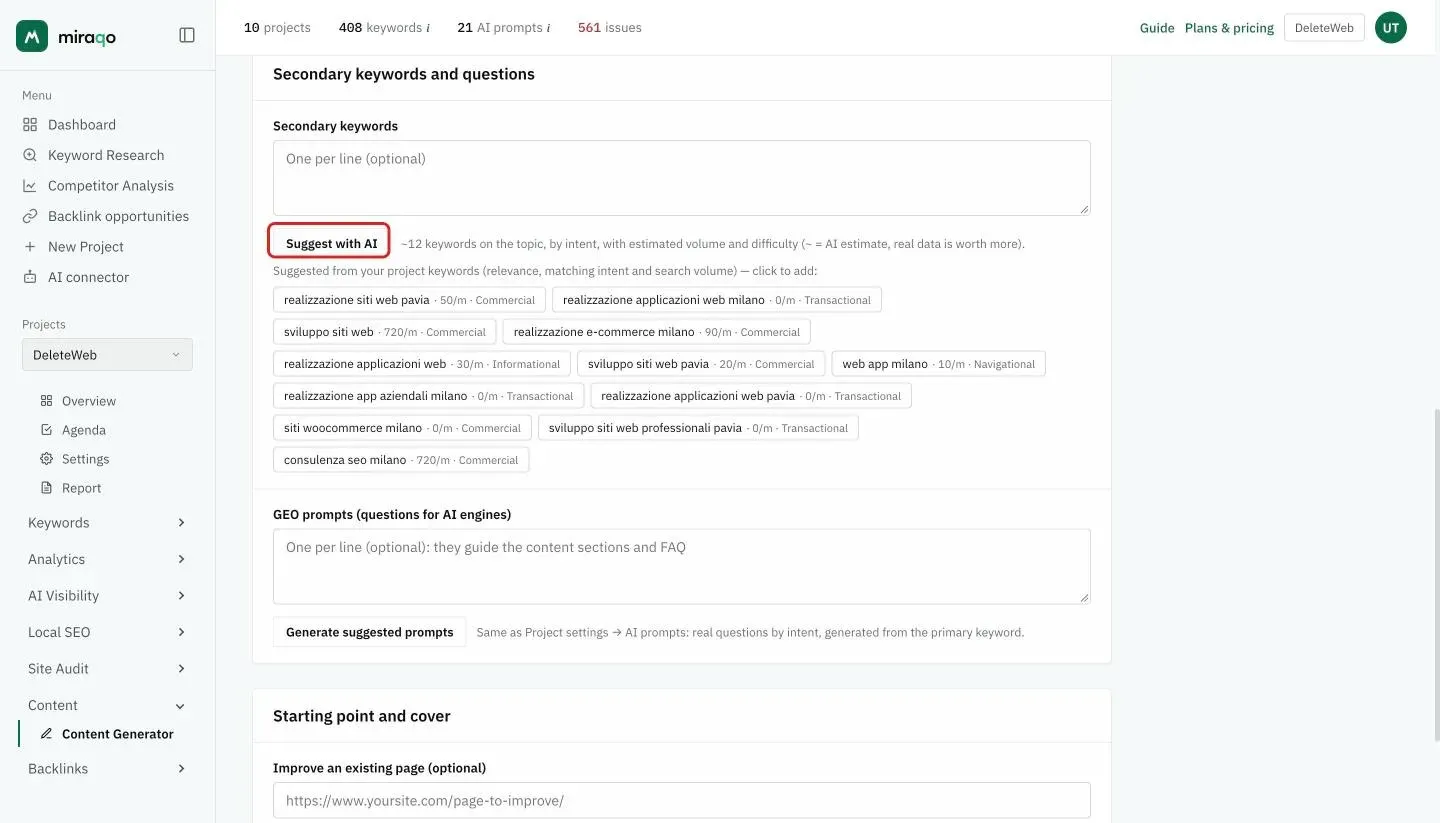
- Add the secondary keywords, one per line. Below the field you’ll already find the suggestions from the project keywords, chosen by relevance, matching intent and volume: each shows monthly volume and intent, and one click adds it. For more ideas press Suggest with AI: Miraqo proposes around 12 on the topic, split by intent, with estimated volume and difficulty.
- Optional — the GEO Prompts: the questions for AI engines that guide the piece’s sections and FAQs; Generate suggested prompts derives them from the primary keyword, as in the project’s AI Prompts tab. If the keyword is tracked, next to it there’s also Use real questions from Google: it adds the questions Google shows in “People also ask” for that keyword. They’re real questions, not estimates, and they often make the best FAQs.
- Optional — paste the URL of an existing page: Miraqo analyses it and generates an improved version instead of starting from scratch.
- Right below the primary keyword choose the search intent (or leave it Automatic) and specify a topic / cluster. In Starting point and cover decide whether you also want a cover image: AI-generated or, if you set it up that way, an openly licensed photo to pick in the editor (see below).
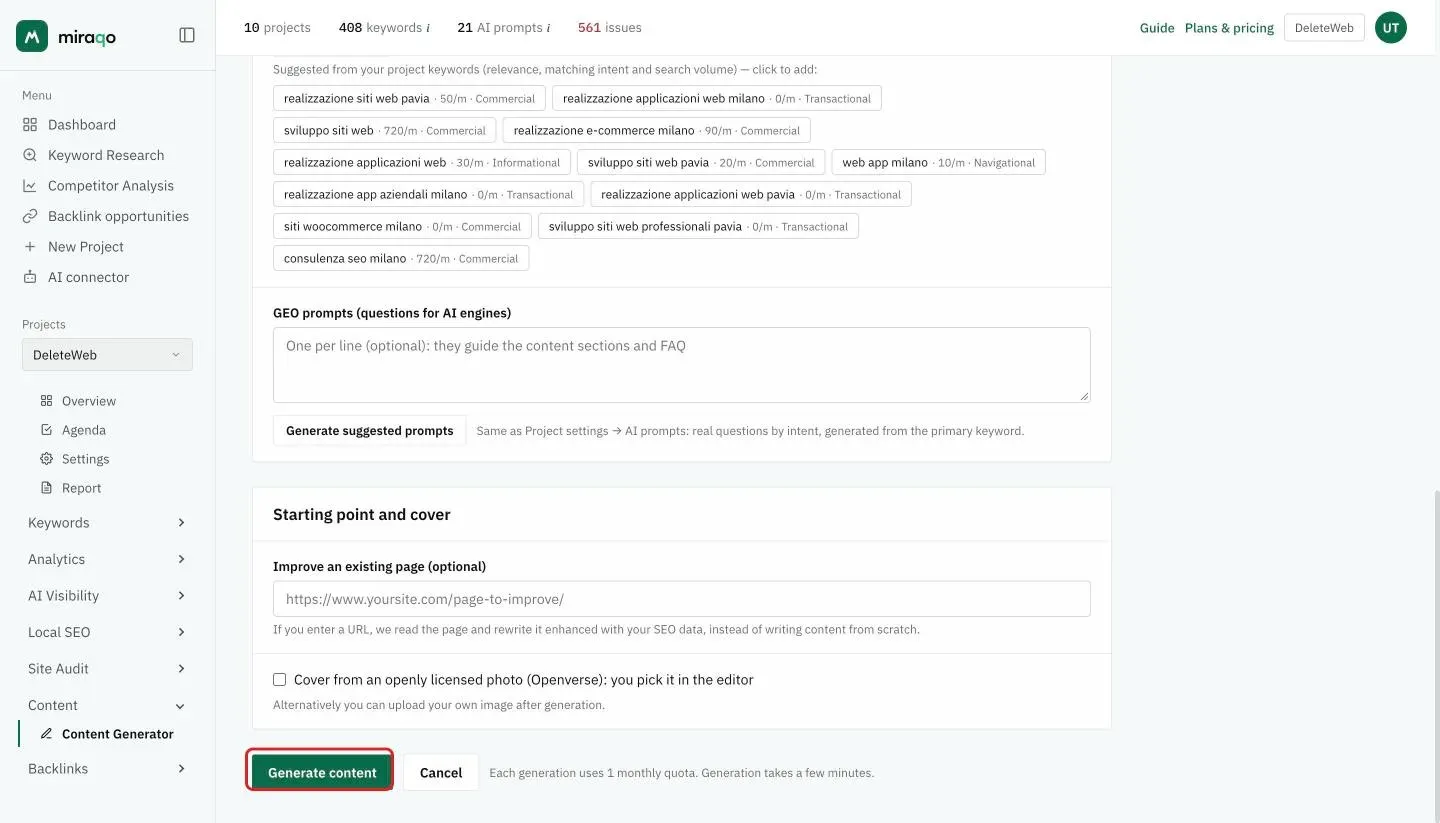
- Click Generate content. The AI brief builds the outline including the most useful questions for AI answer visibility (GEO); the draft is ready shortly — the page refreshes on its own, no reload needed. Each generation consumes 1 monthly quota.
Ideas from Google come with the rank check. “In Google today” and the real questions refresh at every rank check of the keyword, at no extra cost. For a newly added keyword they show up after the first check; for a topic you don’t track (a content gap, for example) they aren’t there, and you still have the suggested prompts.
Content gaps. If the project has no content gaps yet (they appear after the AI refinement of clusters in the Topical Cluster), a banner in the form points it out: you can still generate, but with gaps the suggestions are more targeted. See Topical Cluster.
Editing the draft (editor)
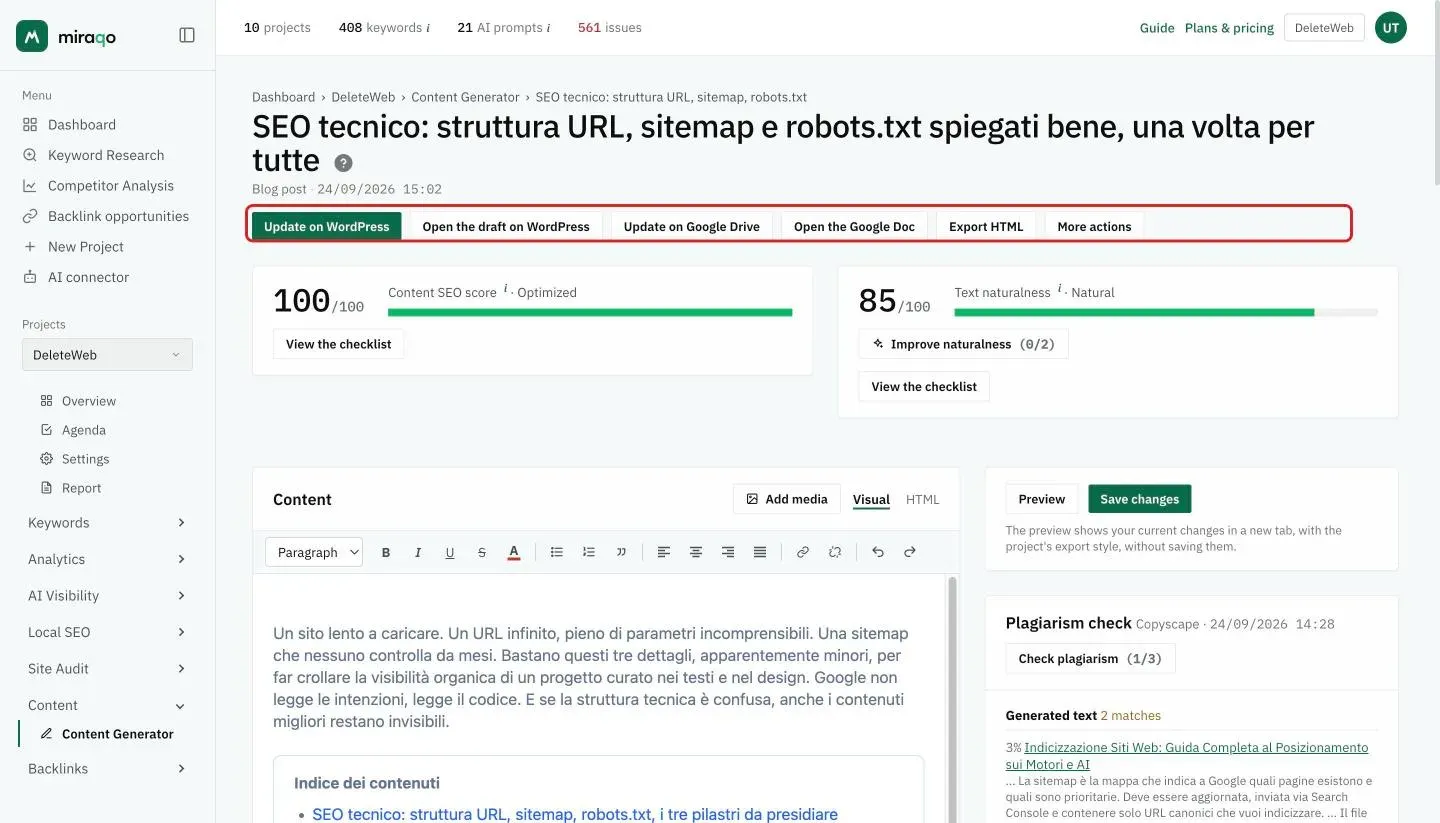
At the top of the draft there are two 0–100 scores. The Content SEO score summarises how well the text follows on-page rules. Text naturalness is the same score as the Naturalness Check, computed on the draft. For each, View the checklist opens the individual checks. If naturalness isn’t full, Improve naturalness rewrites only the flagged sentences and keeps the new version only if the score goes up; otherwise the previous text stays. You can use it twice per draft: save your editor changes first.
Above the scores you’ll find the buttons to publish and export (WordPress, Google Drive, Export HTML) and More actions, with Regenerate and Delete. The editor is “classic” style: a toolbar with headings, bold/italic, lists, quotes, alignments and links, plus Visual and HTML tabs.
- Add media: insert an image by uploading it from your computer, generating it with AI, or from an external URL.
- Preview: opens the rendered draft in a new tab, without saving.
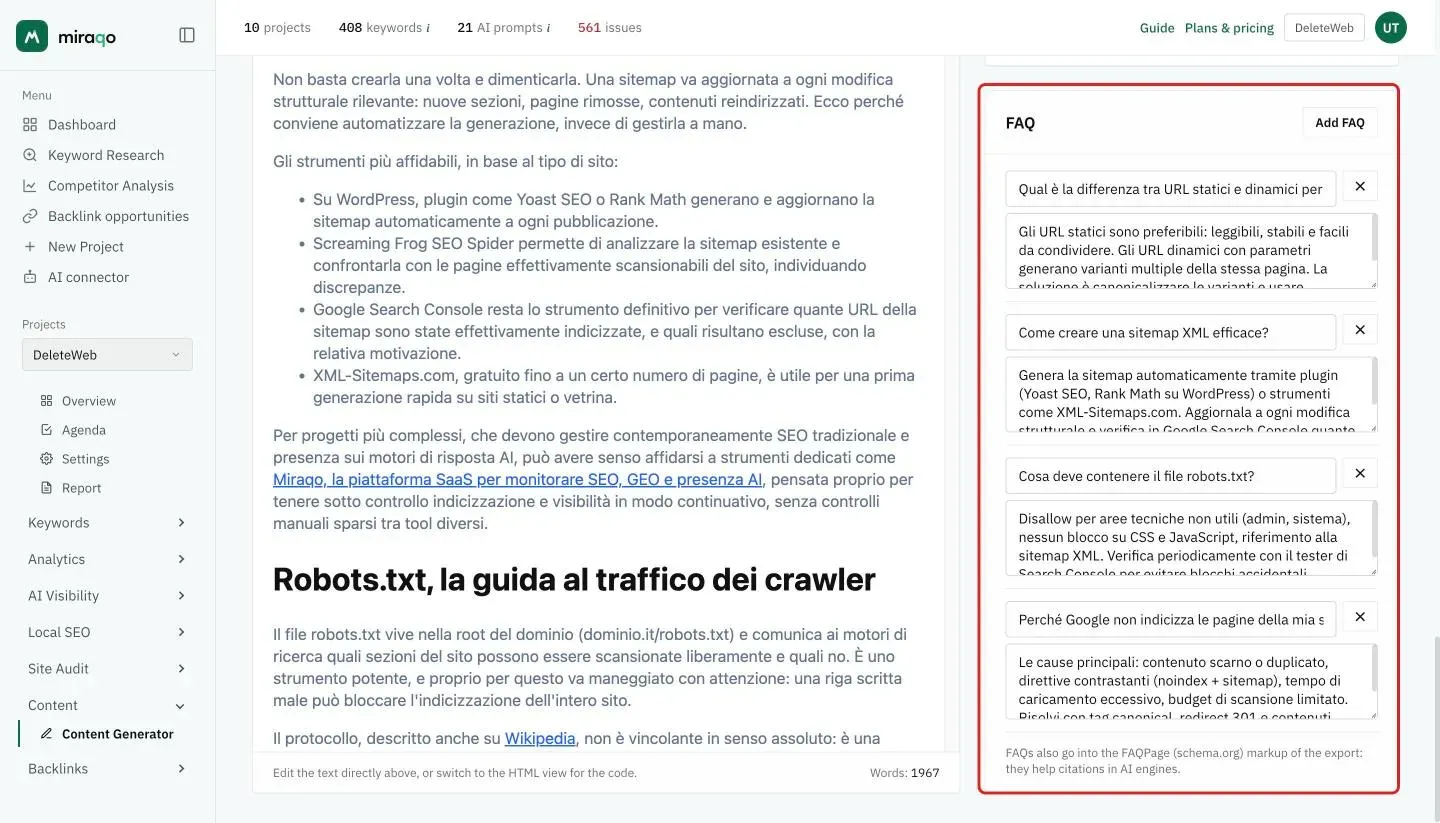
- The side column holds SEO fields (H1 heading, title tag, meta description, slug), the cover image and the FAQs (also exported as structured data).
Cover from an openly licensed photo (Openverse)
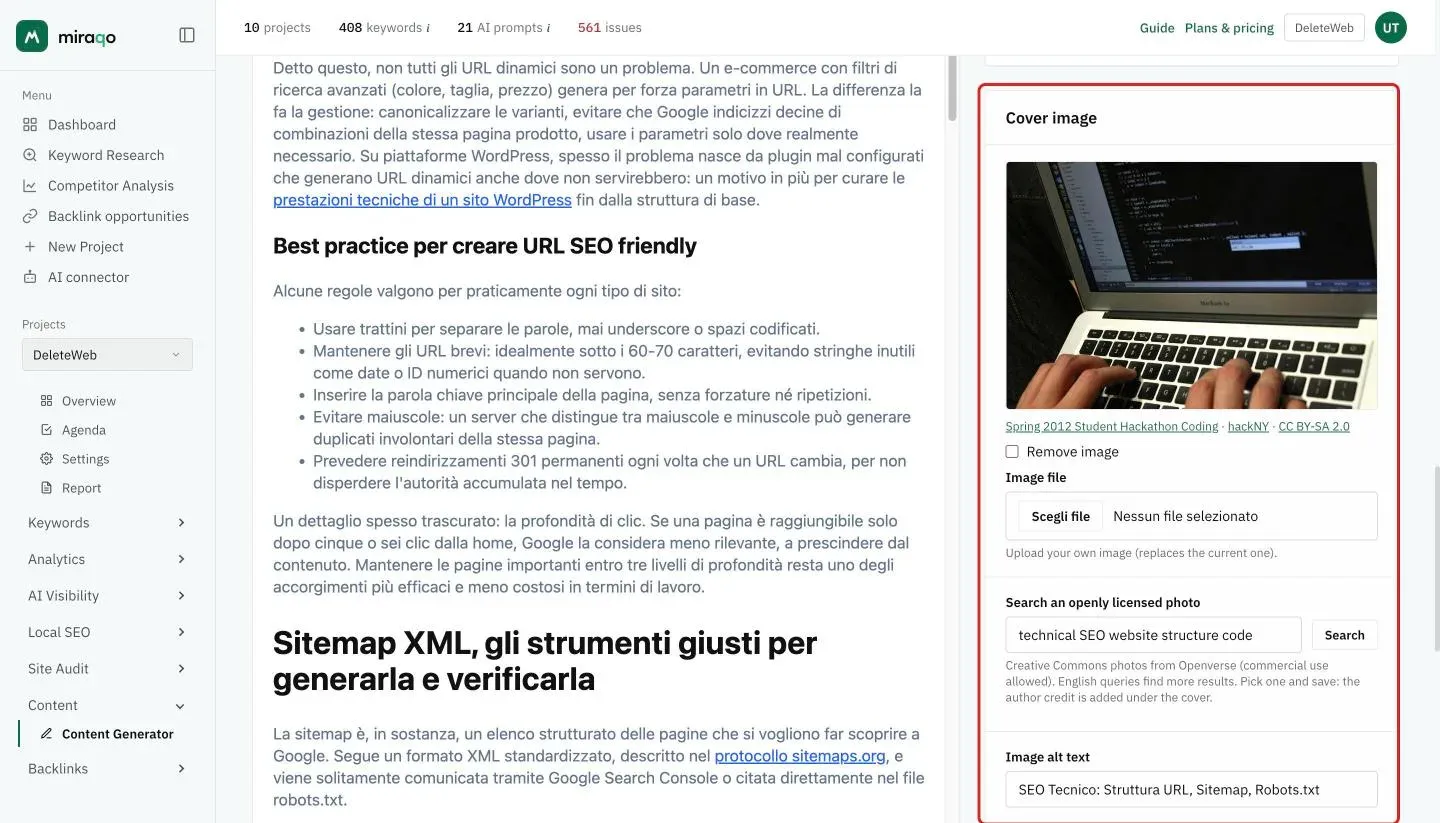
If in Settings → Generation you set the cover source to Openly licensed photo (Openverse), the generator creates no image at all: you pick the photo yourself, in the editor, before publishing.
- In the Cover image card you’ll find the Search an openly licensed photo field, pre-filled with two English words derived from the content. Feel free to change them: English queries return far more results, and concrete subjects (“laptop keyboard”, “vineyard sunset”) work better than abstract concepts.
- Click Search: the previews come from Openverse, the search engine run by Creative Commons and WordPress, and only show photos whose licence allows commercial use and cropping (CC BY, CC BY-SA, CC0, public domain). Author and licence appear under each preview.
- Pick the photo and click Save changes: only then does Miraqo download the image, fit it to the format and size from your settings, and add the credit (title, author and licence with links) under the cover — required by CC BY licences. The credit is included in the exported HTML and as the featured image caption on WordPress.
If the full phrase returns nothing, Miraqo retries with the last words on its own and tells you. You can always upload your own image instead of the photo: the credit is then removed.
Why a photo instead of AI. Not everyone likes generated images: a real, openly licensed photo costs nothing, falls outside the labelling the AI Act requires for synthetic content, and remains your editorial choice. The manual confirmation is deliberate: you decide what gets published and under which licence.
Plagiarism check
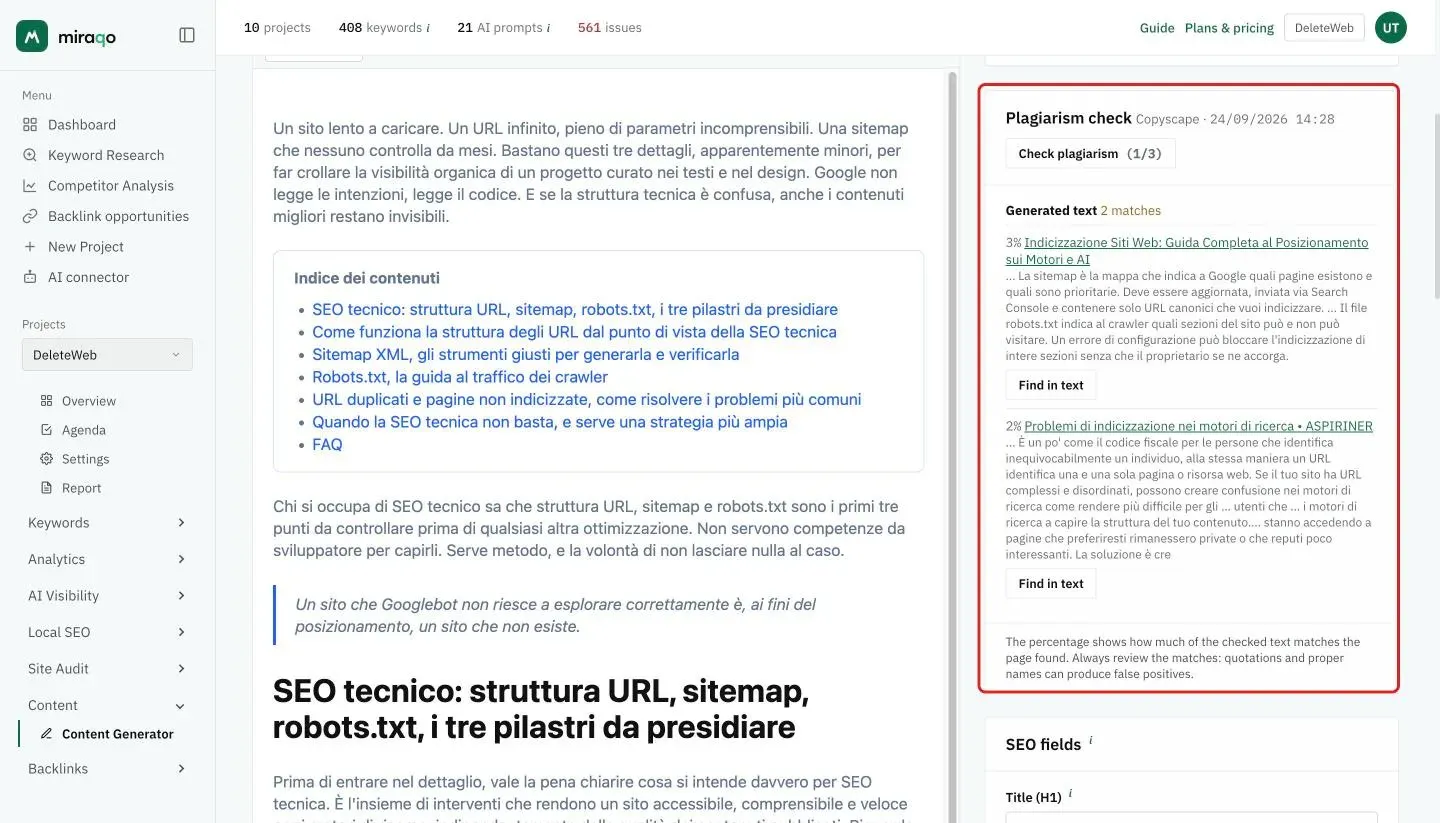
From the draft, the Check plagiarism button compares the text (and the source page, if you provided one) against the web and shows the match percentage with any excerpts. It’s an on-demand check, never automatic, with a maximum of 3 checks per draft.
For each match, Find in text takes the editor to the word sequence shared with the page found, so you can rewrite it straight away. If there is no shared sequence of at least 5 words, the matches are scattered words and there is nothing to fix. Low percentages (2–5%) on technical texts are normal: phrases like “Search Console” or “search engines” are used by everyone. Act only when a single page exceeds 10–15% or you recognise a sentence copied word for word.
Regenerating
The Regenerate button, in the draft’s More actions menu, rewrites the draft keeping the keyword and settings. It’s limited to 2 regenerations per draft and reuses the images already generated, so you don’t consume extra resources.
Exporting and publishing
- Export HTML: a ZIP package with
index.html(CSS included), the images and the FAQ structured data. - WordPress (Publish to WordPress, then Update on WordPress; Open the draft on WordPress opens it on your site): publish or update the post directly by connecting an Application Password (meta title/description are passed to Yoast or Rank Math when present; the FAQs are included as structured data).
- Google Drive (Export to Google Drive, then Update on Google Drive and Open the Google Doc): export the draft as a native Google Doc, ready to refine and share.
Transparency about AI content
In line with the EU AI Act (Article 50), text produced by AI models may include a provenance mark: an invisible signal, readable only by software, applied by the model provider to indicate that an AI took part in the writing. It is not a penalty and does not affect rankings: Google states that AI content is not penalised as such — what matters is quality.
The practical advice stays the same as always: review and edit every draft before publishing it. Human review improves the text and, in the cases where the AI Act requires disclosing AI origin (text published to inform the public on matters of public interest), review with editorial responsibility is precisely the exception the law provides.
Limits
| Item | Limit |
|---|---|
| Generated pieces | 10 per month for each add-on unit (stackable) |
| Draft archive | 5× the monthly quota (e.g. 50 with one unit) |
| Plagiarism checks | 3 per draft |
| Regenerations | 2 per draft |
| AI images | up to 4 per piece |
| Uploaded cover | max 10 MB |
When the archive is full, delete or export a few drafts to free up space. The monthly count resets each calendar month.
Common issues
- I can’t see the Content section. The add-on isn’t active or the Use content generator permission is missing: check the Subscription page and team permissions.
- The “Check plagiarism” button isn’t there. The plagiarism check isn’t configured for your account: contact support.
- Publishing to WordPress fails. Check the site URL and Application Password in Integrations; some firewalls block the WordPress REST API.
- The photo search finds nothing. Try two English words and a concrete subject. If the message says the search is unavailable, try again in a few minutes.
Next step: Build your Topical Cluster →
Last updated: 18 October 2026