Add competitors to the project
How to add competitor domains to a Miraqo project and compare them with your site on the same monitored keywords — shared keywords, gap, won and lost, average position, position matrix.
The Competitor section within a project is a per-project feature: you register your competitors’ domains and Miraqo measures, at every SERP refresh, where they rank on the same keywords as your project. It’s not an exploration tool (for that see Competitor Analysis and Keyword Research): it’s a continuous comparison dashboard.
Adding a competitor
From your project → Competitor click + Add competitor: the box where you enter the following opens below the button:
- Domain (without
https://, e.g.competitor.com) — required - Label (optional) — readable name shown instead of the domain in tables and charts
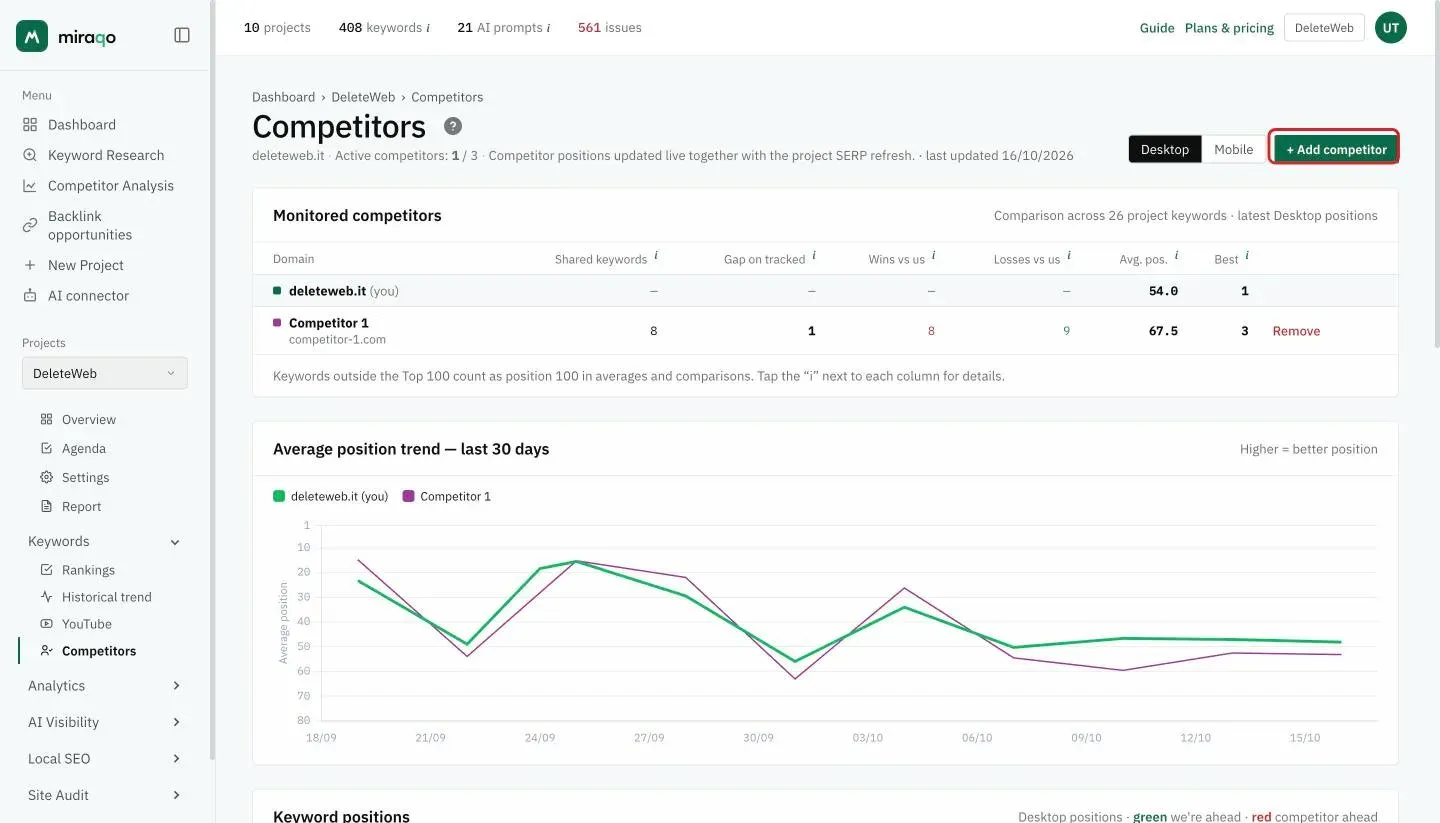
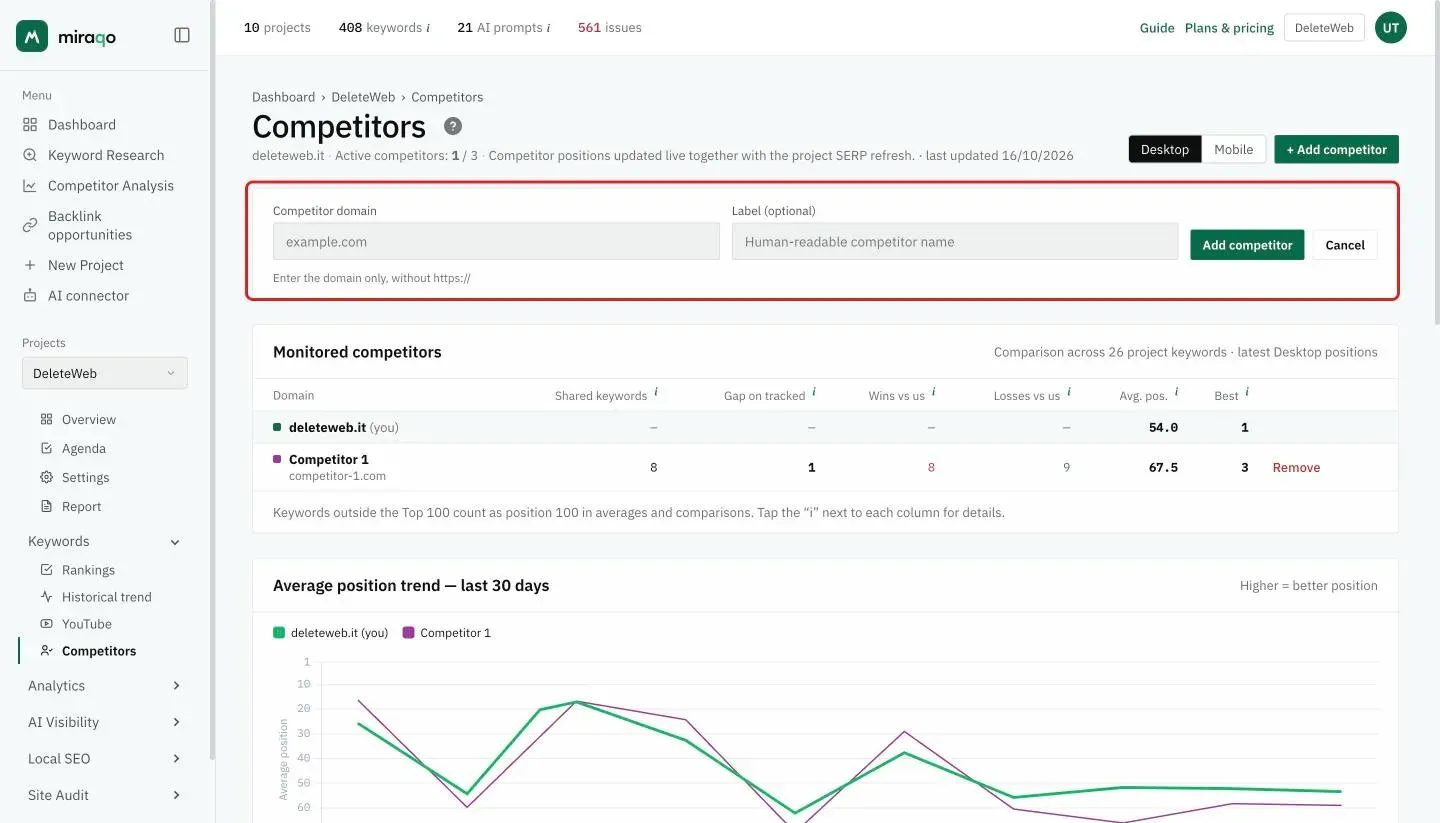
Confirm with Add competitor. The competitor enters tracking immediately: their positions are collected at the next SERP refresh for the project’s keywords (at your plan’s frequency: every 3 days or daily).
Limits by plan
| Plan | Competitors per project |
|---|---|
| Solo | — (not available) |
| Starter | — (not available) |
| Pro | 3 |
| Agency | 5 |
The limit is per project. When you reach it you need to remove one before adding another, or move to a higher plan. If the feature isn’t included in your plan you see the “Feature not available in your plan” box with a link to View plans.
The “Monitored competitors” table
One row per competitor (plus one highlighted row at the top with your domain and (you)). The Desktop / Mobile selector below the page title picks which positions to compare; each column has its own “i” with the explanation:
| Column | What it is |
|---|---|
| Domain | Label + competitor domain; a coloured dot identifies them in charts |
| Shared keywords | Tracked keywords on which both you and the competitor appear in the Top 100 |
| Gap on tracked | Tracked keywords the competitor ranks for but you don’t (potential opportunities) |
| Wins vs us | Keywords where the competitor is in a better position than you; anyone not in the Top 100 counts as 100, so keywords where only they rank are included |
| Losses vs us | Keywords where you’re in a better position than the competitor |
| Avg. pos. | Competitor’s average position across all project keywords: where it’s not in the Top 100 it counts as 100, as in the other Miraqo pages (so a competitor present on 2 keywords out of 20 doesn’t look “better” than one present on all of them) |
| Best | The highest position reached among the tracked keywords |
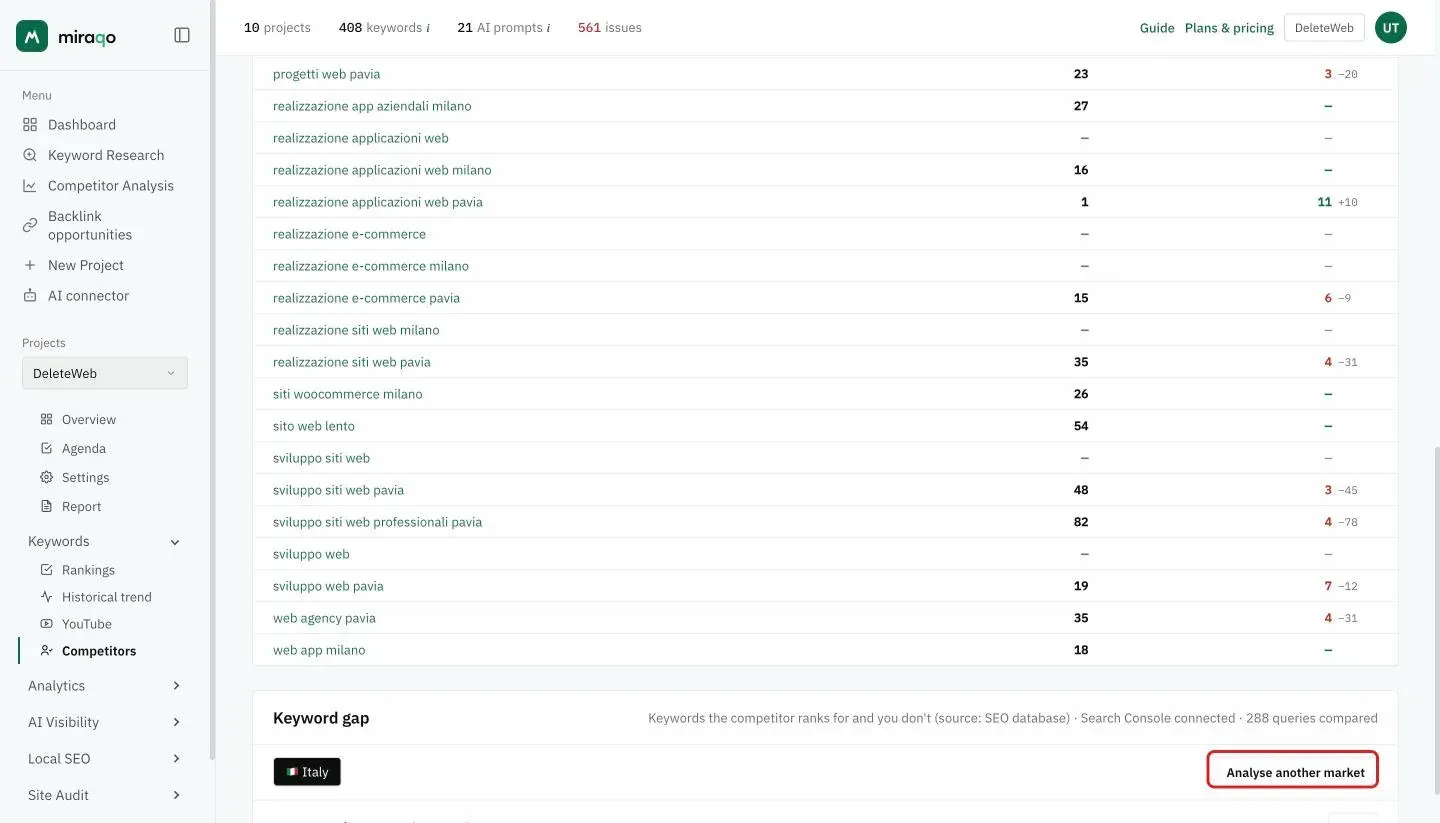
Gap on other markets. By default the keyword gap is computed on the project market. From the Keyword gap section you can analyse it on another country too (Analyse another market): each analysis uses one competitor analysis quota unit per competitor, and the keywords found can be tracked directly on that country.
At the end of the row, Remove takes the competitor off (with confirmation). Note: this also deletes all historical data for that competitor from the database.
Average position trend (30 days)
Below the table, a line chart shows the average position of all competitors (plus yours) over the last 30 days. The Y axis is inverted because higher = better position. Click a legend label to hide/show the corresponding line.
The chart only appears when there’s at least a few days of history and uses SERP checks only: a newly added competitor shows up immediately in the table and matrix (with the positions Miraqo knows at the time of adding) but in the chart only from the next SERP check of the keywords.
Keyword positions
Below the chart, the Keyword positions card: one row per project keyword, one column for your domain and one column per competitor. In each cell you see:
- the current position (
3,12, …);—means not in the Top 100 (the tooltip says so too) - in the competitor columns, in small text next to the number, the gap from your position:
+54= 54 positions behind you,−19= 19 positions ahead - the colour of the number: green when you’re ahead, red when the competitor is ahead (the legend is in the card header)
Your column carries the you label.
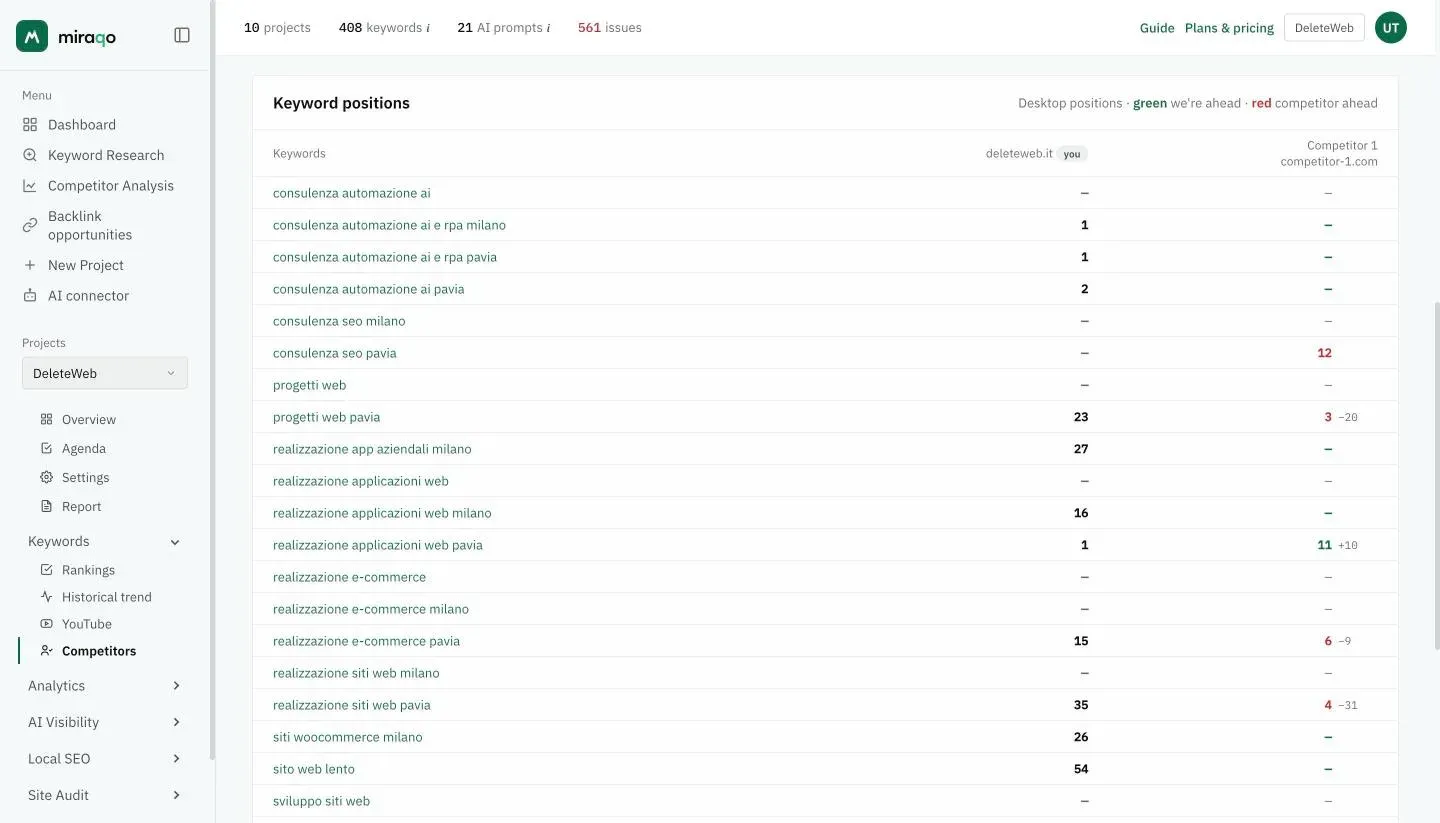
The first column (Keyword) is “sticky”: it stays visible while you scroll horizontally. Click the keyword to open its Keyword Detail.
When a competitor doesn’t appear in stats
- You just added the competitor → table and matrix fill immediately with the positions Miraqo already knows; the chart and the changes start from the next SERP refresh (see plan frequency)
- The competitor doesn’t rank in the top 100 on any of your keywords → table all
—. This is useful information: either your keywords are very specific, or the competitor isn’t really competing on those terms - You changed the language/country of a keyword → the competitor’s position resets to zero
Usage tips
- Choose competitors at your scale. Entering a major editorial player or a general marketplace produces few useful rows: their strengths aren’t replicable. Better to choose competitors with authority ±20 points of yours.
- Use labels for meaningful names. With 5 competitors on an Agency plan, reading “competitor A, B, C” in reports is more helpful than seeing the domain.
- “Wins vs us” keywords + high volume = priority. These are cases where a competitor beats you on keywords that would bring traffic: optimise the page you already have (almost always faster than writing a new one).
- “Gap” keywords = content expansion candidates. If multiple competitors beat you on gap keywords, it means a niche exists where you’re not present. Assess whether it’s worth entering.
- Removing a competitor deletes the history. If you just want to “pause” for a few weeks, leave them where they are — refreshes will continue and you can always come back to them.
See also:
- Competitor Analysis (by domain) → for the “spot” profile of a single domain
- Keyword Research → to explore new keywords starting from a competitor domain
Last updated: 18 October 2026