Organisation: details, branding and team
Organisation settings in Miraqo: name and plan, Brand Profiles with logo and colours for reports and shared links, inviting members, team list and deletion.
In Miraqo an organisation is the workspace: it holds projects, members and the subscription. That’s it. From the Organisation page — you open it from the top-right menu — you manage the org’s details, report branding and already-registered members.
Need new accounts or granular permissions? See Team Management and User permissions.
Details
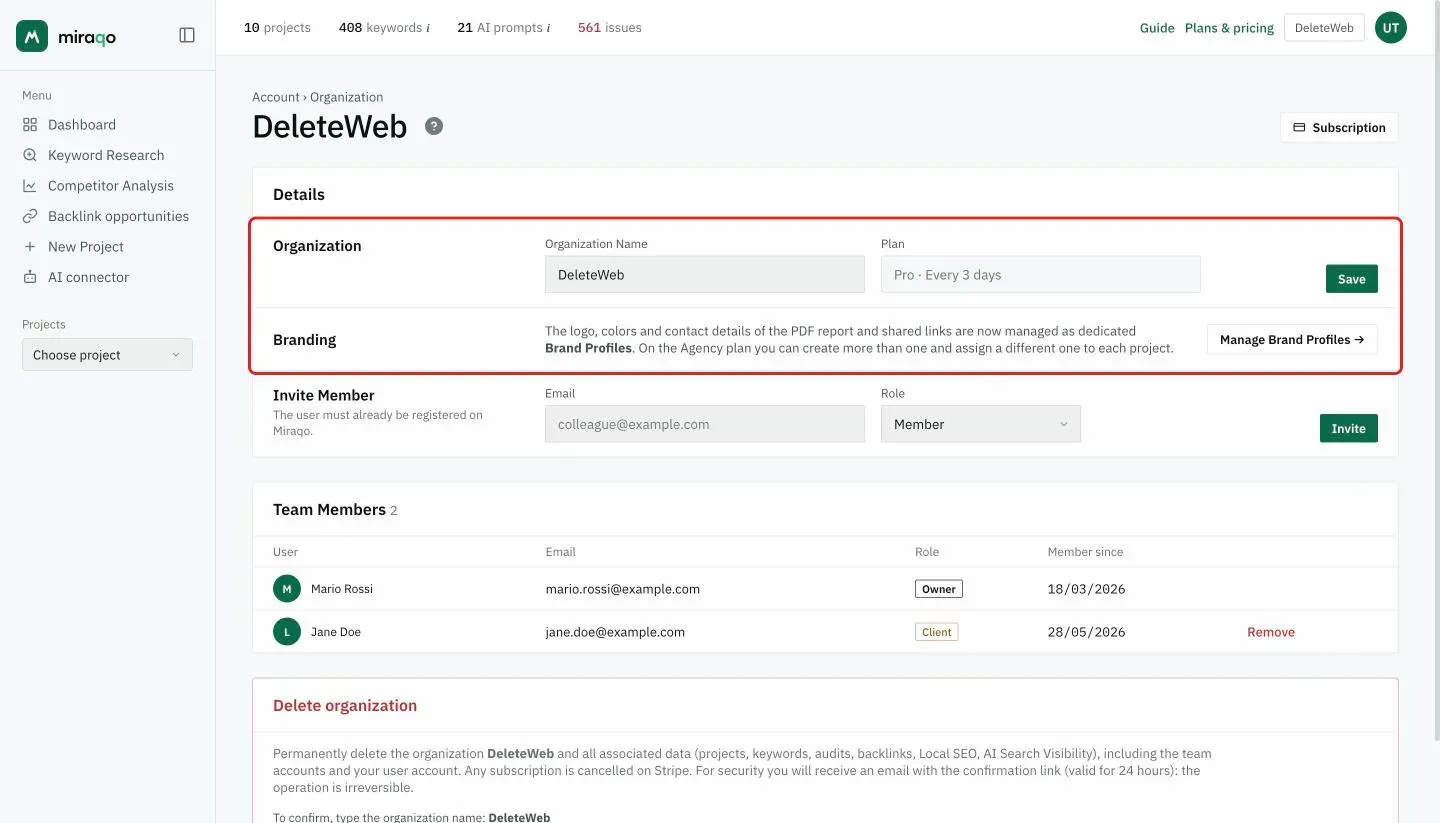
This is where you update the organisation name. It sits at the top of the page, in the “Details” card, together with the active plan (read-only: it’s changed from the Subscription page, also reachable from the button in the top right).
Branding
Logo, colours and contact details — the ones that end up on the PDF report and shared links — live in dedicated Brand Profiles. From this row, Manage Brand Profiles opens the dedicated page.
On base plans there’s one profile only, used as default on all projects; the Agency plan unlocks multiple profiles, assignable one by one to each project or client. Details in Brand Profiles.
Invite Member
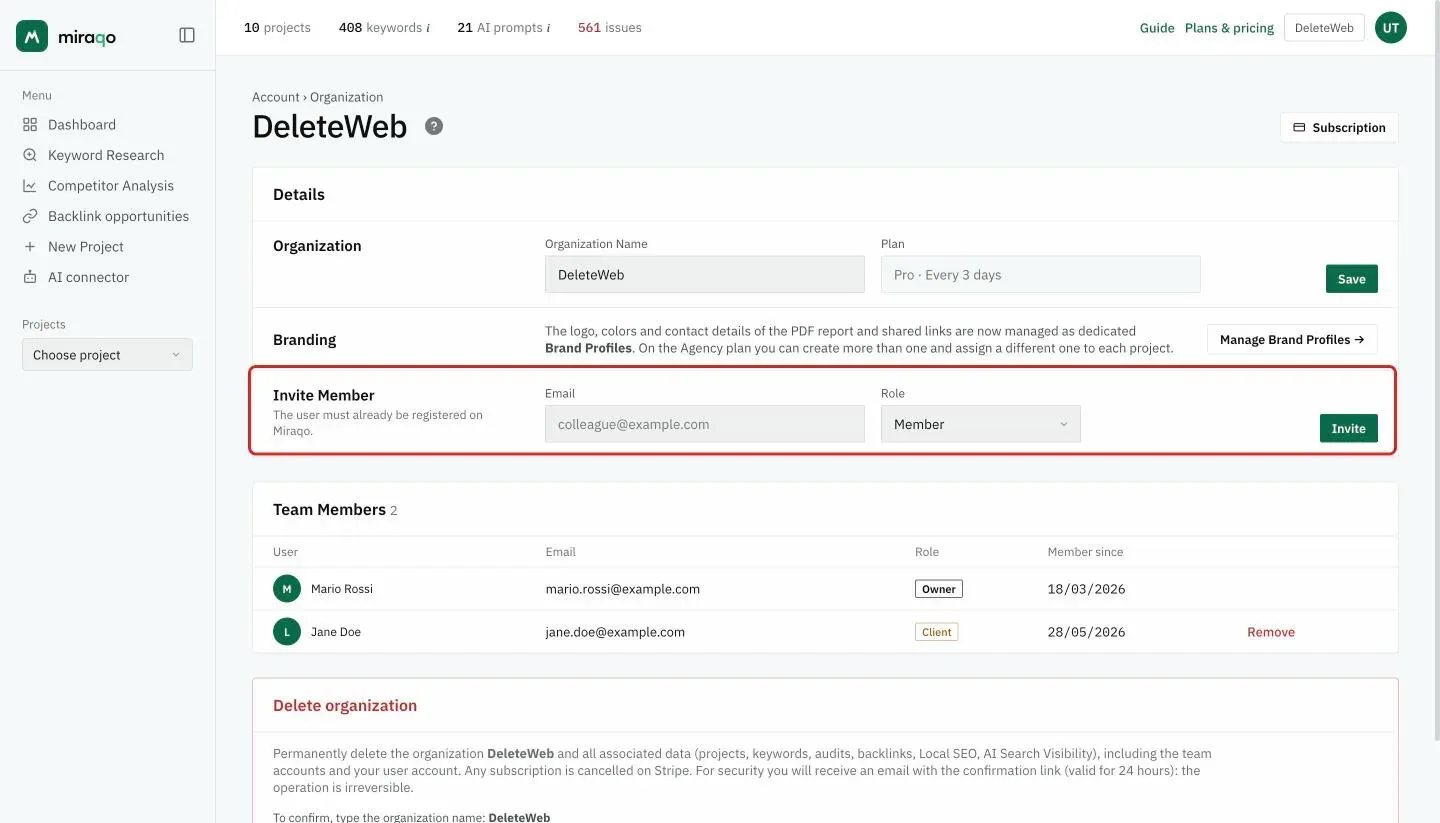
Add someone already registered on Miraqo by entering their email and choosing the role:
- Member — full access to all organisation projects.
- SEO Manager — manages projects, members, branding and permissions.
Careful: Miraqo doesn’t send invitation emails from this page. The user must have already created an account on their own; once added, your organisation will appear in their top-left selector.
Someone without a Miraqo account yet? Use Create user in Team Management instead: Miraqo creates the account and sends a link to set the password.
Team Members
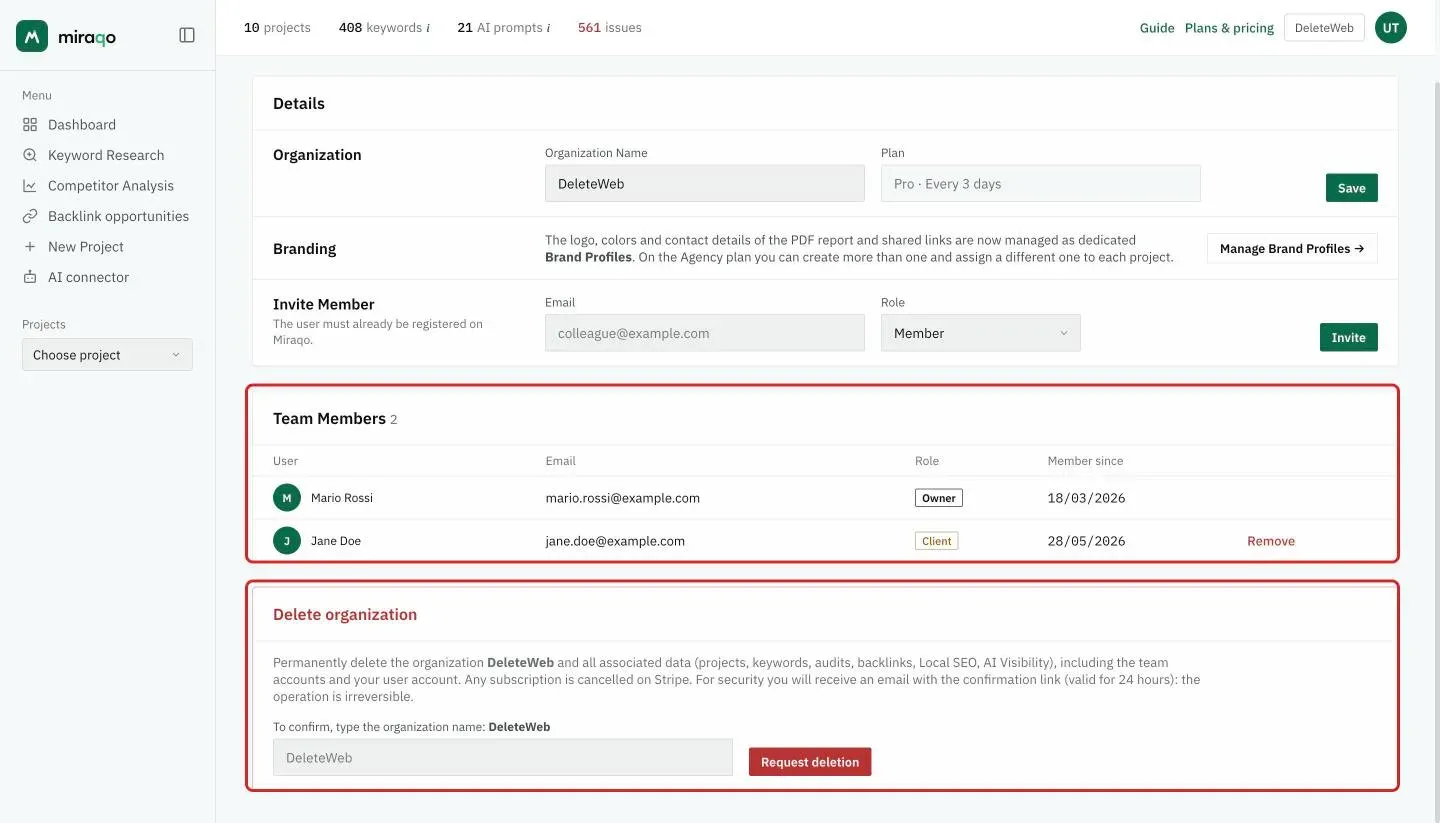
The table sums up the organisation’s members: avatar, role, joining date and the Remove action. The owner can’t be removed.
Delete organization
At the bottom of the page, the red Delete organization zone permanently deletes the organisation along with all its data (projects, keywords, audits, backlinks, Local SEO, AI Visibility), the team accounts and your own user account; any active subscription is cancelled on Stripe. You need to type the organisation’s exact name and confirm via the link you receive by email (valid 24 hours). The operation is irreversible.
For everything else — creating new accounts, editing profile or password, assigning granular permissions — the right page is Team Management.
How many projects and team members? That depends on your subscription — see Subscription & billing.
Last updated: 18 October 2026