AI Connector (MCP): connect Claude and ChatGPT
Connect Claude, ChatGPT, Gemini, Claude Code or Cursor to your Miraqo SEO data — one-click authorization via the connector address for claude.ai/ChatGPT/Gemini, or a personal token for Claude Code and Cursor, with connected-app and token management from Account Settings.
The AI connector links your AI assistant to your Miraqo SEO data — keywords and rankings, technical audit, backlinks, AI Visibility, competitors, topical architecture — so you can query it in natural language, right from the chat of the AI you use every day.
Everything is managed from Account settings → AI connector (MCP) (the same card is also reachable from the AI connector item at the top of the sidebar). The connector address, the same for everyone, is:
https://app.miraqo.io/mcp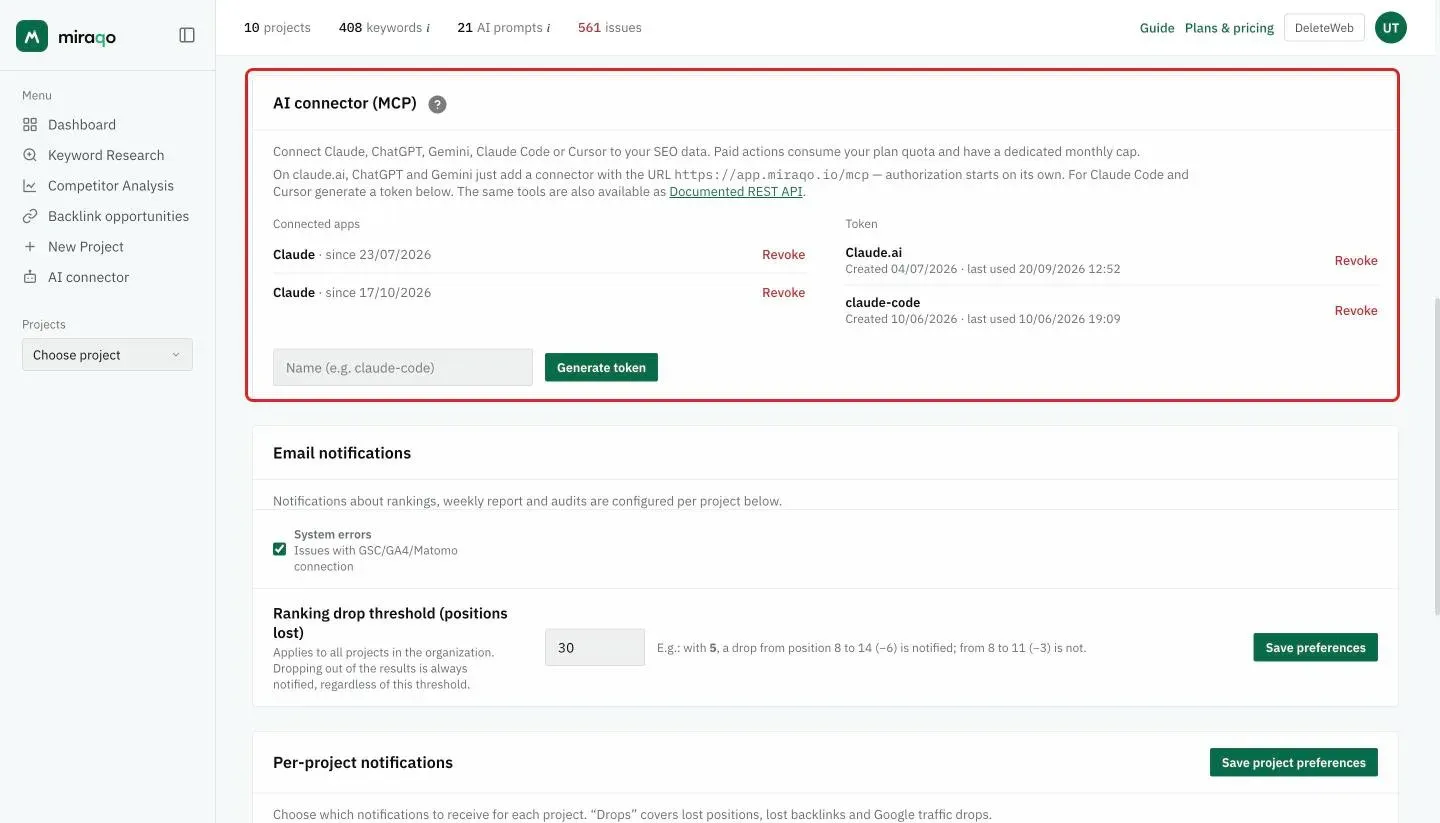
Connect claude.ai, ChatGPT or Gemini (one click)
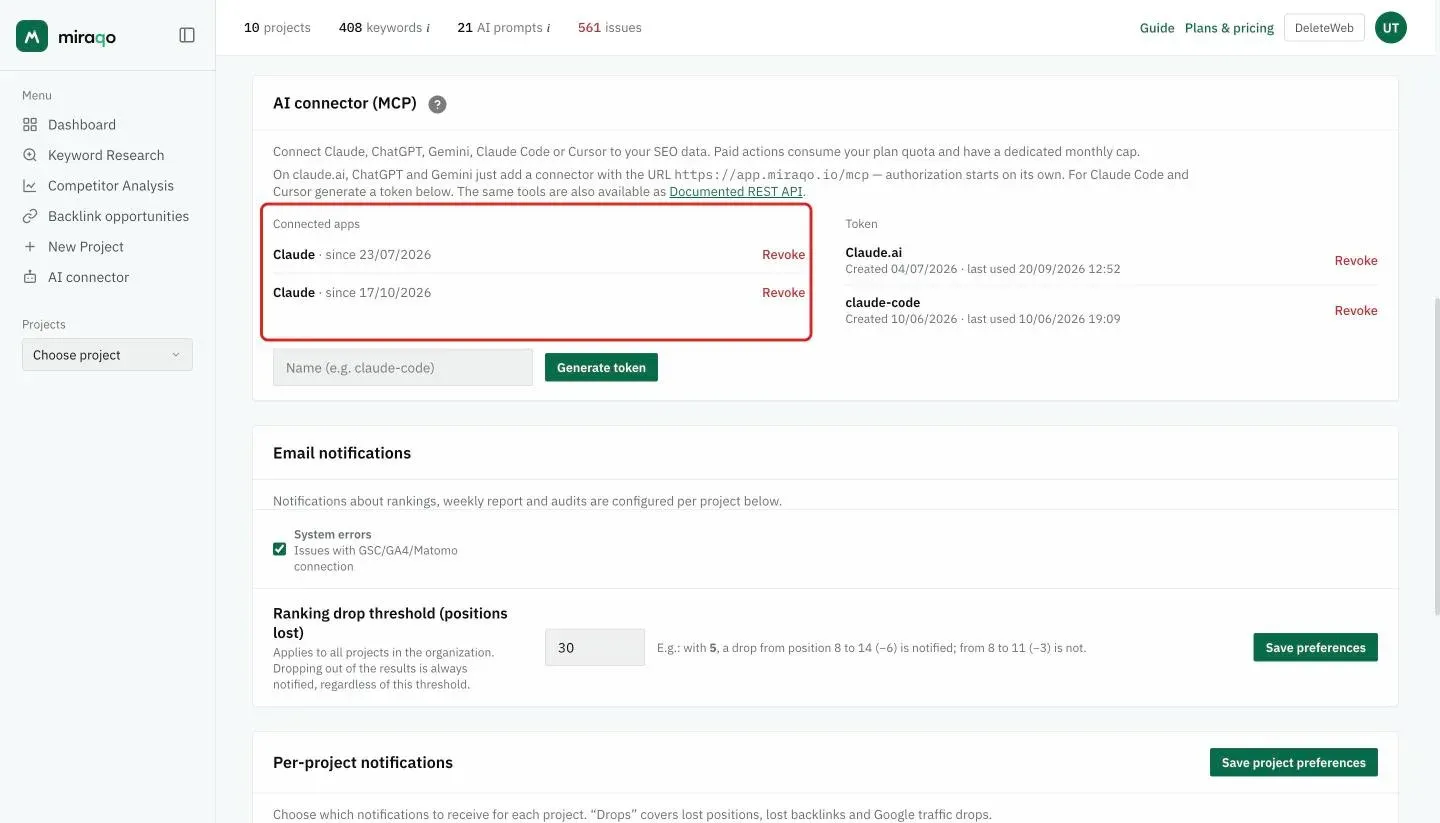
On these apps you just add a custom connector and paste the address https://app.miraqo.io/mcp. Secure authorization starts automatically: sign in with your Miraqo account, confirm, and the connection is live.
You don’t need to generate or paste any token. The permission stays tied to the app and you can revoke it any time from the Connected apps column in the same card.
The exact place to add a connector varies slightly between apps (and may depend on the AI app’s plan), but the address you enter is always the same.
Connect Claude Code or Cursor (with a token)
These developer tools use a personal token. In the AI connector card:
- Name the token (e.g.
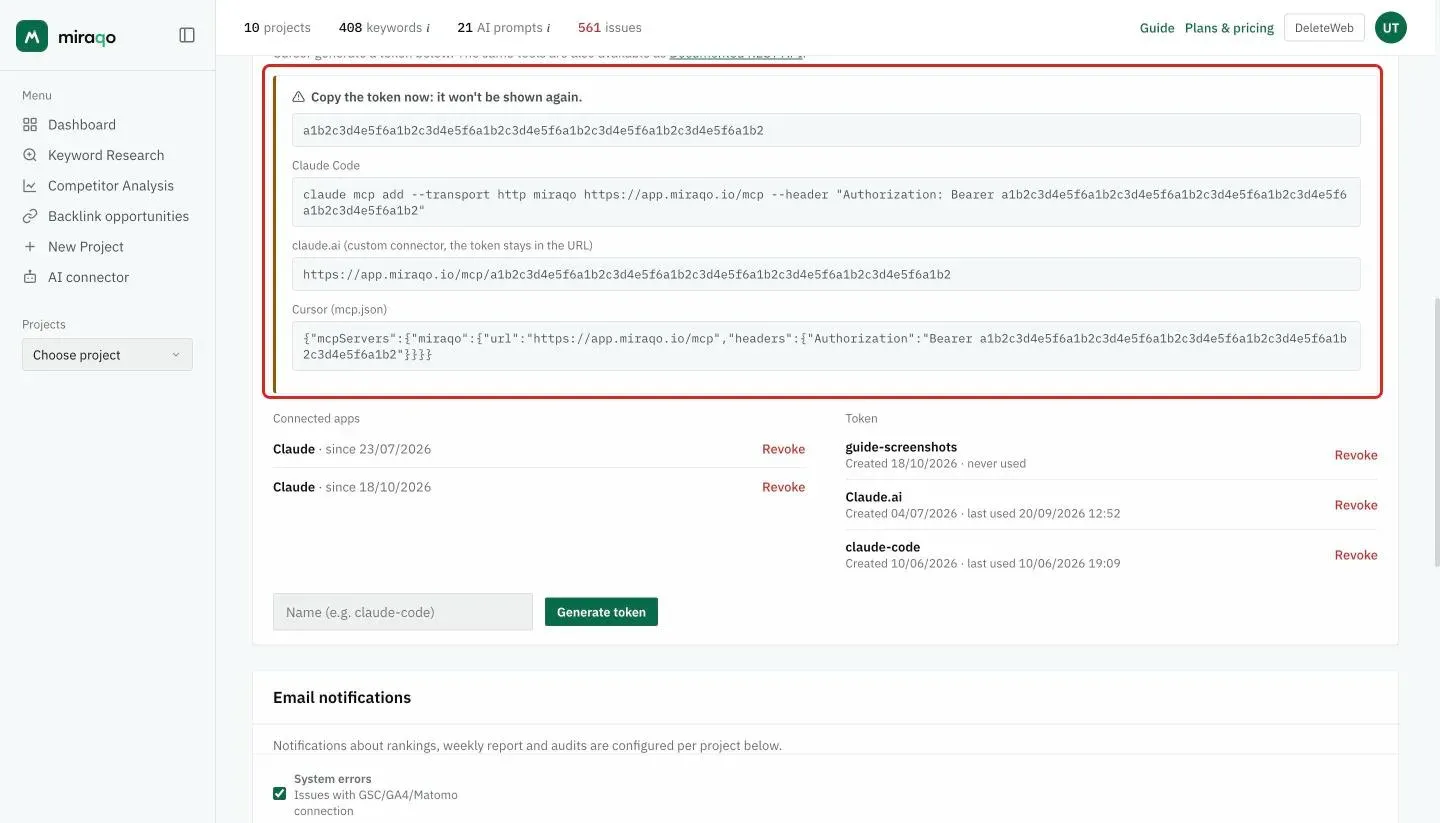
claude-code) and press Generate token. - The token is shown only once: copy it immediately.
- The same screen shows the ready-to-paste command/snippet:
Claude Code
claude mcp add --transport http miraqo https://app.miraqo.io/mcp --header "Authorization: Bearer YOUR_TOKEN"Cursor — paste the mcp.json snippet shown (address + token in the header).
In the same box you’ll also find an address with the token already included, to use on claude.ai as a custom connector if you prefer the token to one-click authorization.
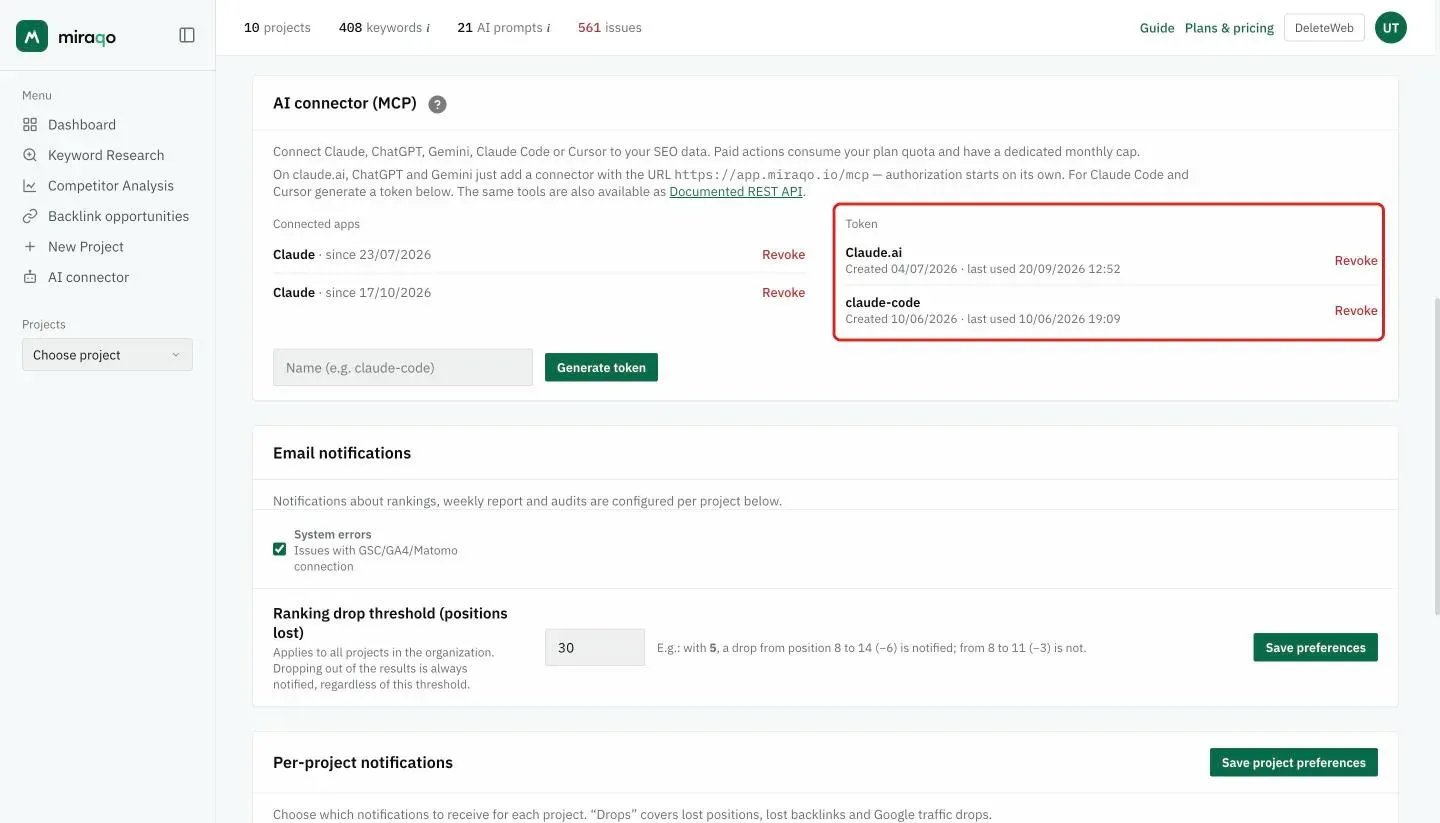
You can keep up to 5 tokens active and revoke them individually. Revoking a token stops any client connected with that token.
What you can do
Once connected, ask the AI to read your data or start operations. For practical request examples see the Chat with your SEO data guide.
- Reads (rankings, audit, backlinks, AI Visibility, competitors…): do not use your plan quota.
- Paid actions (starting an audit, keyword research, a domain analysis…): use your monthly plan quota and have a dedicated monthly cap of connector actions.
REST API
The same tools are also available as a documented REST API (see the “Documented REST API” link in the AI connector card), handy for custom integrations.
Common issues
- Authorization doesn’t start: make sure you pasted the exact address
https://app.miraqo.io/mcpand that you’re signed in to Miraqo in the browser. - Token no longer valid: if you revoked it or generated a new one, update your client’s configuration with the current token.
- You lost the token: for security it can’t be recovered. Generate a new token, update the client, and revoke the old one.
Last updated: 18 October 2026