Connect your Google Business Profile
How to connect the Google Business Profile via OAuth, read stats and AI sentiment+topic analysis, generate assisted replies with brand guidelines and receive alerts for low reviews, pending replies and profile changes.
Miraqo’s Google Business Profile (GBP) page keeps the project’s local presence under control: rating, reviews, profile changes, AI sentiment analysis of texts and assisted response generation. One profile per project.
This page covers reputation and reviews. For Google Maps position (point-by-point grid) see Local ranking map.
Connecting the profile (Google OAuth)
From the project → sidebar Local SEO → Google Listing group. If no profile is connected yet, you see an empty state with Connect Google account.
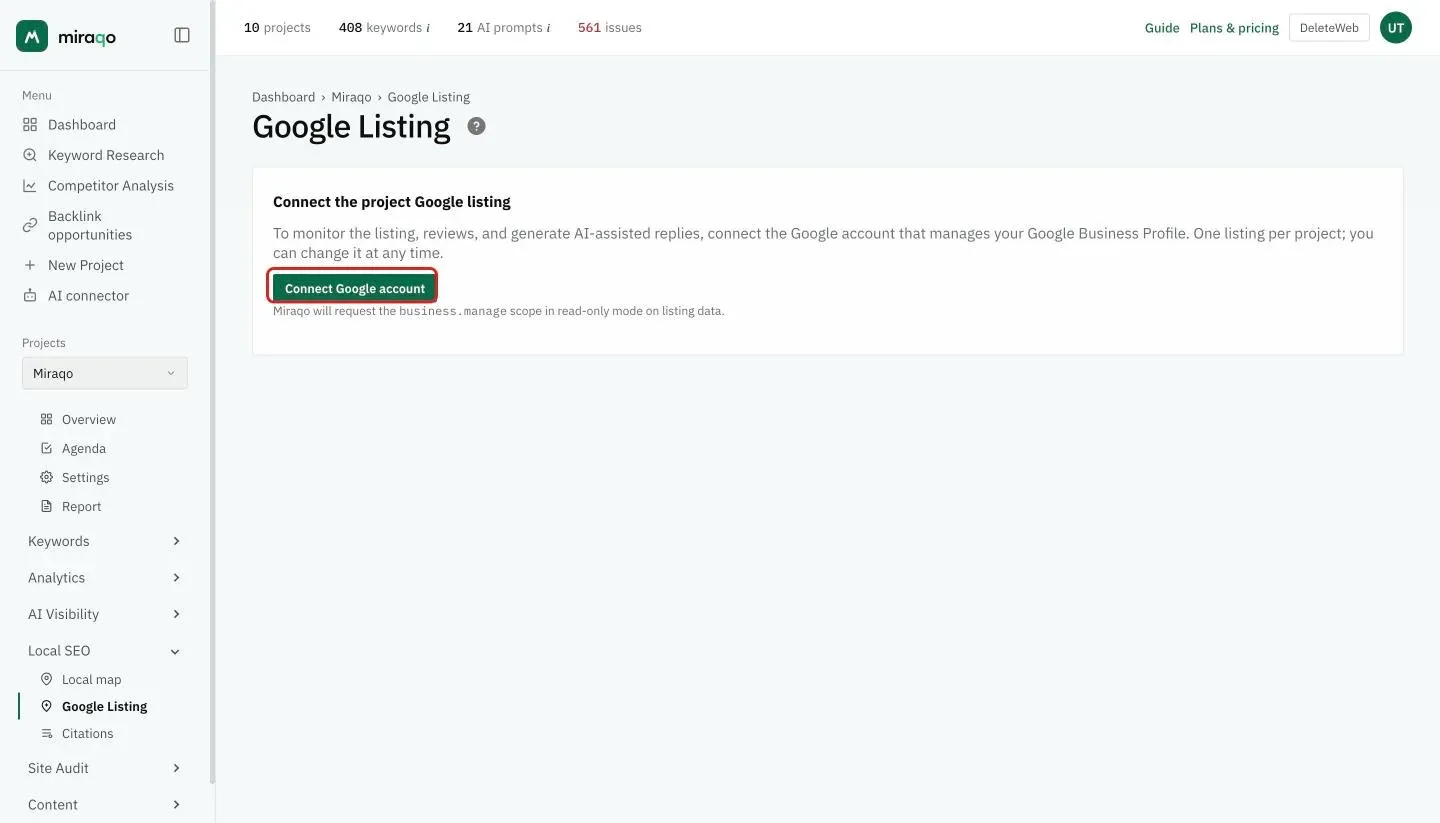
- Click Connect Google account — you’re redirected to Google OAuth.
- Miraqo requests the
business.managescope in read-only on the profile data. No post, reply or change is ever written automatically. - Back on Miraqo, if the account has more than one Google Business Account a dropdown appears to choose the right one.
- You see the list of profiles found on the Choose the Google listing to monitor page, with the connected account at the top: for each profile, name, address, category and phone (businesses that work by service area don’t show the address). A profile without a public
placeIdis marked with ⚠ — review monitoring on that type of profile may not work. - Select the profile and click Connect profile.
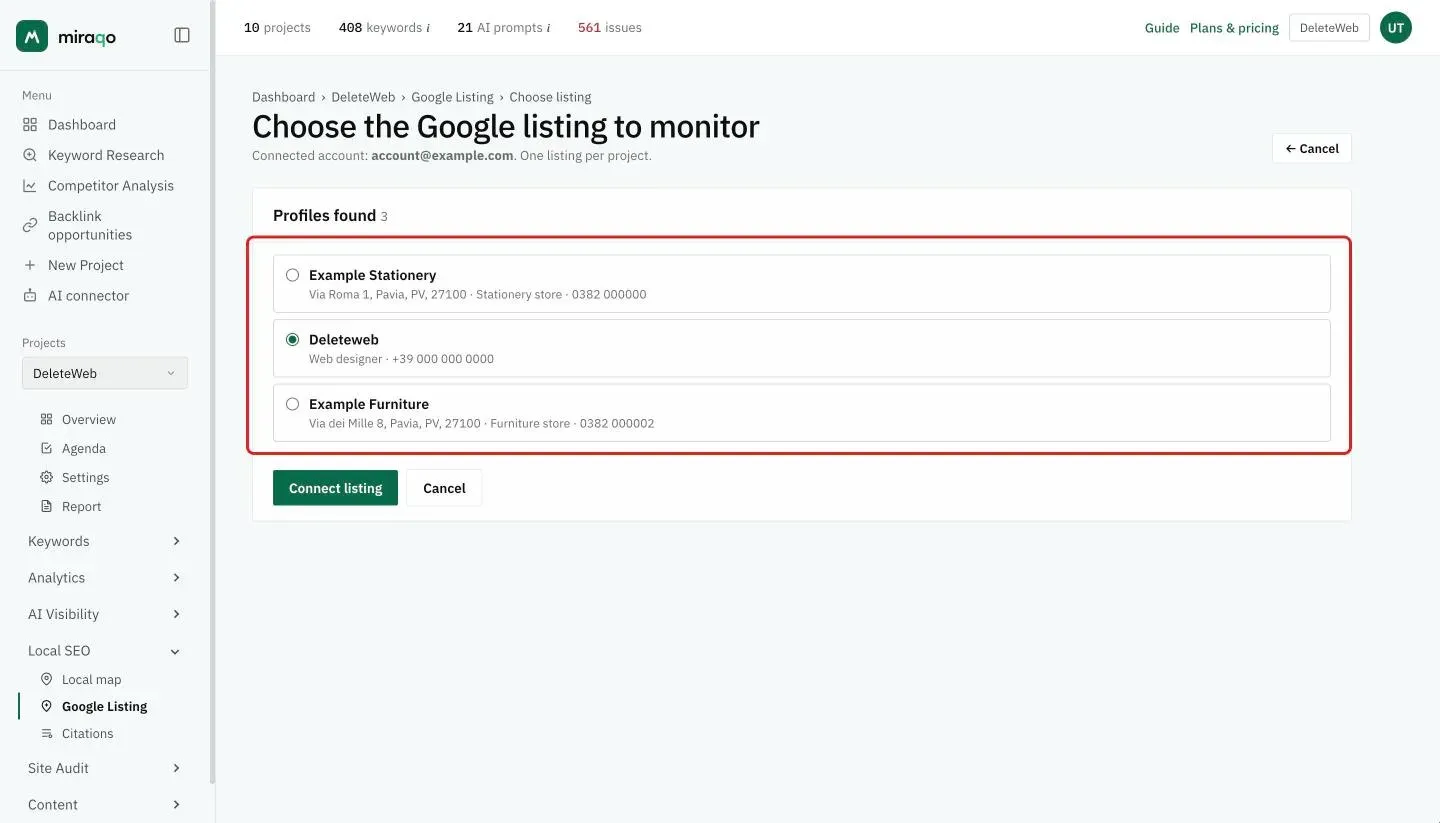
From that moment Miraqo syncs the profile once a week automatically (profile snapshot + new reviews + diff).
One profile per project. You can change it at any time (Disconnect → Connect again).
The Google Listing page
Below the title, the date of the next update (one a week). Top right, the Brand guidelines and Disconnect buttons.
Listing header
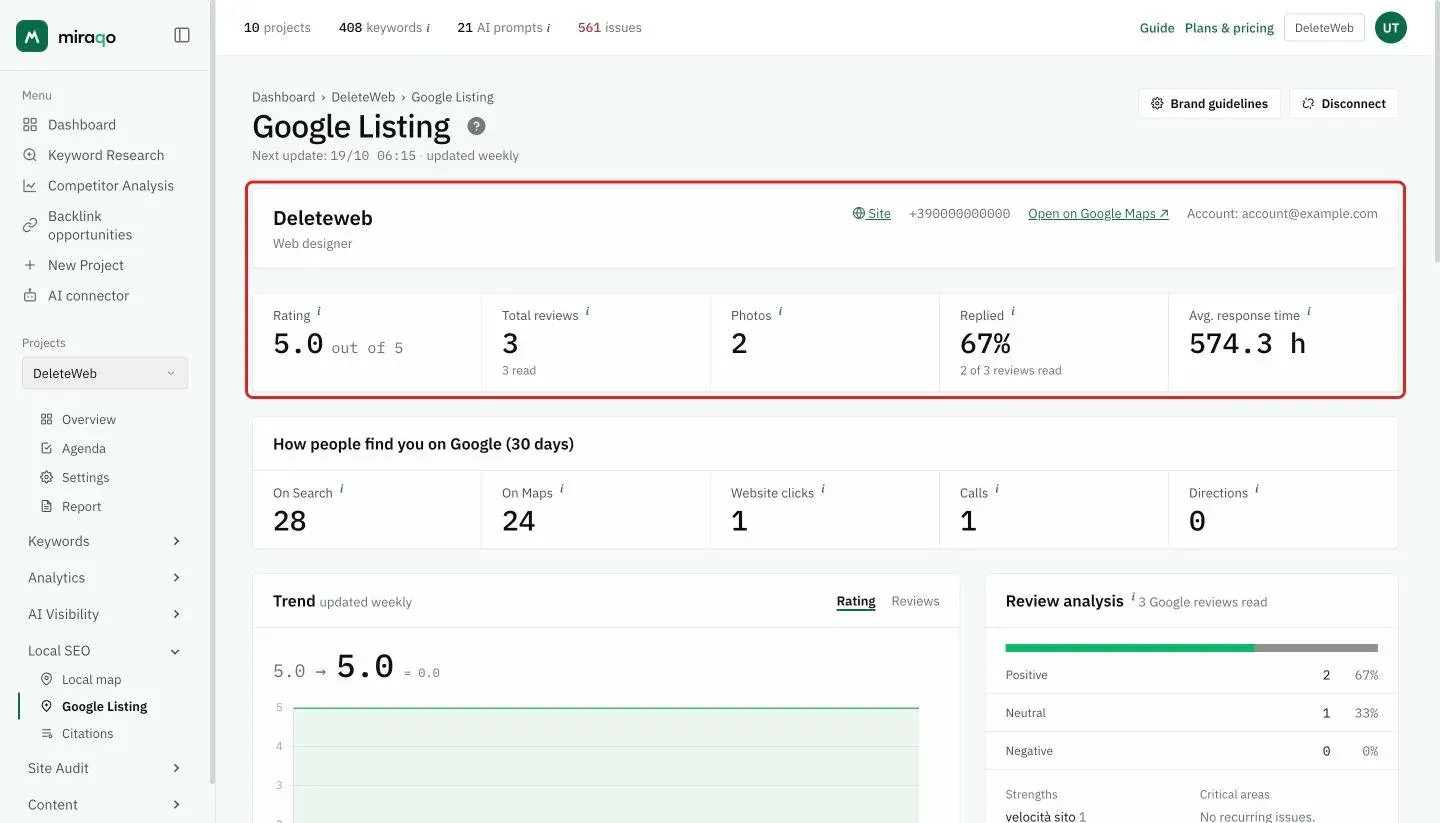
At the top, a card with:
- Profile name and main category
- Site, phone and Open on Google Maps ↗ links
- Connected Google Account (email)
If the profile was just connected and the rating hasn’t arrived yet, you see “Rating not yet synced — come back after the next weekly update.”
The 5 stat cards
- Rating — star average (out of 5)
- Total reviews — total number of Google reviews
- Photos — photos published on the profile (owner + customers)
- Replied — percentage of reviews the owner has already replied to, out of the Google reviews read by Miraqo (“X of Y reviews read”: it can be fewer than the official total)
- Avg. response time — average hours between review and owner reply
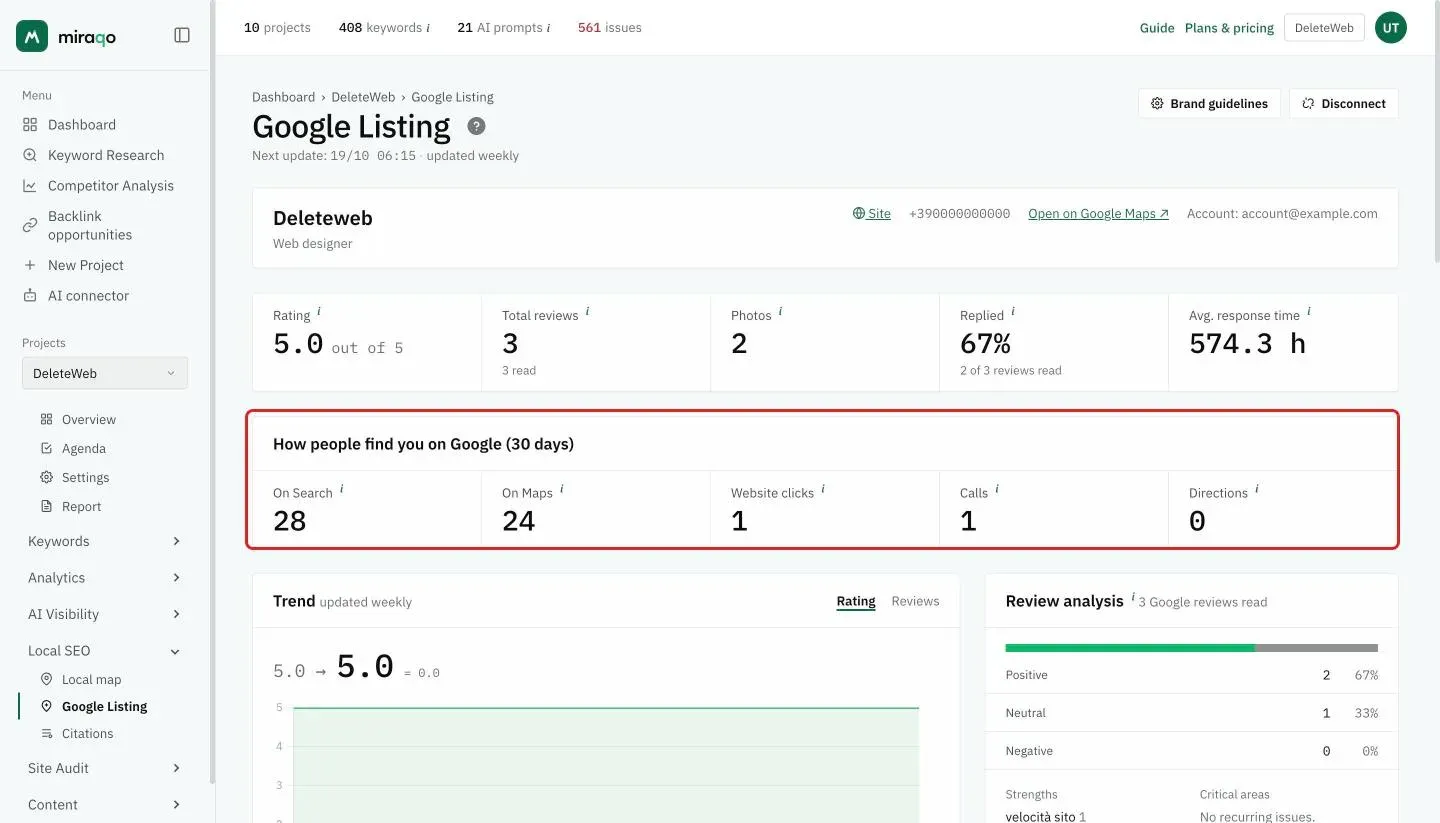
How people find you on Google (30 days)
Five numbers taken from the listing’s own statistics, over the last month. On Search and On Maps count how many times the listing was shown in each context; Website clicks, Calls and Directions count what the people who saw it actually did. The ratio between the first two and the other three is the useful question: plenty of impressions and no actions don’t mean you’re invisible, they mean what the listing shows isn’t convincing.
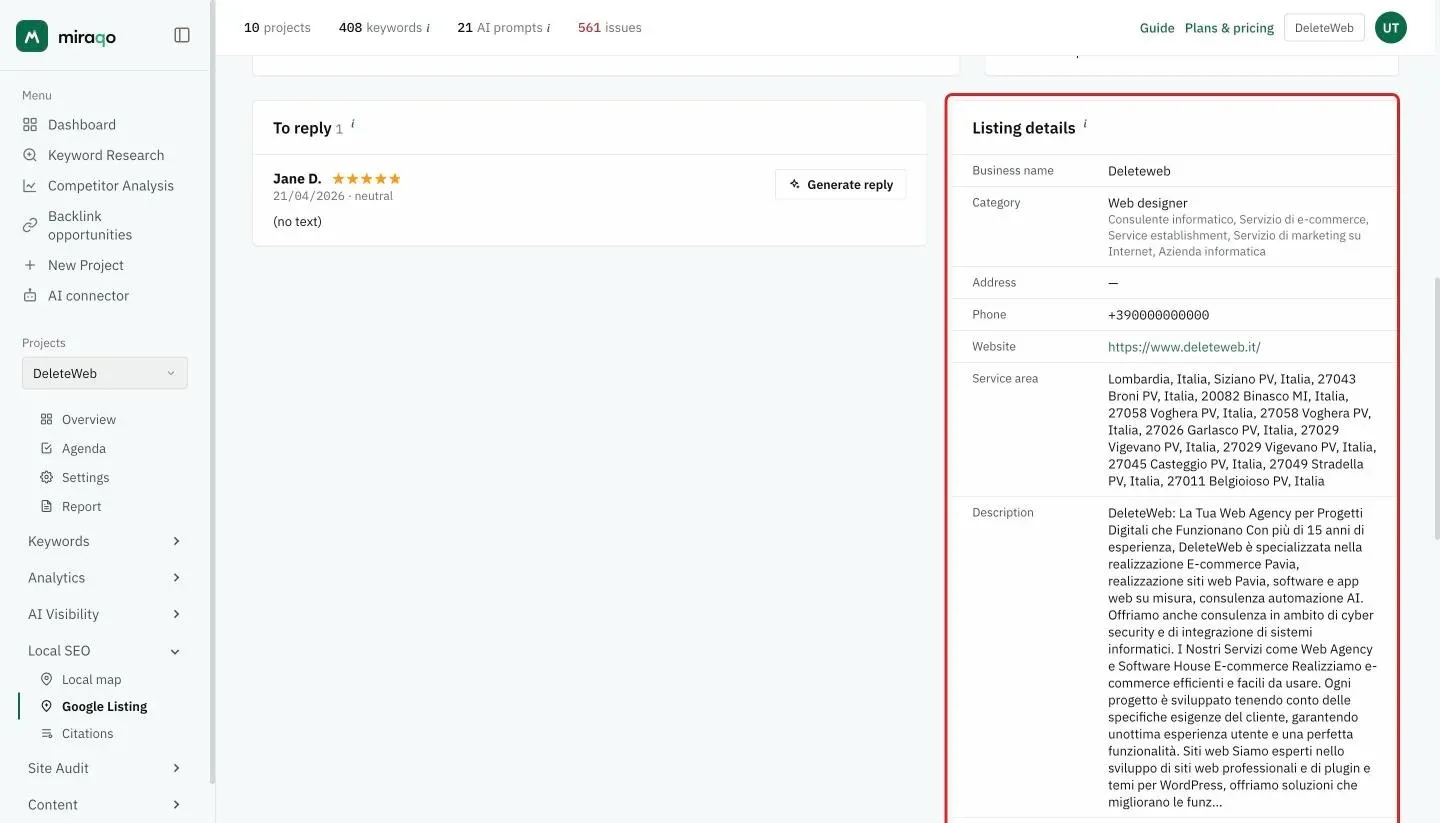
Listing details
The public data exactly as it stands on Google at the last sync: name, primary and secondary categories, address, phone, website, service area, description, opening hours and attributes such as “Offers online appointments”.
Read it as a checklist. A dash “—” means the field is missing from the listing or hasn’t been synced yet, and the two that are empty most often — hours and description — are precisely the ones Google uses to decide when to show you. They take five minutes to fill in. One exception: businesses that work by service area have the address hidden on purpose, so the dash there is correct.
Review analysis (AI sentiment + topics)
Next to the chart, a card with:
- Sentiment breakdown (Positive / Neutral / Negative): a bar and, for each, count and percentage
- Strengths — recurring topics emerging from positive reviews (e.g. “staff”, “quality”, “price”), each with the number of reviews mentioning it
- Critical areas — the same topics from negative reviews
Sentiment and topic extraction is done by AI on review texts — the fastest way to understand what customers appreciate and complain about, without reading every review one by one. If there are no recurring negative topics, the column says No recurring issues.
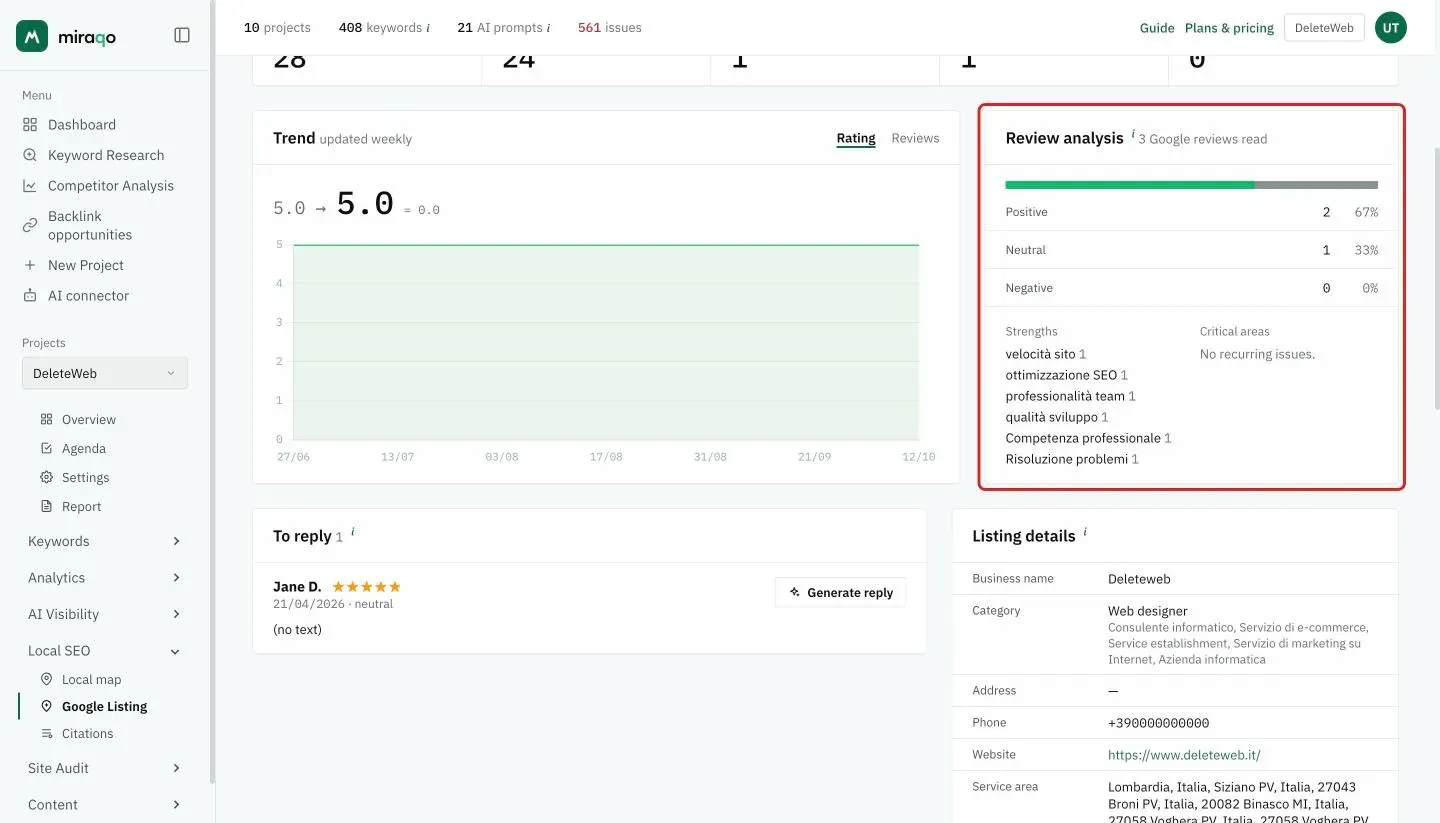
On the left, the Trend chart: with the Rating and Reviews tabs you see how the average rating and the number of reviews change over time, one point per weekly update (at least 2 updates are needed).
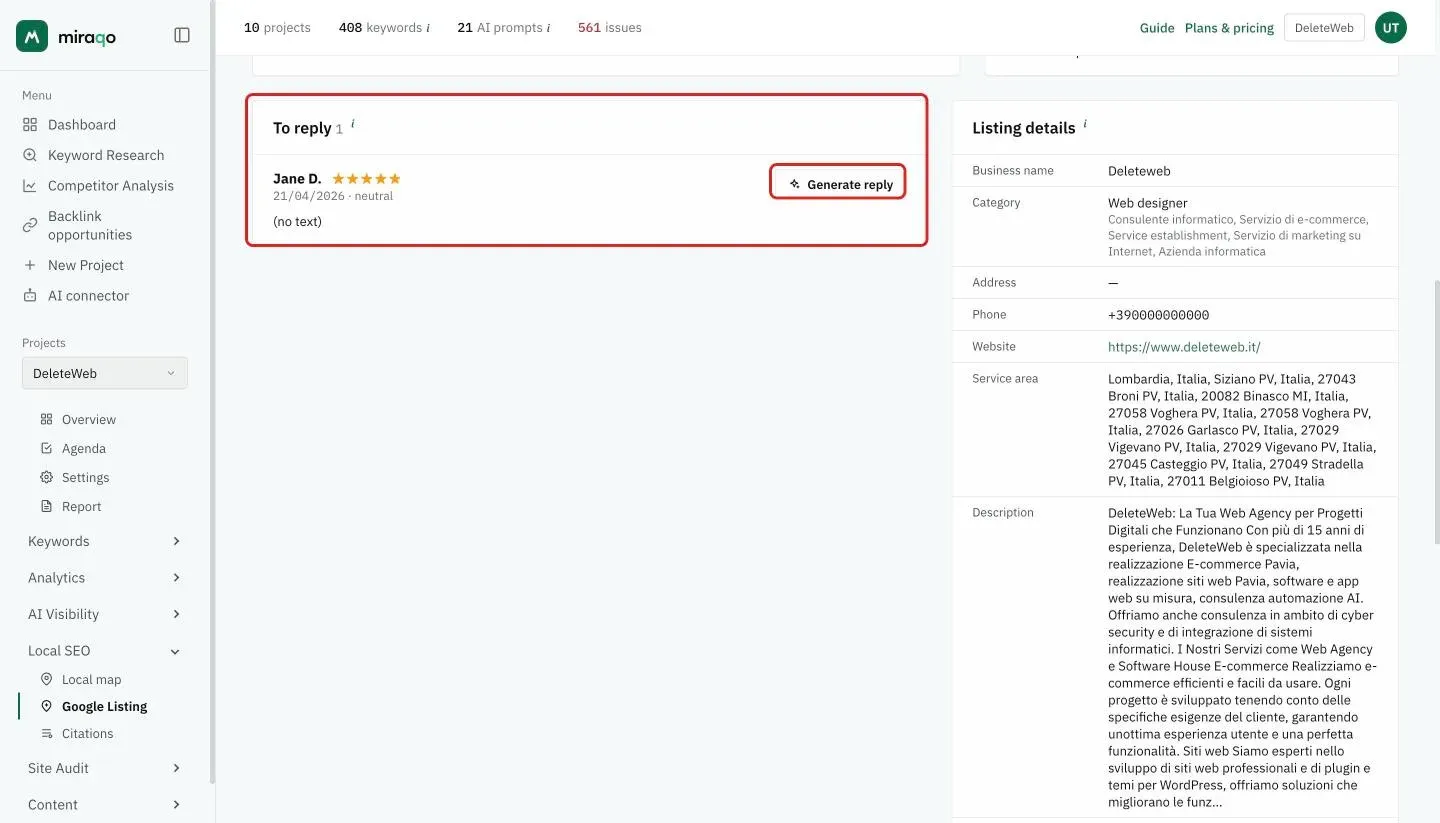
To reply (inbox)
Left column: reviews not yet replied to by the owner, with the count next to the title. For each:
- Author, stars, date and AI sentiment (positive, neutral, negative)
- Review text (truncated to 4 lines)
- Generate reply button (for roles that can edit the project) → opens the Assisted reply panel below the review
“Low review” threshold. When a new review ≤ 3 stars arrives, Miraqo sends an alert email to organisation users who have
receive_gbp_alertsenabled (see Email notifications in Your account).
Profile changes (diff log)
Right column, below the listing data: changes detected between one sync and another (title, category, address, phone, website, hours, etc.) with previous value → current value and detection date. Until something changes, the card says No changes detected so far. Useful for noticing unauthorised changes, suspensions or changes made by the client without notice.
When profile changes are detected, an alert email is sent (
gbp_profile_changed).
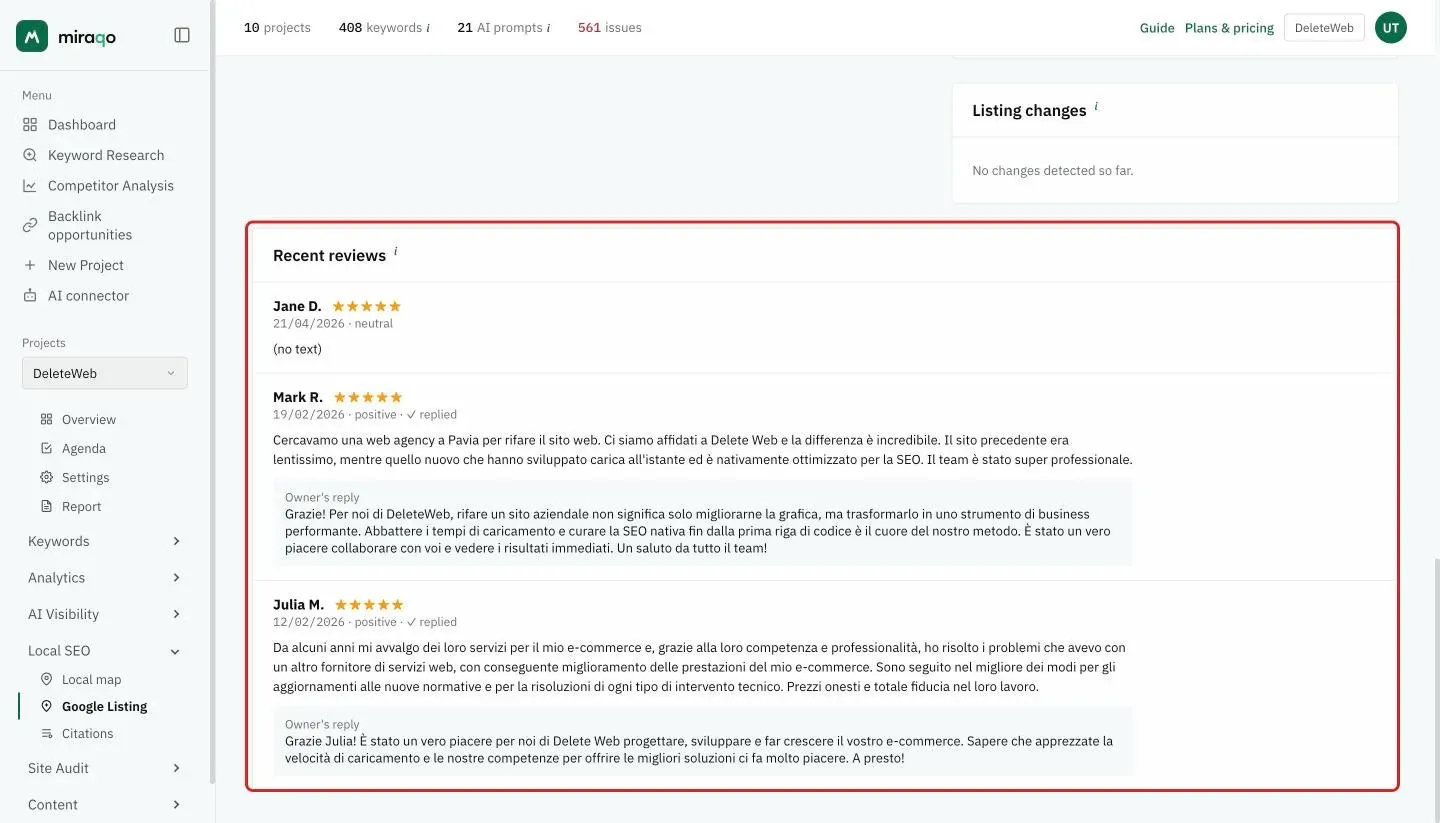
Recent reviews
At the bottom, complete list of the latest reviews collected (including those already replied to). For each: author, stars, date, sentiment, any ✓ replied and the Owner’s reply in a box below the text.
AI-assisted reply
The Generate reply button opens the Assisted reply panel below the review, with:
- Tone (Formal, Friendly, Empathetic, Concise) — overrides the default tone from Brand guidelines for this instance
- The generated draft, editable by hand. The first draft arrives when the panel opens
- Regenerate, with the “Regenerations: X/max” counter (the per-review limit depends on the plan)
- Cancel closes the panel
- Copy & open Google — copies the text to the clipboard and opens the profile on Google in a new tab, so you can paste it as the official reply
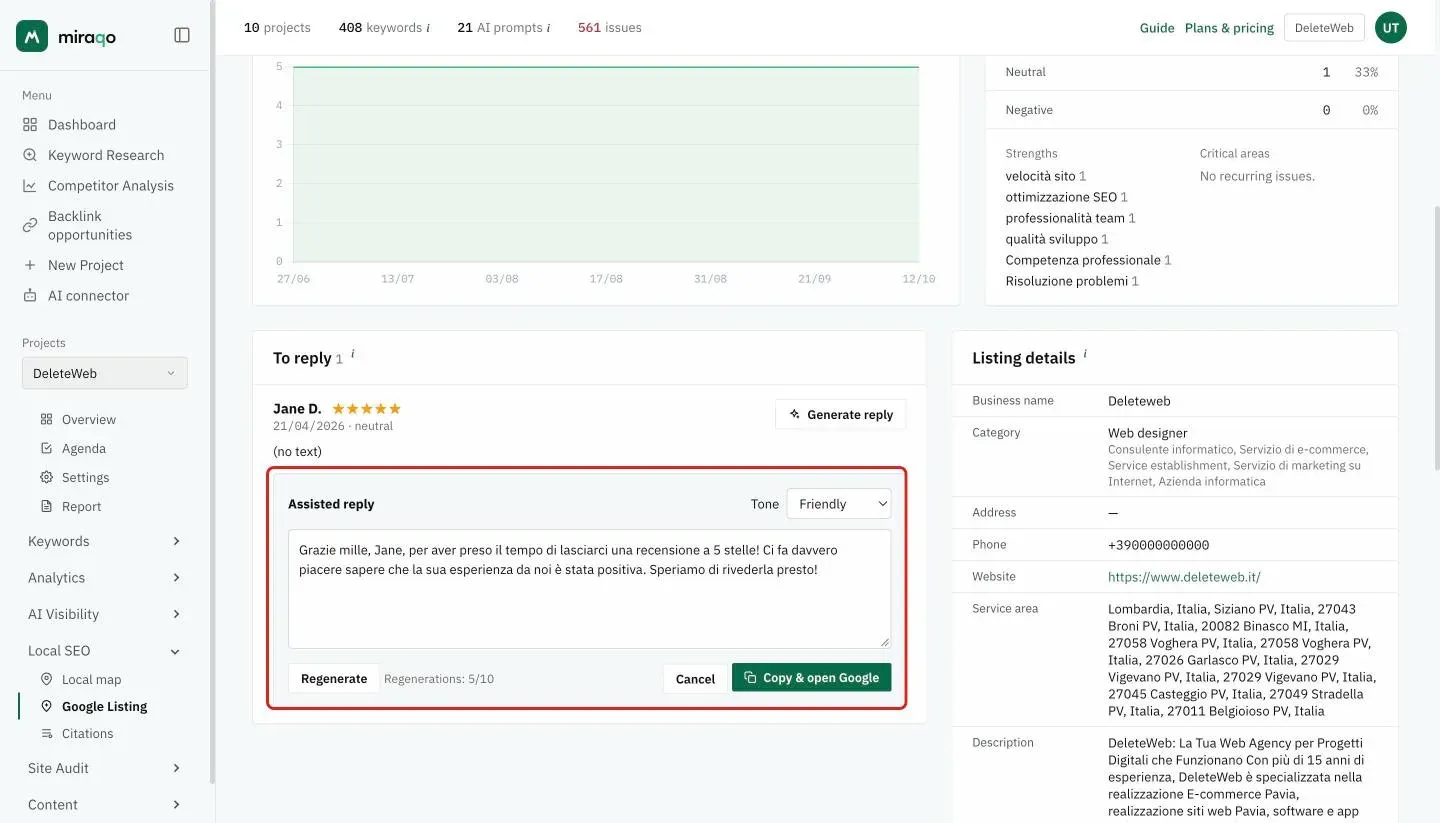
The AI never replies automatically. Miraqo has read-only access: publishing the reply on Google is always done by you, manually. This is for two reasons: (1) responsibility for the final text stays under your control; (2) Google doesn’t grant third-party tools permission to publish automatic replies on others’ accounts.
Brand guidelines
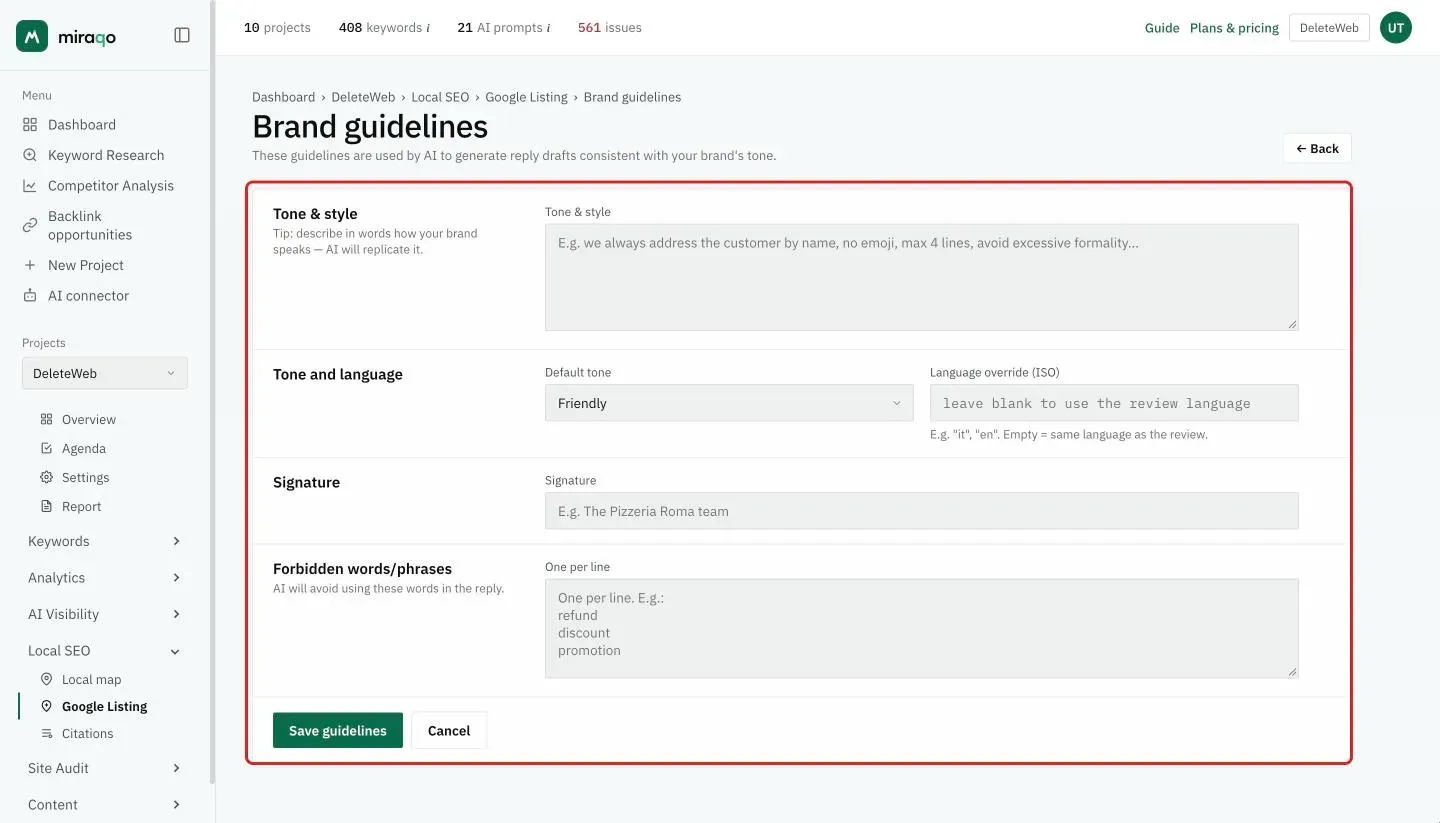
From the Brand guidelines button in the top right, open the configuration form. These are the instructions Miraqo passes to the AI every time it generates a draft:
- Tone & style — free description (“we reply by name, no emojis, max 4 lines, avoid excessive formality…”)
- Default tone — pre-selected tone in the Assisted reply
- Language override (ISO) —
en,fr, etc. Empty = same language as the review - Signature — string added at the end (e.g. “The Roma Pizzeria team”)
- Forbidden words/phrases — one per line (e.g. refund, discount); the AI will avoid these in the draft
Guidelines are per-project and update immediately: drafts generated after saving respect them. Confirm with Save guidelines.
Sync and disconnection
- Cadence: automatic weekly (profile snapshot + new reviews + diff); the date of the next update is below the page title. There’s no manual sync button.
- Disconnect — button in the top right. Revokes the refresh token and disables syncs. The already collected history remains visible (reviews, snapshots, diff): if you reconnect later, it resumes from where it left off.
Alert emails
Three types of notification are sent to org users who have receive_gbp_alerts enabled in account preferences:
- New low review (
gbp_new_low_review) — review with ≤ 3 stars. - Pending replies (
gbp_reply_pending) — periodic recap of reviews not yet replied to. - Profile changes (
gbp_profile_changed) — changes detected on profile fields (title, address, category, etc.).
Individually disableable from Your account → Email notifications.
Common errors
- “Google OAuth not configured” — the Miraqo administrator hasn’t set up GBP OAuth credentials for your instance. Contact them.
- No profile found under this account — you logged in with a Google account that has no access to any Google Business profile. Check you have the right account (and that the profile is confirmed on Google).
- Profile without public placeId — some profile categories (unconfirmed service-area businesses, profiles under review) don’t have a public placeId. Review monitoring may not work; better to connect a confirmed profile.
- Syncs are stopped — the refresh token has been revoked (Google password change, app disconnection from Google Account, expiry). Disconnect + reconnect from the top button.
See also:
- Local ranking map → for the Google Maps position grid
- Citations → for directory presence and the Trustpilot and TripAdvisor reviews, which live there rather than on this page
- Your account → to manage GBP email notifications
Last updated: 18 October 2026