Subscription & billing
Your Miraqo subscription: active plan, free trial, usage limits, payments and invoices through Stripe, changing plan, subscription emails and cancellation.
The Subscription page shows your active plan, usage limits, billing tools and all available plans for upgrading or downgrading. Reach it from the top-right user menu → Subscription (hidden for users with the Client role).
Subscription status
At the top you’ll find a card with your current subscription status:
- Free trial — you’re in a trial. The card shows the trial expiry date. Activate a plan before that date to avoid any service interruption.
- Active — regular subscription. Shows the plan name and the renewal date.
- Cancelled / Expired — the subscription won’t renew or has already expired. Actions that consume API quota are blocked; data is retained (see below).
New accounts start with a 14-day free trial: all features are active with no payment method required.
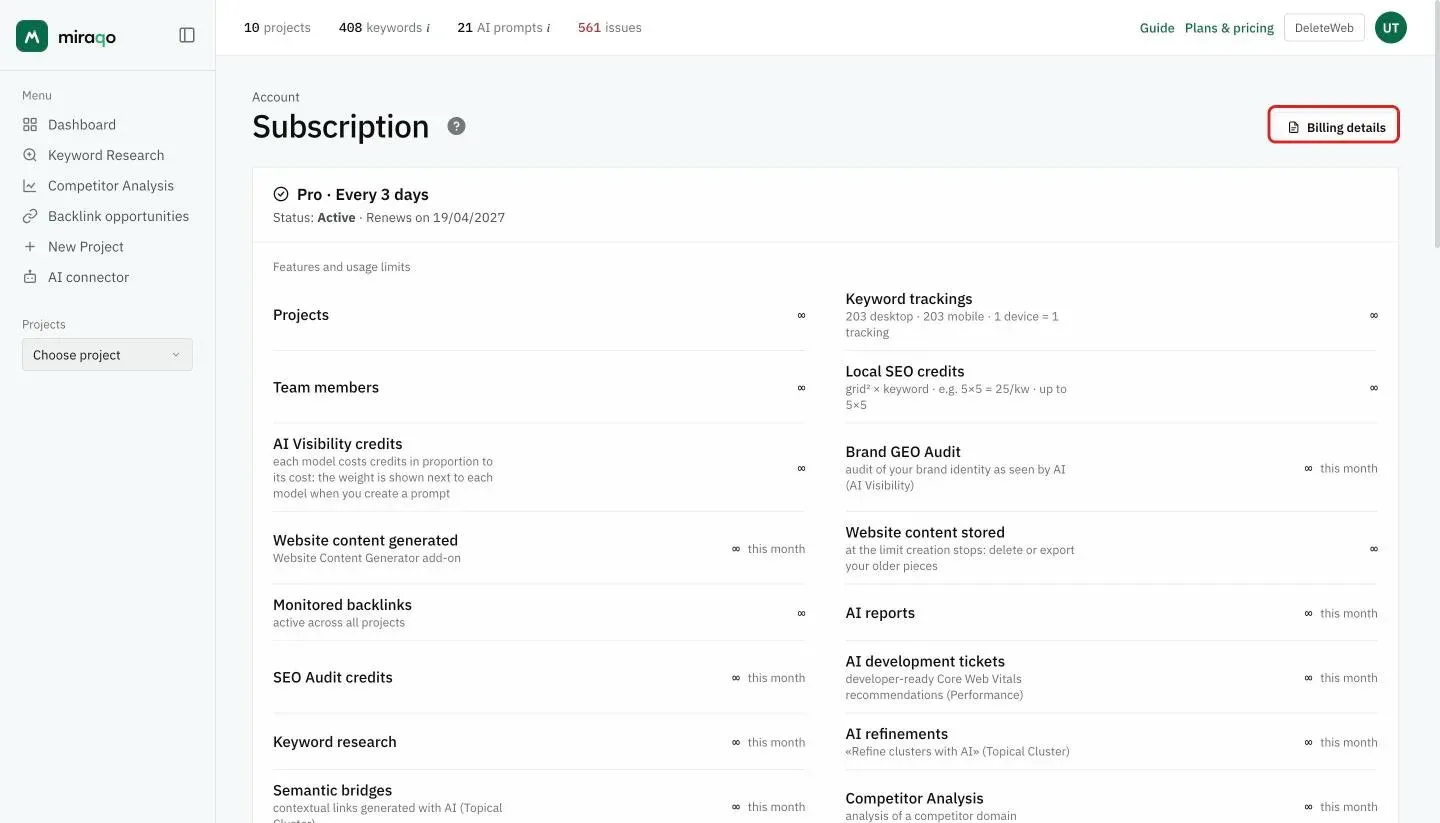
Features and usage limits
Below the status card, the Features and usage limits section shows a row for each resource with a colour-coded progress bar:
- Blue — below the warning threshold
- Yellow — you’ve exceeded 80% of the limit
- Red — you’ve reached or exceeded 100%
Monitored resources:
| Resource | Period |
|---|---|
| Projects | Total active |
| Tracked keywords | Total active |
| Team members | Total |
| Local SEO credits | Monthly (grid² × keyword — e.g. 5×5 = 25 credits per keyword) |
| AI Visibility credits | Total active budget across all projects (each model is weighted ∝ to its cost) |
| Monitored backlinks | Total active across all projects |
| AI Reports | Monthly or lifetime, depending on the plan |
| SEO Audit credits | Monthly (1 credit = 1 page checked with HTTP 200; unlimited audits while credits remain) |
| Keyword searches | Monthly |
| Competitors per project | Limit per individual project |
| SERP update frequency | Frequency (every 3 days / daily) |
| Public share links & branded PDF | Included / Not included |
Each resource has its own independent limit. External integrations (Google Search Console, GA4, Matomo) have no limits of their own: the only constraint is the number of projects in your plan.
Choosing a different plan
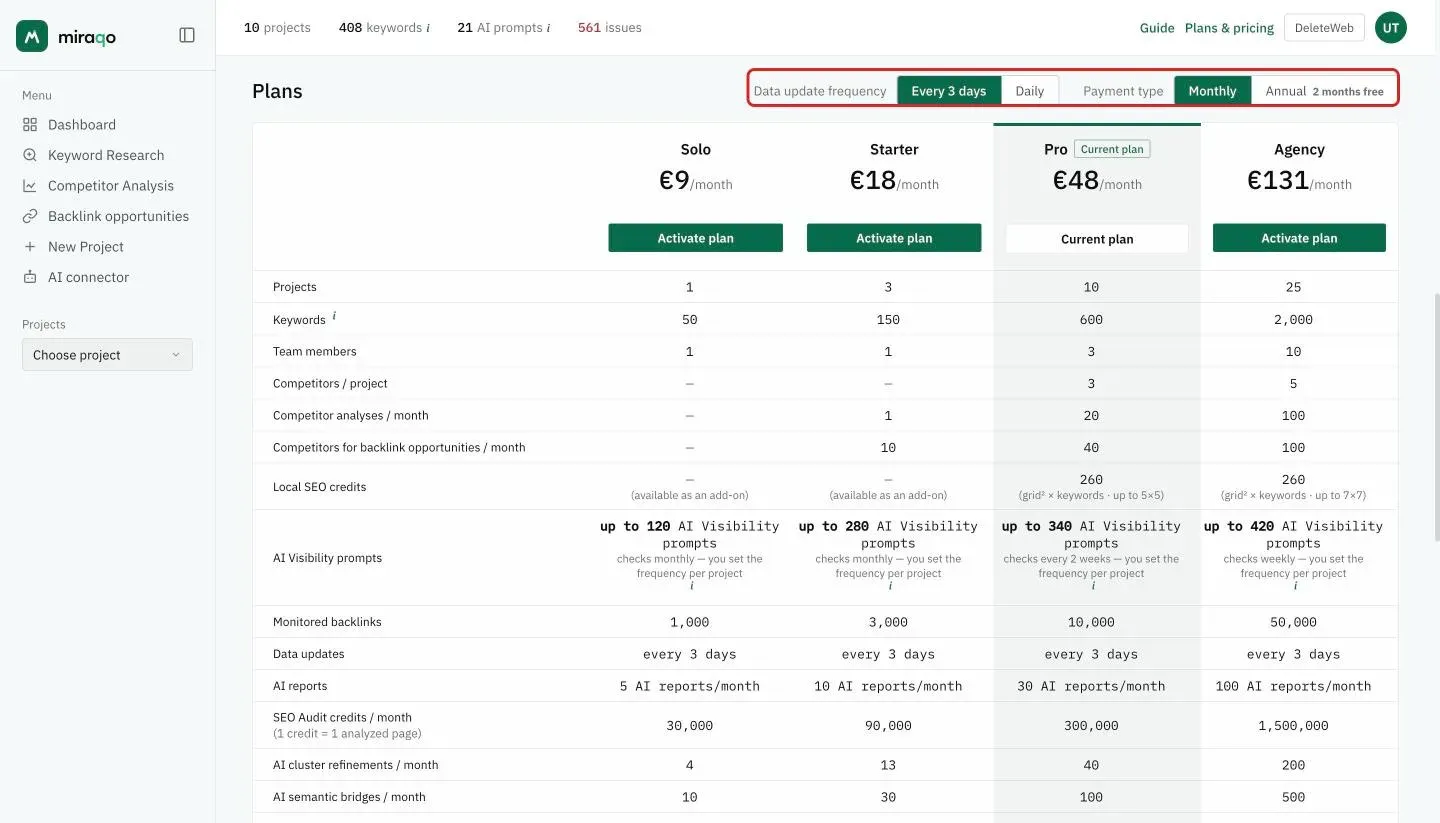
Below the status card you’ll find two selectors followed by the plans table: one column per plan, with price and button at the top and one row for each limit, so you can compare them at a glance.
Data update frequency — pills Every 3 days / Daily. Changes the subset of plans shown (each family has two tiers based on SERP detection frequency). The old Weekly cadence has been retired: it stays visible only to who already has it, and switching to another frequency is one-way.
Payment type — toggle Monthly / Annual (with the 2 months free promo highlighted as a green chip).
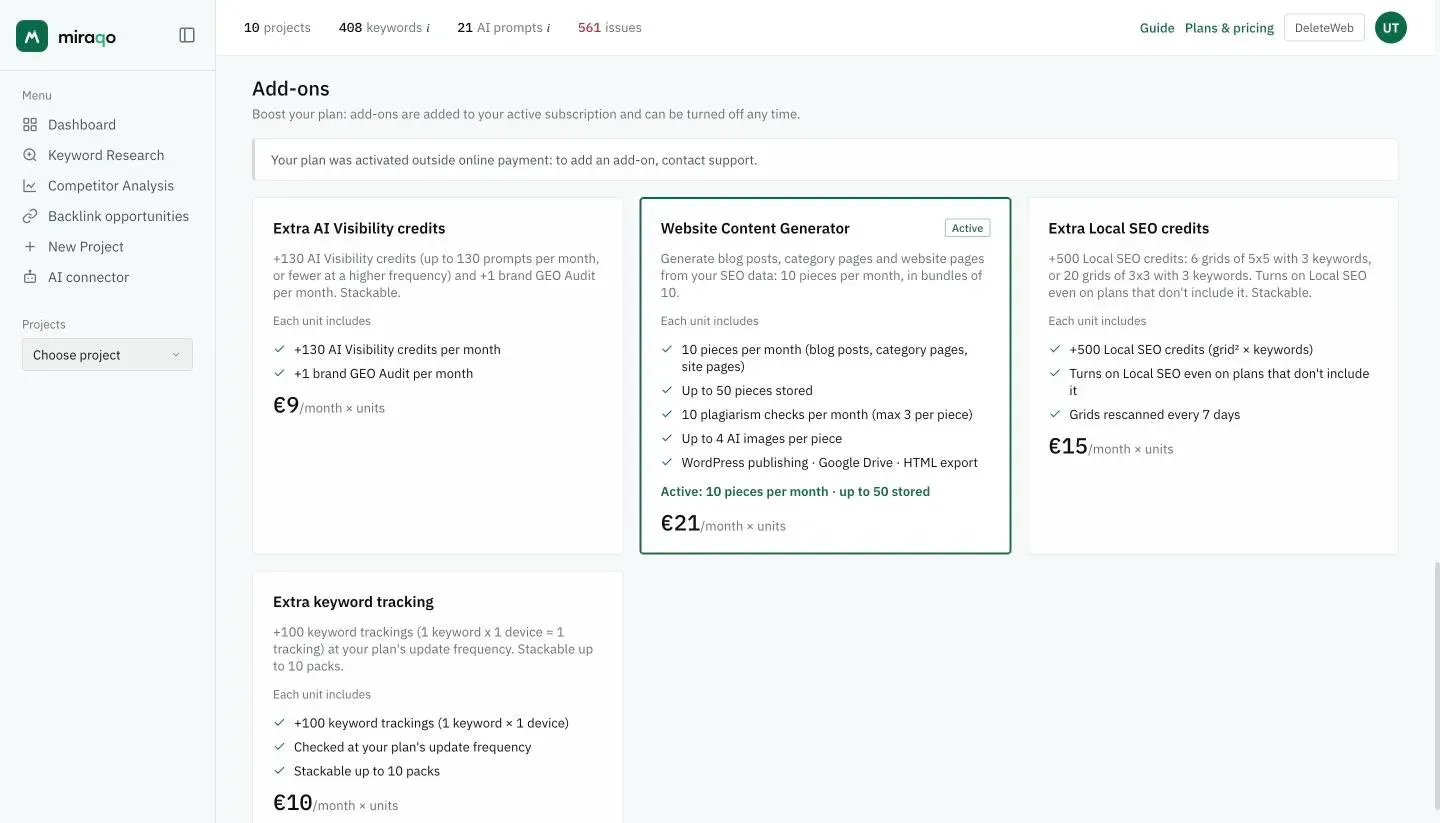
Clicking Activate plan at the top of a column launches a Stripe Checkout. If you already have an active subscription, the effect is an immediate upgrade/downgrade (with Stripe proration).
Managing payments and invoices
In the top right you’ll find Billing details (company name, address, VAT number or tax code: the data that ends up on the invoice) and, after the first checkout, Manage payments, which opens the Stripe portal where you update your payment method and contact details. Invoices aren’t in the portal: they arrive by email (see below).
The button only appears if you already have a Stripe customer associated (i.e. after the first checkout). During a pre-checkout trial it’s not visible: payment has not yet been configured.
Subscription emails
Every important step leaves a trace by email to the organisation owner:
- Subscription active after checkout, with plan, billing cycle and next renewal date. The invoice arrives in a separate email.
- Plan updated, scheduled switch to a lower plan, renewal turned off and turned back on: one confirmation for every choice made from the Subscription page.
- Your plan ends in 3 days: with renewal off, a reminder three days before expiry. With renewal on, annual plans get a Stripe reminder 3 days before the charge; monthly plans don’t.
- Renewal failed: the account stays readable but updates pause until the payment goes through. Card expiring: a warning one month ahead.
- Quota running out: at 80% and 100% of every plan quota (audit credits, researches, analyses, keywords, AI Visibility, backlinks…), one email per resource per month. Monthly quotas reset on the 1st; fixed ceilings don’t.
- Invoice copy after every charge, as PDF. The document is in Italian, the language of the Italian electronic invoice.
These emails can’t be switched off: they are the history of your subscription.
Cancelling your subscription
The Cancel button is available only to the organisation owner, and only if the subscription is active and not in trial.
Clicking it:
- Stripe sets
cancel_at_period_end=true: no automatic renewal. - The subscription remains usable until the end of the already-paid period. Three days before it ends you get a reminder email: until then you can turn renewal back on.
- At expiry the status becomes expired: your data (projects, keywords, history) is retained, but actions that consume API quota (ranking refresh, audit, keyword searches, GSC/GA4 sync, AI prompts…) are blocked until you reactivate a plan.
Miraqo does not automatically downgrade to a free plan: there is no “Free plan” to activate. To resume operations you need to choose one of the plans on the page.
To switch plans instead of cancelling, simply select a different plan from the plans table: the switch is handled by Stripe with a proportional cost adjustment.
Last updated: 18 October 2026