User permissions: giving clients access
Project × actions matrix to give a Client access to selected projects and features only: 9 toggles for what they see, 10 for what they can do, typical setups.
The User permissions page lets you build “custom” access for a user with the Client role: choose which projects they have access to and, for each one, exactly what they can see and do.
Reach it from Team Management → user row → Permissions button.
Client-only. For other roles (Owner, SEO Manager, Member) permissions are always full and this page has no effect. If you want to restrict a colleague who is currently an SEO Manager or Member, first change them to Client from the Team Management page.
Page structure
For each project in the organisation you see a block with:
- An access checkbox next to the project name and domain: the page opens showing only this row per project, in a compact layout. Ticking the checkbox reveals the granular toggles below; unticking closes them.
- Two groups of toggles: Visible sections (what they can see) and Allowed actions (what they can do).
Toggles are independent: you can create arbitrary combinations, for example “sees only Keywords and Reports, nothing in Backlinks, and can export CSV”.
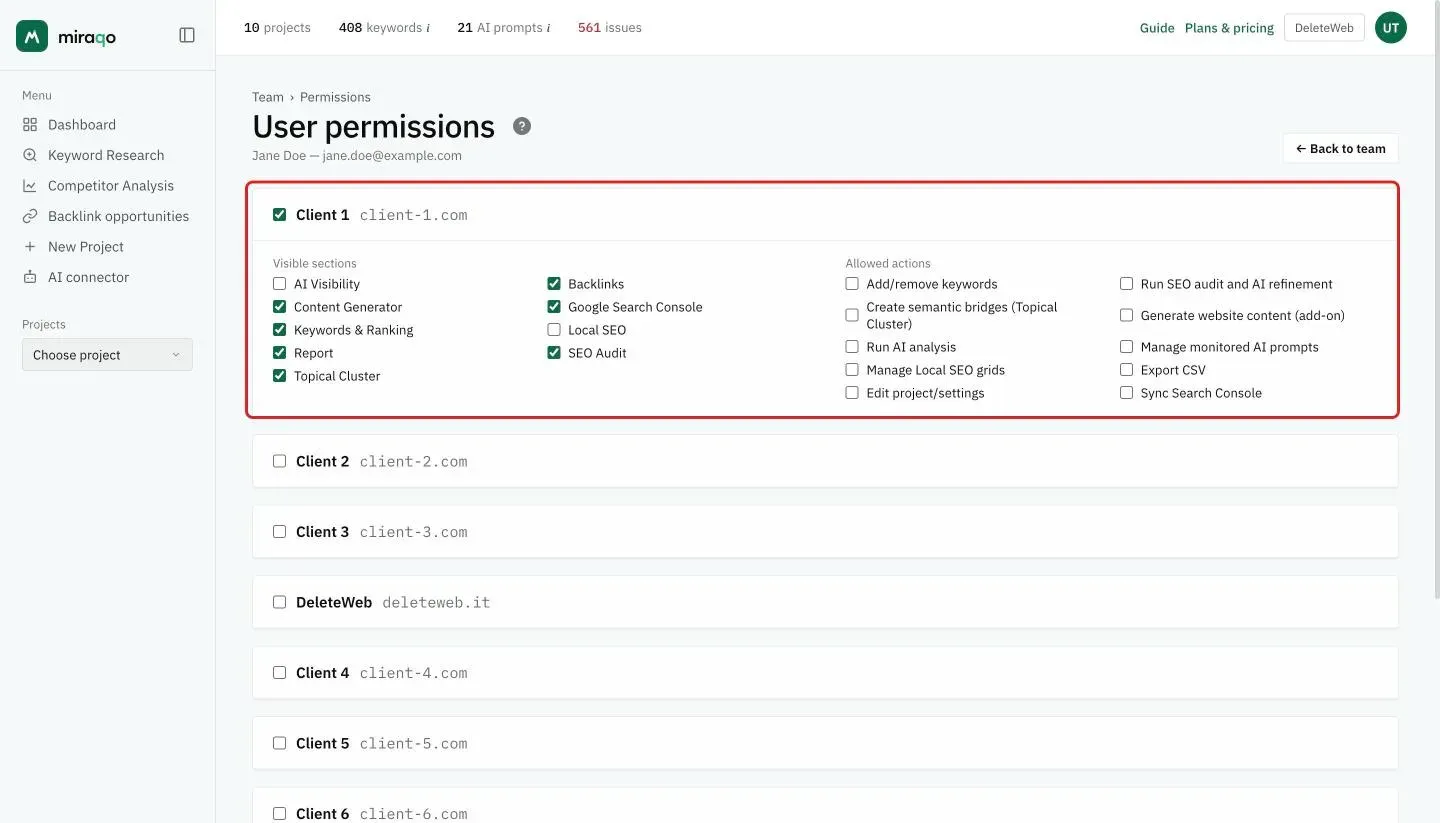
What they can see — 9 toggles
Control which menu items appear in the project for that client. Active by default when you create project access:
- AI Visibility — also includes GEO Audit, AI Overview Impact and AI Competitors
- Backlinks
- Content Generator — browse already-generated content (generating is a separate action, see below)
- Google Search Console — also includes Google Analytics and Matomo
- Keywords & Ranking
- Local SEO — local ranking map and GBP profile
- Reports
- SEO Audit — also includes Performance (Core Web Vitals)
- Topical Cluster — the cluster map (see Topical Cluster); independent from SEO Audit, so you can show one without the other
Disabling an item, the client doesn’t see the corresponding section even if they try to type the URL.
What they can do — 10 toggles
Control actions that modify data or consume plan resources. Disabled by default (default is therefore “view only”):
- Add/remove keywords — manage the project’s “classic” (SERP) keyword list. Doesn’t include AI Visibility prompts or Local SEO keywords: they have their own dedicated toggles.
- Run SEO audit and AI refinement — start an SEO Audit scan of the site and launch the AI refinement of clusters in Topical Cluster.
- Create semantic bridges (Topical Cluster) — generate AI semantic bridges between clusters; consumes the organisation’s AI budget.
- Generate website content (add-on) — create new content with the Content generator; consumes the add-on’s monthly quota.
- Run AI analysis — launch AI analyses on the various sections (Ranking, Backlinks, Audit, GEO Audit, etc.).
- Manage monitored AI prompts — single addition, topic-based generation, promoting candidates, deletion and AI Visibility check cadence. Opens only the “AI Prompts” tab of project settings.
- Manage Local SEO grids — create/edit/delete grids, add/remove grid keywords; scans consume Local SEO credits.
- Export CSV — download data in CSV format.
- Edit project/settings — change name, domain, competitors, brand profile and other project settings (GBP profile included).
- Sync Search Console — manually start the GSC sync.
Typical configuration examples
Client in view-only mode on 1 project. Tick only “Project access” for their project, leave all views active (or remove the ones you don’t want to show) and don’t tick any actions.
Client who can download their keyword CSVs. As above, but enable “Export CSV”.
Client who manages their own keywords independently. Tick access and enable “Add/remove keywords”; you can leave other actions disabled if you don’t want them to start audits or export CSVs.
Client with access to multiple projects. Tick “Project access” on each desired project; configure independent permissions for each.
Saving
Changes are saved with the Save permissions button at the bottom of the page.
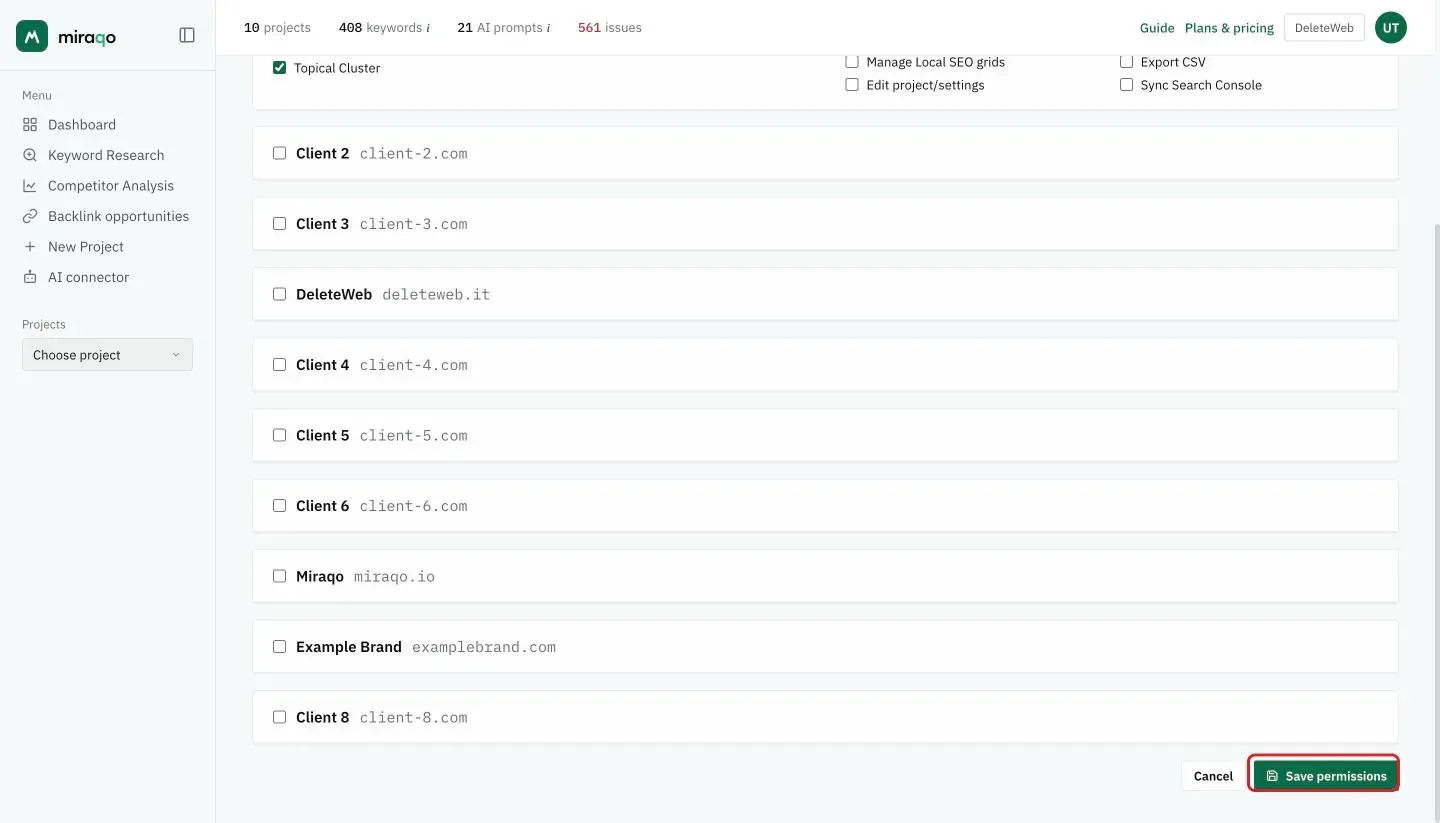
If you remove access to a project in the future and then reactivate it, the previous configuration isn’t restored: choices return to defaults (all views active, all actions disabled) and you need to reconfigure them.
Last updated: 18 October 2026