Run your first SEO audit
How to launch a technical scan of your site, read the score and navigate the 10 report tabs (issues, pages, links, resources, Core Web Vitals, duplicates, redirects, statistics, comparison).
Miraqo’s audit is a technical scan of the site that produces a health score and a list of issues ordered by severity. It’s the fastest way to understand what needs fixing before working on content and links.
Plan required: SEO Audit is included from the Solo plan upwards. The monthly limit (per organisation) is a credit budget, where 1 credit = 1 page checked with HTTP 200 response (redirects, errors and unreachable pages don’t consume credits): Solo 30,000, Starter 90,000, Pro 300,000, Agency 1,500,000. There’s no limit on the number of audits: only the total pages checked in the month counts.
What the audit checks
The crawler analyses the domain up to the maximum number of pages set for the individual audit (default ~1,000 — adjustable in Audit settings); each page with HTTP 200 consumes one credit from the plan’s monthly budget. It produces ~38 checks grouped by severity:
Errors (high priority) — block or severely degrade:
- Pages with 404 / 4xx / 5xx errors
- Broken internal and external links
- Broken resources (images, JS, CSS)
- Pages without title / without H1
- Pages on HTTP, mixed content (HTTPS → HTTP)
- Recursive canonical
Warnings (medium priority) — penalise but don’t block:
- Duplicate title/description, duplicate content
- Title too long/short or low relevance
- Multiple H1 tags on the same page
- Canonical chains
- Heavy HTML, pages over 3 MB, render-blocking resources
- Pages without
viewport, withoutdoctype, without meta encoding - Deprecated HTML tags, frames, Flash, non-SEO-friendly URLs
noindex/ non-indexable pages- AI crawlers blocked by
robots.txt(ChatGPT, Perplexity, Claude, Gemini) — lists who is blocked and what you lose; does not affect the score, since blocking them can be a deliberate choice
Informational (low priority) — micro-optimisations:
- Images without alt text
- Slow pages (> 3 s)
- Redirects (3xx)
- Low readability, inconsistent charset, missing favicon, Lorem Ipsum
llms.txtmissing (weak signal: AI assistants rarely read it; does not affect the score)
Core Web Vitals (CLS/LCP/TBT) are measured directly, with real PageSpeed Insights data, on the dedicated Performance page (the report’s Core Web Vitals tab shows its summary) — see the Performance and Core Web Vitals guide.
Procedure
- Open the project → sidebar group Site Audit → SEO Audit.
- Click Start audit (visible if there’s no audit already queued).
- The crawler starts. The scan typically takes 2–15 minutes depending on the site’s size.
- When it finishes you receive an “Audit completed” email (controllable from the project’s notification preferences) and the report populates automatically.
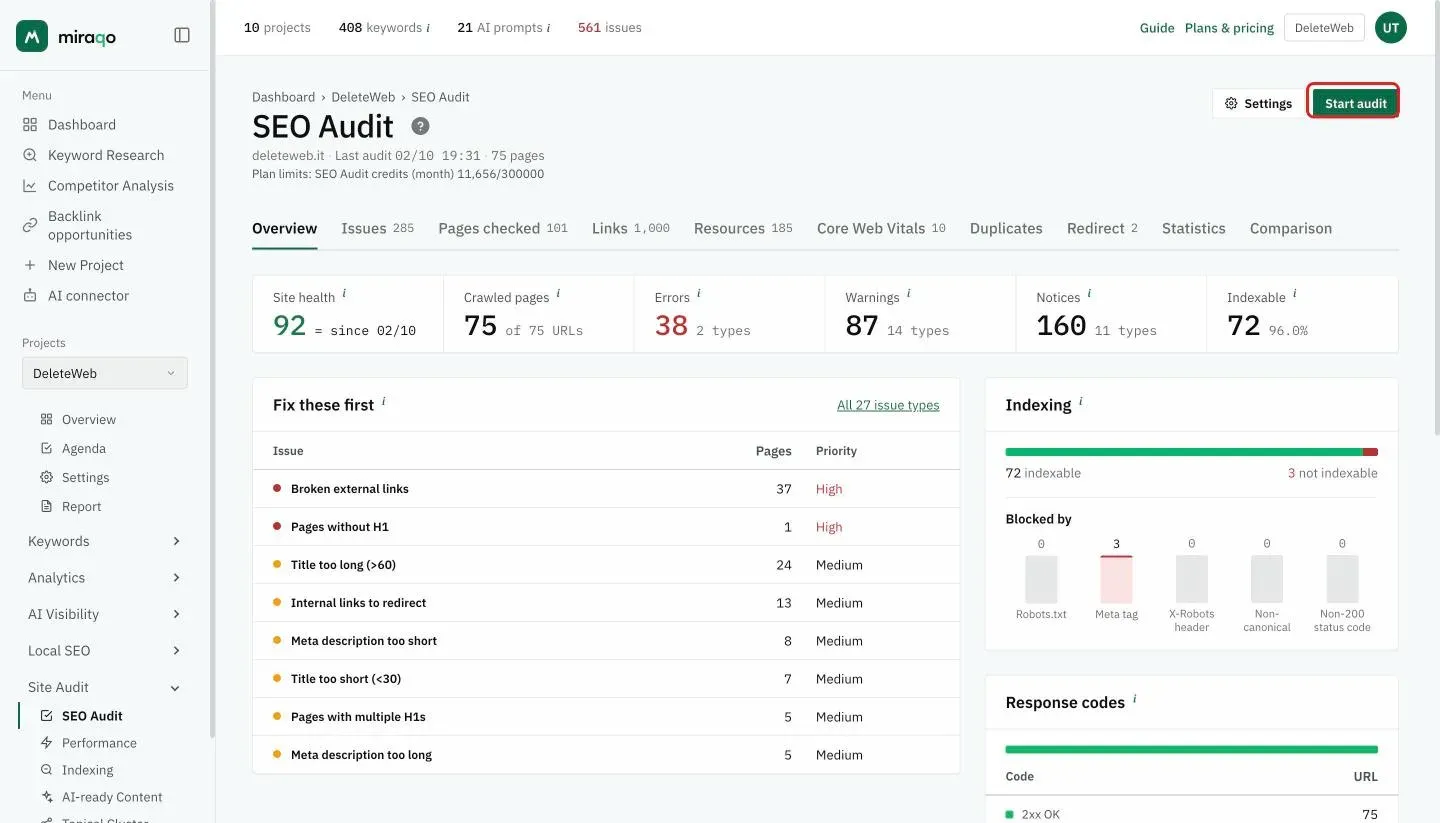
If your
robots.txtblocks everything, unblock at least the*user-agent or reconfigure the crawl in production: without access, the audit returns zero pages.
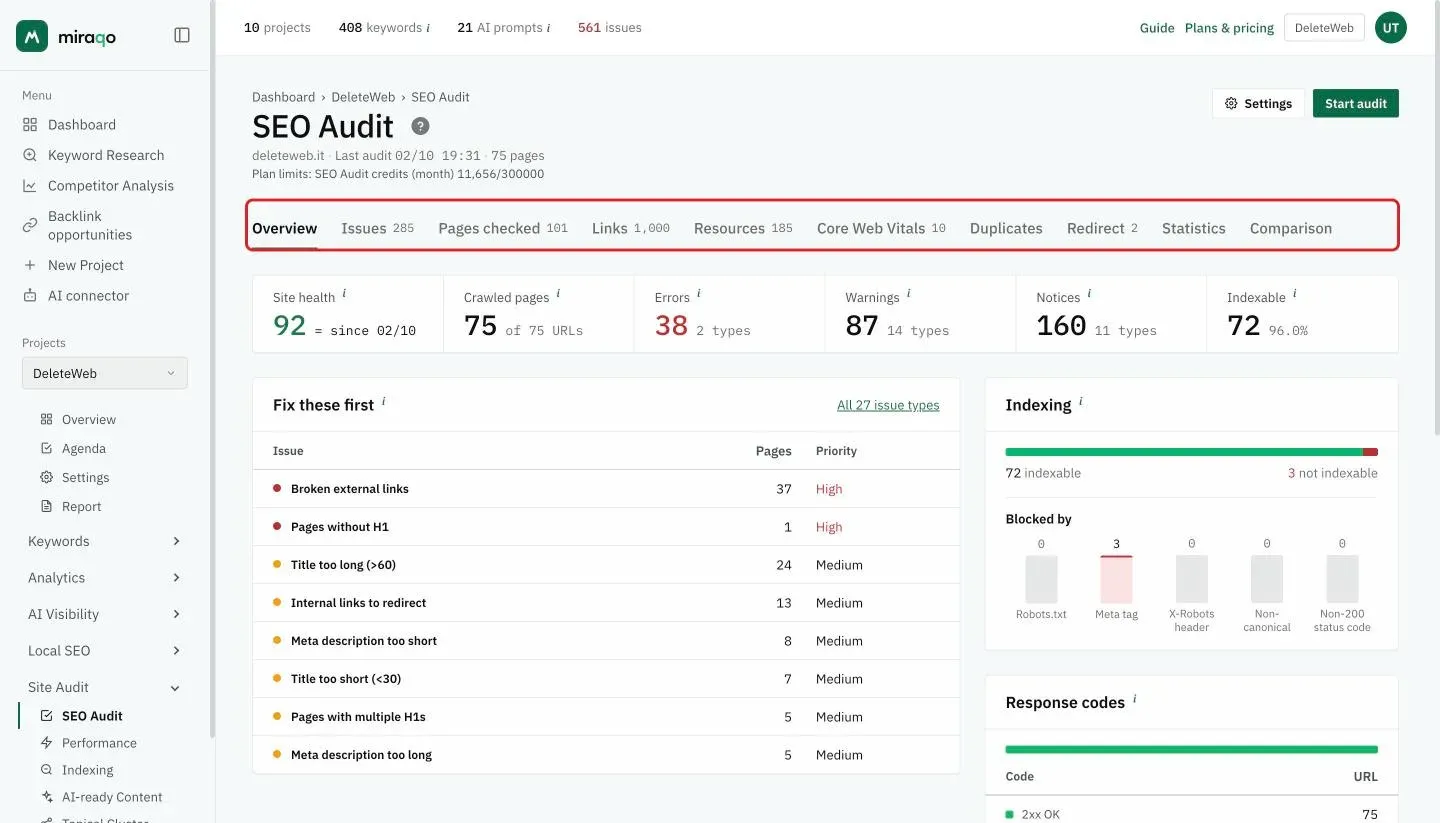
The 10 report tabs
Once the audit is complete, the report has this structure:
| Tab | Contents |
|---|---|
| Overview | The audit figures (site health, crawled pages, errors, warnings, notices, indexable), the Fix these first issues, indexing with the blocking causes and the response codes |
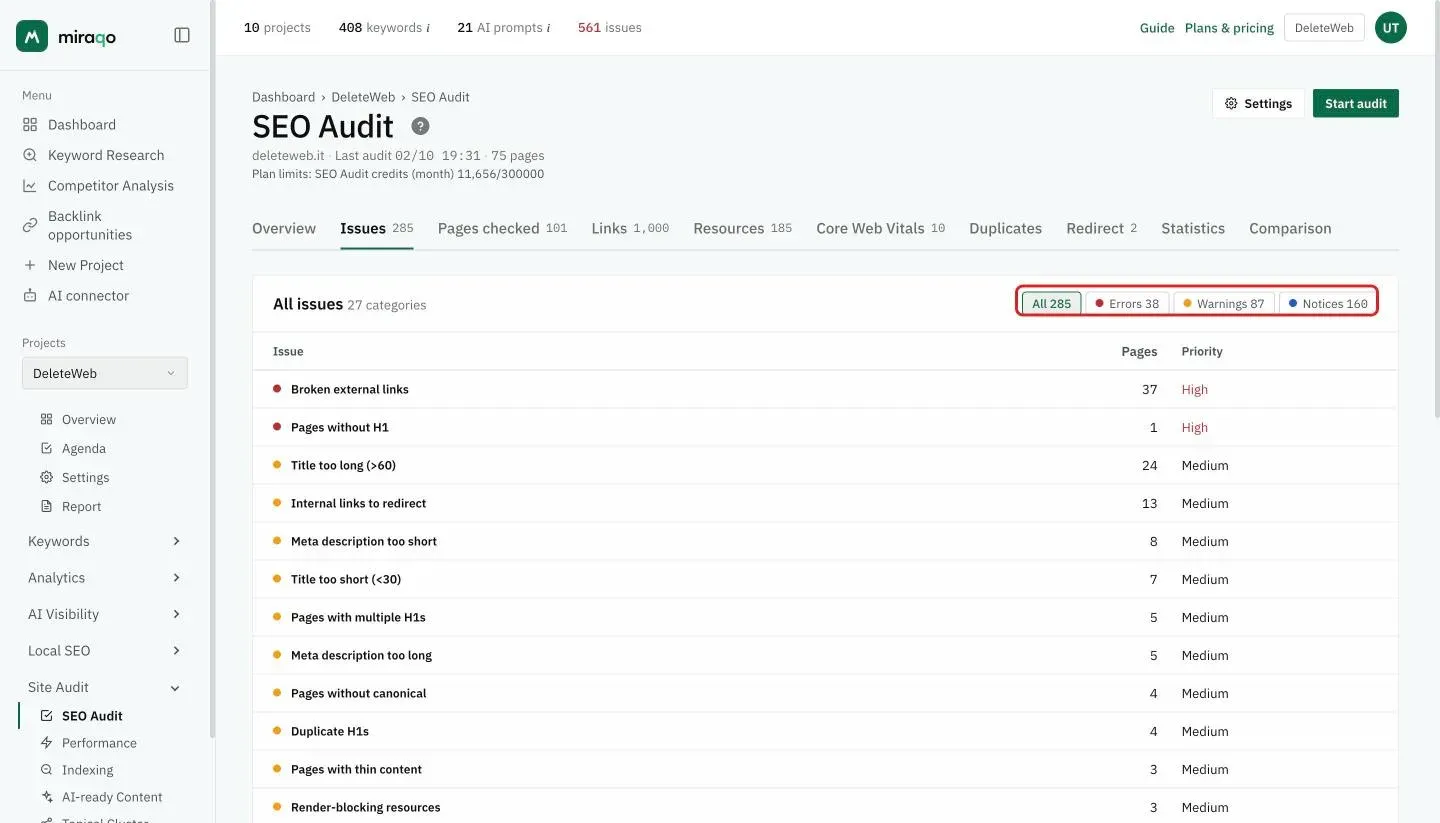
| Issues | Filterable list by severity (All / Errors / Warnings / Notices) |
| Pages checked | All crawled pages, filterable by error type + URL search |
| Links | All detected links (internal/external, broken, dofollow/nofollow) |
| Resources | Images, CSS, JS, fonts — with type filters + search |
| Core Web Vitals | Summary of real Performance/CLS/LCP/TBT (PageSpeed Insights) on a page sample, with a link to the Performance page for full diagnostics |
| Duplicates | Clusters of pages with duplicate title/description/content |
| Redirects | Redirect chains detected |
| Statistics | Status code distribution, average weight, response times |
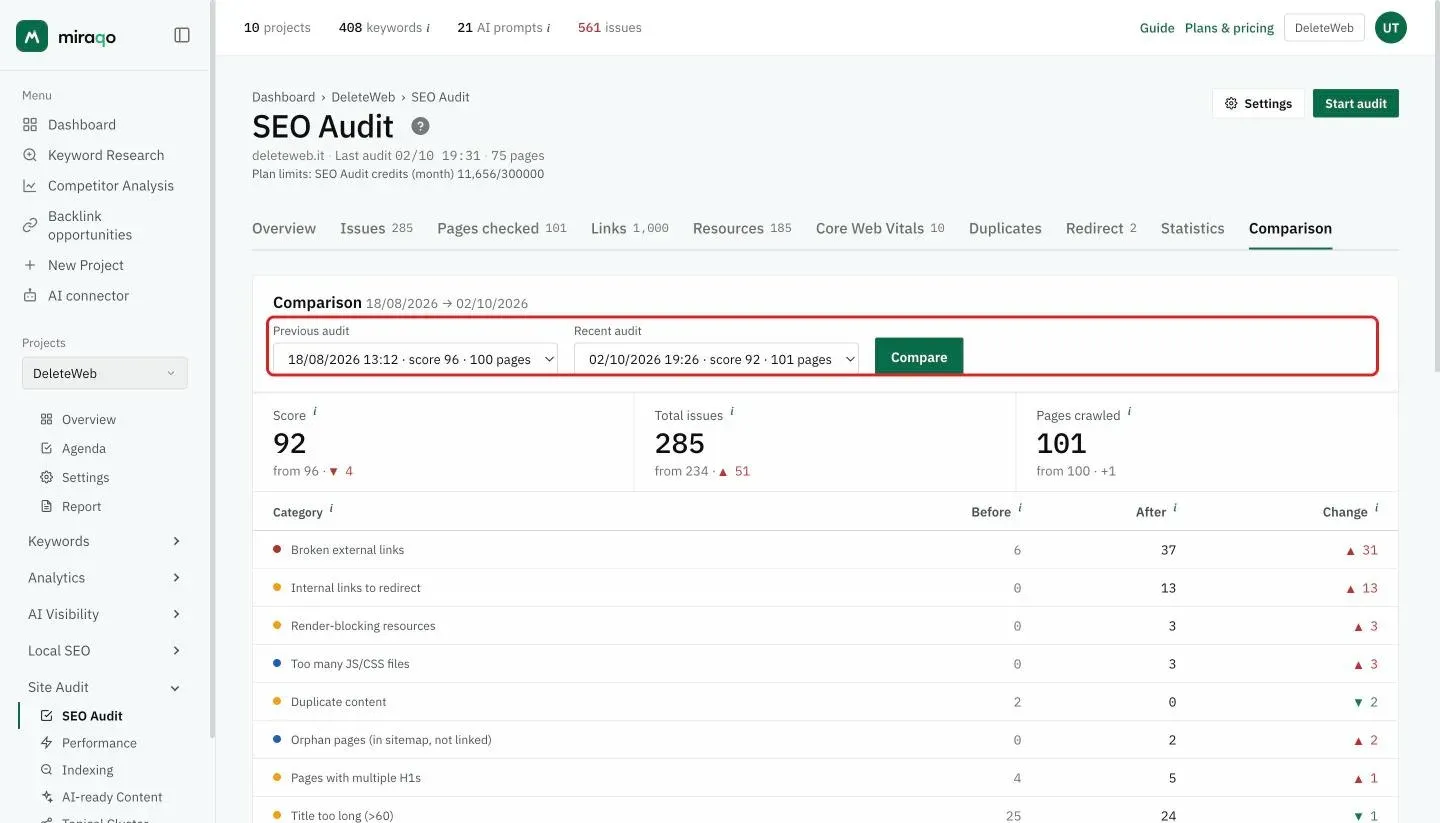
| Comparison | Diff between any two audits of the same project |
In the Issues tab the chips at the top (All / Errors / Warnings / Notices) filter the list by severity; each row shows the number of pages involved and the priority, and clicking it opens the page list.
Reading the score
The score summarises the number and severity of issues:
- 0–40 — critical situation, too many blocking errors
- 40–70 — average health, there are significant points to fix
- 70–100 — healthy site, keep monitoring
Anti-pattern: don’t chase 100. Focus 80% of your time on errors + high-volume warnings; informational items often aren’t worth refactoring.
Comparing audits
From the Comparison tab choose two audits of the same project (default: latest vs previous). See what improved, worsened or appeared from scratch — useful for:
- Verifying that a deploy didn’t introduce regressions
- Documenting work done in a sprint to the client
- Measuring the effect of a migration
Re-running the audit
The audit is on-demand: you click when you want a new snapshot. Alternatively you can schedule it (weekly or monthly) from Audit settings → Scheduling. It typically makes sense to re-run it:
- At the end of an SEO sprint (check that fixes reduced the number of errors)
- After an important deploy or CMS migration
- Monthly for mature sites, to catch regressions
Each start — manual or scheduled — consumes credits from the monthly budget: 1 credit for each page checked with HTTP 200. Pages responding with redirects or errors, and unreachable pages, do not consume credits.
Indexing: which pages are in Google’s index
The Indexing entry in the Site Audit group tells you, page by page, whether Google keeps it in the index. The data comes from the project’s Search Console, through the same API as “URL Inspection” and with no extra consent: only the Search Console connection already made in the Settings is needed.
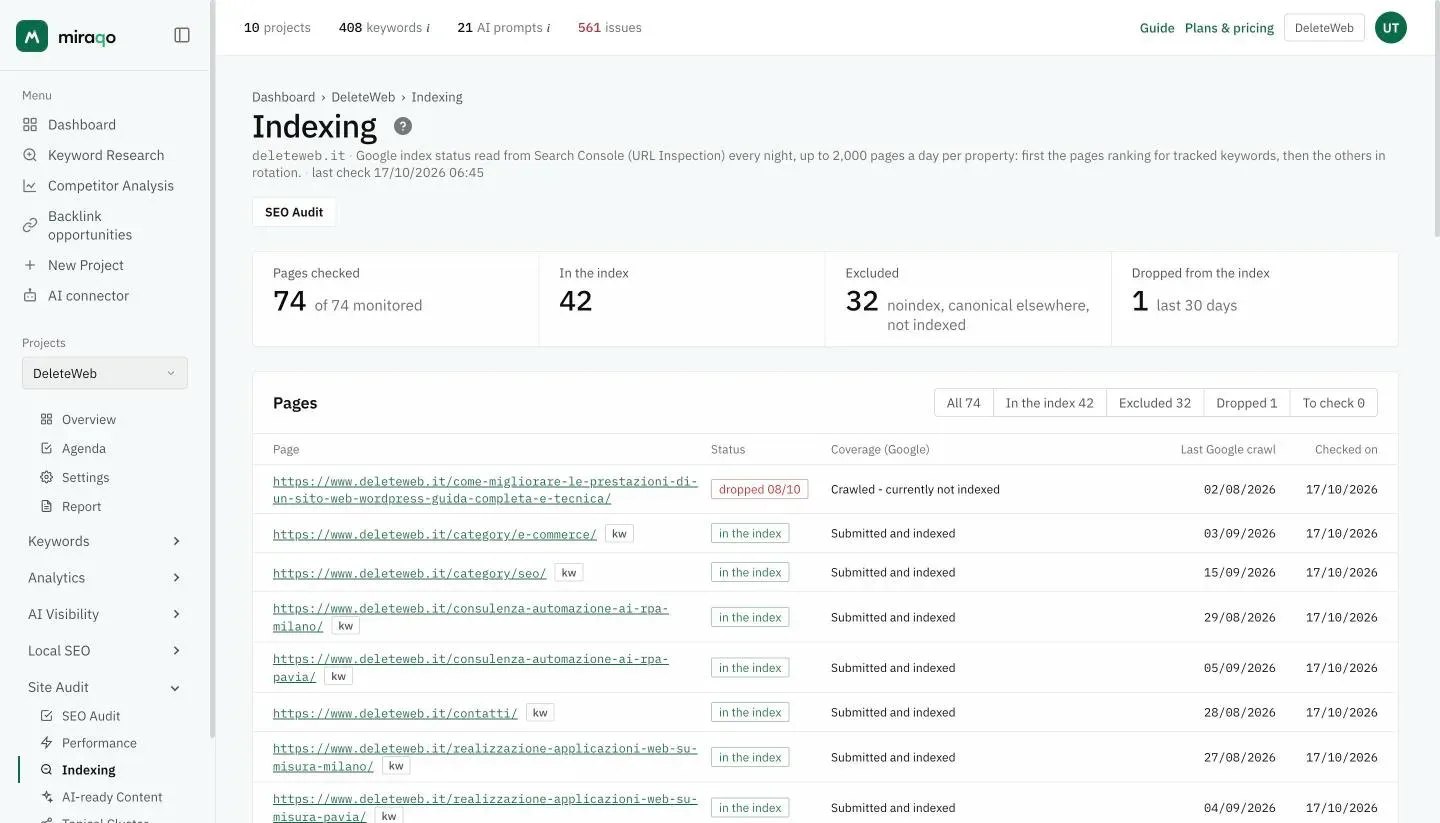
Which pages. The pages with a 200 response from the latest completed audit, plus the URLs ranking for tracked keywords. Google allows 2,000 checks a day per property: pages with keywords are checked every night, the others in rotation (a 5,000-page site is covered in three days). If two projects point to the same property they share the cap.
What you see. For each URL the status (in the index, excluded, dropped, to check), Google’s own coverage text (“Crawled - currently not indexed”, “Excluded by noindex”, “Duplicate, Google chose different canonical”…), the canonical Google chose when it differs, the last crawl and the check date. The filters at the top separate the states.
Dropped from the index. A page is “dropped” when a previous check found it in the index and the latest did not. You get an email (one a day per project, “drops” box in the preferences) and the Overview shows the count for the last 30 days. Pages that never entered the index do not trigger emails: you find them under the “Excluded” filter.
The first check starts with the nightly run after the first completed audit: until then the page says “first check on its way”.
Limits
The monthly limit is a credit budget (1 credit = 1 page with HTTP 200), not a number of audits: you can run as many scans as you like while you have credits.
| Plan | SEO Audit credits / month |
|---|---|
| Solo | 30,000 |
| Starter | 90,000 |
| Pro | 300,000 |
| Agency | 1,500,000 |
The “credits used / budget” counter is visible below the Audit page title and in Subscription.
Common errors
- “Audit still processing” after many minutes — the crawler is still working; automatic polling updates the status. For large sites (>500 pages) it can take up to 15–20 minutes.
- Very low score on first audit — normal for sites that have never had SEO work done. Focus on the red blocks in the first week.
- “0 pages crawled” — the
robots.txtblocks everything, the domain doesn’t respond, or there’s a firewall blocking external crawlers. If the site is behind Cloudflare or an anti-bot system, follow Audit blocked by Cloudflare or a firewall → to authorise the crawler. Also verify the site is reachable from outside. - Important pages missing from the crawl — the site exceeds the maximum pages set: the audit found pages reachable starting from the homepage, up to the limit (raise it in Audit settings). Orphan pages (not linked) won’t be found anyway.
Fixed the blockers? Next step: Configure the local ranking map →
Last updated: 18 October 2026